

Troubleshooting Windows Update Errors: Step-by-Step Fixes
Windows Update problems occur when the update process fails to download, install, or configure system updates, producing error codes, rollbacks, or stalled progress. This guide explains why updates fail, how to interpret common error codes, and the stepwise actions that fix update errors on Windows 10 and Windows 11. You will learn quick triage steps, component-reset commands, and when to use built-in diagnostics like the Windows Update Troubleshooter, SFC, and DISM to repair corrupted update files. The article also maps specific error codes to likely causes and quick remedies, compares diagnostic tools with use cases, and summarizes known 2024-era Windows 11 and Windows 10 issues and practical mitigations. Throughout, the focus is on actionable, low-risk steps you can run at home, plus clear escalation guidance for persistent failures that need remote expert help.
What Are the Most Common Windows Update Error Codes and Their Meanings?
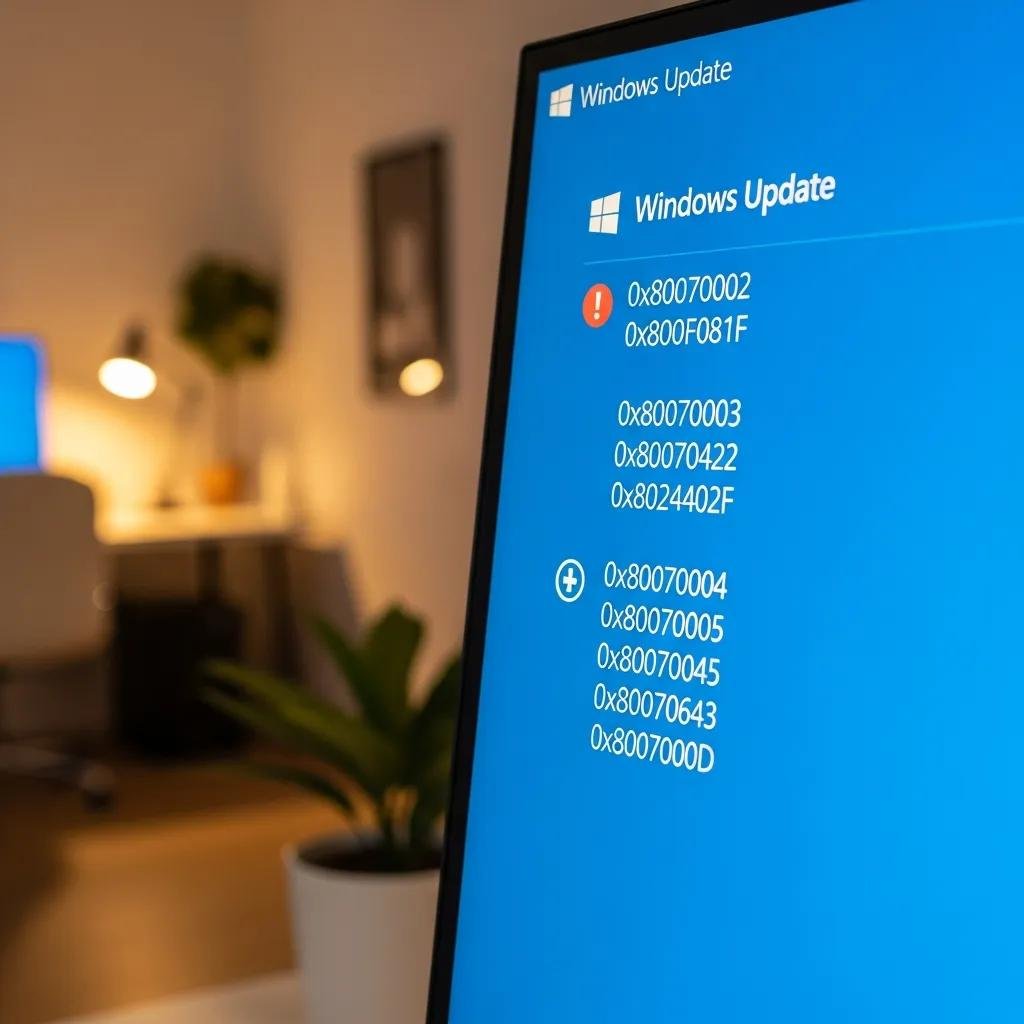
Windows Update error codes identify the failure type and guide the fix by mapping code → cause → remedy. Understanding these codes helps prioritize whether the issue is a download problem, permission failure, driver conflict, or corrupted update files. Below is a concise roster of top codes, one-line meanings, and immediate first-step remedies you can try before deeper repairs.
Which Windows Update Error Codes Should You Know?
The following list highlights priority error codes to recognize and what each commonly signals. These codes help determine if the problem is network-related, file-corruption, permissions, or driver/compatibility failure. Use this quick reference when scanning Windows Update history or event logs for root-cause clues.
- 0x80070002 — Missing files during update: check disk space and run the Update Troubleshooter.
- 0x800f081f — .NET or package corruption: run DISM /RestoreHealth then retry installation.
- 0x80070422 — Update service disabled: enable wuauserv and related services and restart.
- 0x80070005 — Access denied/permission errors: run as admin, check antivirus and file ACLs.
- 0xC1900101 — Driver or compatibility failure: update drivers or uninstall conflicting hardware drivers.
These codes indicate whether to try network fixes, reset components, run system scans, or update drivers as the next step. The EAV table below maps each code to common causes and an immediate quick fix for fast scanning.
| Error Code | Common Causes | Quick Fix |
|---|---|---|
| 0x80070002 | Corrupted or missing update files, interrupted download | Run Windows Update Troubleshooter; clear SoftwareDistribution |
| 0x800f081f | Component store or .NET package corruption | Run DISM /Online /Cleanup-Image /RestoreHealth then retry |
| 0x80070422 | Windows Update service disabled or blocked by policy | Start wuauserv and set service to Automatic |
| 0x80070005 | Permission denied due to file ACLs or antivirus lockdown | Run as admin; temporarily disable third-party AV |
| 0xC1900101 | Driver incompatibility during upgrade | Update or roll back device drivers; disconnect peripherals |
This table gives a quick scanning tool to pair an observed code with a first remedy and a next diagnostic step.
How Can You Resolve Windows Update Installation Failures and Stuck Updates?
Resolving installation failures requires a prioritized checklist that moves from simple to advanced actions, minimizing risk and time. Start with basic environmental checks, then escalate to component resets, manual package installs, and system-file repairs. If an update keeps failing or repeatedly rolls back, consider collecting logs and seeking remote expert support.
What Steps Fix Windows Update Stuck or Not Downloading?
Follow this ordered quick-fix checklist to unstick downloads and resume installations; each step is fast and reversible so you can test progress as you go.
- Restart the PC and router: simple reboot clears transient network or lock issues.
- Check free disk space: ensure at least several gigabytes for staging update files.
- Verify Windows Update settings: disable metered connections and re-enable updates.
- Run the Windows Update Troubleshooter and review the reported issues.
- Restart Background Intelligent Transfer Service (BITS) and Windows Update service.
These steps typically resolve most “pending download” or “stuck at 0%” scenarios within 10–30 minutes. If problems persist after these steps, move to reset update components and manual package installs described below. When repeated attempts fail or the system shows complex errors, remote professional assistance can save time: mcHelper.com offers remote Computer Tech Support and Operating System Restoration and Updates with certified technicians available 24/7 under a no fix – no fee guarantee for escalated cases.
How to Clear Windows Update Cache and Reset Update Components?
Resetting update components removes corrupted download caches and restarts key services; administrative privileges are required. Run these commands in an elevated Command Prompt in sequence: stop wuauserv, stop bits, rename the SoftwareDistribution and Catroot2 folders, then restart services and retry updates. This clears cached data that commonly causes repeated failures.
- net stop wuauserv
- net stop bits
- rename C:WindowsSoftwareDistribution SoftwareDistribution.old
- rename C:WindowsSystem32catroot2 catroot2.old
- net start bits
- net start wuauserv
These commands repair the meronym components of Windows Update—SoftwareDistribution and Catroot2—by forcing fresh re-creation. If you are uncomfortable running command-line steps, remote support can perform these safely on your behalf. After resetting, allow Windows Update to check online and re-download packages; if errors persist, collect WindowsUpdate.log for advanced diagnostics.
Which Tools Help Diagnose and Repair Windows Update Problems?

Tool selection matters: some diagnostics run quickly for simple fixes, while others are longer but repair deep corruption. Use a layered approach: start with the Windows Update Troubleshooter, then run SFC for file integrity, followed by DISM for component-store repairs. Event Viewer and WindowsUpdate.log provide diagnostic detail when gathering evidence for escalation.
How to Use the Windows Update Troubleshooter Effectively?
The Windows Update Troubleshooter automates many checks and can resolve common configuration and permission issues without commands. Run it from Settings → Update & Security → Troubleshoot → Additional troubleshooters → Windows Update, follow prompts, and apply recommended fixes; then reboot and recheck updates. If the troubleshooter reports component failures, proceed to component reset steps and SFC/DISM scans to repair corrupted files.
Typical outcomes include resolving service configuration issues, clearing stalled download queues, or identifying blocked components. If the tool flags specific services or file errors, record the messages and proceed to the targeted repairs outlined in the next subsection. Technicians also advise running the troubleshooter before collecting logs for remote diagnostics.
When and How to Run SFC and DISM Scans for System File Repair?
SFC and DISM repair different layers: SFC scans and restores protected system files, while DISM repairs the component store that supplies update packages. Run SFC first: in an elevated prompt; if SFC reports unrepaired files, run and then repeat SFC. Expect SFC to take 10–20 minutes and DISM to take 15–45 minutes depending on disk speed and corruption level.
- sfc /scannow
- DISM /Online /Cleanup-Image /RestoreHealth
- Reboot and re-run Windows Update
Collect CBS.log or DISM logs when scans report persistent errors; these logs help technicians diagnose deeper corruption. mcHelper.com technicians use these same tools during remote sessions and can run extended diagnostics and log analysis if required, providing a clear next step for stubborn component-store issues.
| Tool | Privileges Required | Use Case |
|---|---|---|
| Windows Update Troubleshooter | Standard user (some fixes require admin) | Quick automated fixes for configuration and download issues |
| SFC (sfc /scannow) | Administrator | Repair protected system files that block updates |
| DISM (RestoreHealth) | Administrator | Repair Windows component store and corrupted update resources |
| Reset scripts / Rename folders | Administrator | Recreate SoftwareDistribution and Catroot2 caches to clear bad packages |
This comparison clarifies when to run each tool and what to expect during runtime and privileges.
What Are the Known Windows 11 and Windows 10 Update Issues and How to Address Them?
Windows 11 and Windows 10 each have contemporary update quirks that emerged through 2024; understanding these helps choose mitigations such as driver rollbacks, staged feature deployments, or upgrade paths. Recent reports include NDI-related performance regressions and occasional storage-device compatibility issues after major feature updates. Planning and mitigation reduce disruption during updates.
What Performance Problems Occur After Windows Updates?
Post-update symptoms commonly include UI stuttering, increased disk I/O, driver crashes, and thermal or power-management regressions. When performance degrades, immediate steps include rolling back the last update, updating device drivers from Device Manager, uninstalling recently added software, and checking Event Viewer for driver-related errors. If rollback resolves the issue, block the problematic update temporarily and await a patched release.
- Roll back the recent update via Recovery options.
- Update or reinstall device drivers causing errors.
- Check Event Viewer for faulting modules and driver files.
These actions typically restore stable performance; if issues persist across reboots or affect multiple devices, consider professional remote diagnostics for deeper profiling.
How to Plan for Windows 10 End-of-Life and Upgrade Strategies?
Windows 10 reaching end-of-life requires planning: inventory hardware compatibility, verify application support, and back up critical data before upgrading. Use a checklist to prepare for a controlled migration, validate drivers and firmware, and stage upgrades to avoid surprises on production machines.
- Compatibility check: confirm CPU, RAM, and storage meet target OS requirements.
- Backup plan: full image or file-level backups before major upgrades.
- Staged rollout: upgrade one device and validate key applications before mass deployment.
When large-scale migrations or complex compatibility problems appear, professional services for Operating System Restoration and Updates can accelerate safe upgrades and reduce downtime. mcHelper.com provides remote support for upgrade planning and hands-on remote assistance from certified technicians, available 24/7 and backed by a no fix – no fee guarantee for eligible restoration services.
| Issue | Symptom | Workaround |
|---|---|---|
| NDI-related performance degradation | Audio/video stutter, high CPU | Roll back driver or update NDI components; monitor patched drivers |
| Storage driver regressions | Slow I/O, timeouts during updates | Update storage firmware/drivers; rollback update if necessary |
| Windows 10 compatibility gaps | Application failures after upgrade | Verify app vendors, use compatibility mode, plan staged upgrade |
- Quick triage checklist for update failures: restart, check space, run troubleshooter.
- Advanced repair steps: reset components, run SFC/DISM, install manually from Microsoft Update Catalog.
- When to call a pro: repeated failures, component-store corruption, or time-critical business systems.
Implementing this sequence addresses most Windows update failures while preserving data and system stability. If you need remote expert help, mcHelper.com’s certified technicians offer remote Computer Tech Support and Operating System Restoration and Updates with 24/7 availability and a no fix – no fee promise for qualifying repairs.





