

Top Wireless Keyboard & Mouse Combos for Productivity
A mismatched keyboard and mouse can slow typing, increase strain, and interrupt flow during focused work; choosing the right wireless keyboard and mouse combo solves those pain points by pairing ergonomic design with reliable connectivity. This guide explains how to pick a productivity-focused wireless keyboard mouse setup, compares top combos for current workflows, and shows practical setup and maintenance steps to keep devices responsive throughout the day. You’ll learn which features matter for coding, writing, and multitasking, how ergonomic peripherals reduce fatigue, which connectivity options strike the best balance between latency and convenience, and checklist-style optimizations for battery life and a clutter-free desktop. The article uses current 2024 perspectives and practical recommendations to help you choose the best wireless keyboard and mouse combo and get them working smoothly with your Mac or Windows system.
What Are the Best Wireless Keyboard and Mouse Combos for Productivity?
The best wireless keyboard and mouse combos for productivity combine comfortable key feel, multi-device support, and a precision mouse with programmable controls so users can maintain momentum without interruptions. In practical terms, a productivity combo pairs a low-profile or tactile keyboard that supports multi-device switching with a sculpted wireless mouse that offers adjustable DPI and programmable buttons for macros. Below is a compact comparison to help you decide quickly among widely recommended combos that balance ergonomics, connectivity, and battery life for office use.
Introductory comparison of recommended productivity combos:
| Combo | Connectivity | Ergonomics | Battery Life | Multi-device Support |
|---|---|---|---|---|
| Logitech MX Keys S + MX Master 3S | Bluetooth / Unifying | Low-profile keyboard + sculpted mouse | Long (rechargeable) | Yes, 3-device switching |
| Keychron compact combo | Bluetooth / USB receiver | Compact layout, ergonomic reach | Long (rechargeable/replaceable) | Yes, multi-device |
| Razer Pro Type Ultra + Razer mouse | Bluetooth / dongle | Comfortable mechanical-like key feel | Long (rechargeable) | Yes, multi-host pairing |
| Apple Magic Keyboard + Magic Mouse | Bluetooth | Low-profile, minimalist | Moderate (rechargeable) | Best with Mac ecosystems |
This table highlights combos that suit heavy typing, multitasking, and precision pointing, with product choices that emphasize productivity use-cases and cross-platform support. If you want direct help pairing these combos, checking drivers, or ensuring your Mac or Windows settings favor consistent input performance, mcHelper.com provides remote technical support and troubleshooting to get peripherals integrated quickly.
Which Features Define a Productivity-Focused Wireless Keyboard and Mouse Combo?
A productivity-focused combo prioritizes key feel, programmability, connectivity stability, and mouse precision so users can maintain speed and accuracy across tasks. Key switches and low-profile keycaps determine typing comfort and error rates, while programmable keys enable macros that automate repetitive sequences and speed workflows. DPI and adjustable sensitivity on a wireless mouse let users switch between pixel-precise editing and rapid cursor movement for document navigation, and multi-device keyboards remove context-switching friction by letting you pair to several machines. Choosing devices with reliable battery compartments or rechargeable cells reduces downtime and ensures peripherals remain ready for extended work sessions.
This feature set transitions naturally into brand and model options that implement these features in practical product designs and price points.
What Are the Top Brands and Models in 2024 for Wireless Peripherals?
Leading brands in 2024 focus on mixing low-latency connectivity, ergonomic design, and multi-device capabilities that suit hybrid work. Logitech delivers balanced productivity gear with models like the MX Keys S and MX Master 3S that prioritize typing comfort and programmable mouse controls. Keychron offers compact Bluetooth keyboard combos favored by developers and laptop users who want mechanical feedback in a small footprint. Razer Pro Type Ultra targets professionals needing tactile feedback and productivity software for macros. Apple’s Magic Keyboard remains a streamlined option for Mac users who value minimalist design and system integration. Each brand maps to different priorities: ergonomics, compactness, programmable workflows, or ecosystem fit.
These brand strengths lead into why ergonomics matter for long-term comfort and sustained output.
How Do Ergonomic Wireless Keyboards and Mice Enhance Comfort and Efficiency?
Ergonomic wireless keyboard and mouse designs reduce repeated strain by aligning hand, wrist, and forearm posture to more natural positions, which in turn preserves typing speed and reduces error rates over long sessions. Split and tented keyboards reduce ulnar deviation, vertical mice reduce forearm pronation, and low-profile keys decrease the force and travel needed for each keystroke; collectively these features lower fatigue and support longer focused work periods. Investing in ergonomic peripherals can reduce the need for frequent breaks and can improve comfort for heavy typists, developers, or remote workers who log multiple hours at a desk. Understanding specific ergonomic mechanisms helps you choose a device that fits your habitual posture and workflow.
Ergonomic choices naturally lead to specific form factors that address common sources of strain.
What Ergonomic Designs Reduce Strain During Extended Use?
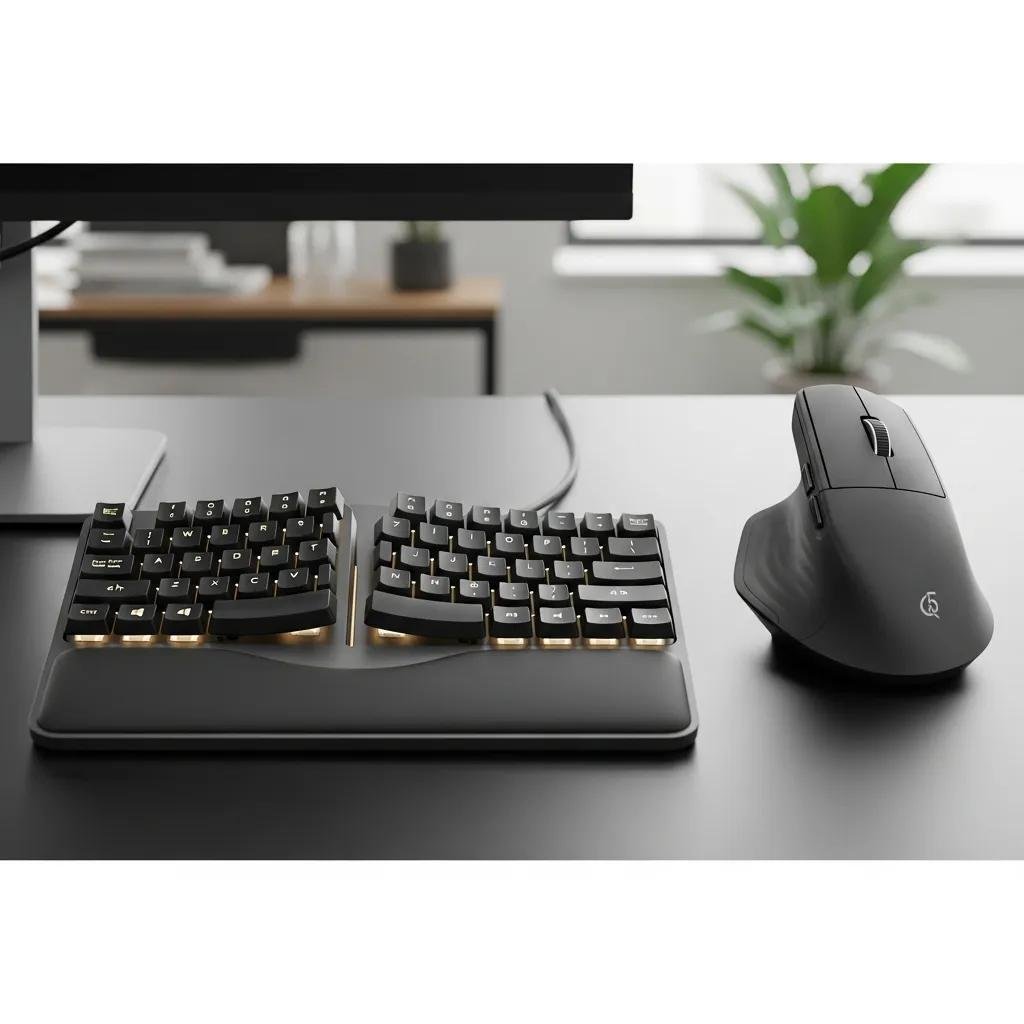
Certain ergonomic form factors target wrist, forearm, and shoulder strain by changing how forces are transmitted during input tasks. Vertical ergonomic mice position the hand in a handshake posture to reduce pronation and forearm rotation, while split keyboards and slight tenting align wrists and reduce ulnar deviation associated with typing. Low-profile keycaps and integrated wrist rests decrease reach and required finger force, making long typing sessions less taxing. Selecting the right design depends on your repetitive movements and whether you perform more typing or mouse-intensive tasks, so pairing the form factor to the dominant activity yields the best comfort gains.
These design choices connect to investment decisions about whether ergonomic peripherals pay off in productivity.
Are Ergonomic Wireless Peripherals Worth the Investment for Office Work?
Ergonomic wireless peripherals often deliver measurable comfort and efficiency benefits that justify their cost for frequent computer users, particularly those who type or use a mouse for multiple hours daily. For heavy typists, developers, and remote workers, reduced strain can translate into fewer interruptions, longer periods of sustained focus, and potentially reduced risk of repetitive strain injury. For occasional users, lower-cost ergonomic accessories or periodic posture adjustments can provide meaningful gains before committing to premium devices. As a rule of thumb, prioritize ergonomics if you exceed four hours of continuous computer work most days.
Comfort and ergonomics bring us to practical connectivity choices that affect daily reliability and responsiveness.
What Connectivity Options Are Best for Wireless Keyboards and Mice in the Office?
Connectivity choice—Bluetooth, 2.4 GHz dongle, or wired—directly impacts latency, pairing convenience, and interference resilience, which in turn affects how seamless your workflow feels. Bluetooth excels at multi-device pairing and minimizes dongle clutter, 2.4 GHz USB receivers typically deliver lower latency and stable connections in crowded RF environments, and wired remains the fallback for scenarios demanding absolute responsiveness. Which option you choose should match your priorities: multi-device flexibility, low-latency precision, or maximum reliability. The compact comparison below helps clarify trade-offs for office contexts such as hot-desking, laptop mobility, and dedicated workstations.
Introductory table comparing connectivity options:
| Connection Type | Latency | Reliability | Pairing | Common Interference |
|---|---|---|---|---|
| Bluetooth | Moderate | Good | Easy multi-device | Wi-Fi and other Bluetooth devices |
| 2.4 GHz USB receiver | Low | Very good | Single-dongle pairing | USB port crowding, nearby dongles |
| Wired | Lowest | Excellent | No pairing needed | None (wired) |
This comparison shows that Bluetooth favors flexible workflows while 2.4 GHz offers lower-latency reliability; wired is still preferable when absolute input precision matters.
Bluetooth vs. 2.4 GHz Wireless: Which Offers Better Performance and Reliability?
Bluetooth offers broad multi-device capabilities and low-power profiles, making Bluetooth mouse and keyboard combos ideal for users who switch between laptop, tablet, and desktop. 2.4 GHz wireless using a dedicated USB receiver generally yields lower latency and a more stable link in RF-dense offices, which benefits precision tasks and minimizes drops. Wired connections eliminate pairing and RF interference entirely, so they remain the choice for workloads where any lag is unacceptable. For most office settings, a combination—Bluetooth for mobility and a 2.4 GHz dongle for a primary workstation—provides the best mix of reliability and convenience.
When connections fail, practical troubleshooting steps can restore productivity quickly.
How to Troubleshoot Common Wireless Peripheral Connectivity Issues?
Start troubleshooting by checking power and battery levels, confirming device pairing mode, and moving devices closer to the host to rule out range issues; these quick checks restore most connections. Next, re-pair the device, try a different USB port for the receiver, and restart the host’s Bluetooth stack or USB controller to resolve driver-level glitches. Update firmware and device drivers where available, and reduce RF interference by moving other 2.4 GHz devices or switching Wi-Fi channels if necessary. If interference or pairing problems persist despite these steps, mcHelper.com offers remote support and system-level troubleshooting to resolve persistent connectivity issues without complicated in-person service.
Practical troubleshooting ties into setup and maintenance practices that extend battery life and desktop efficiency.
How Can You Optimize Your Wireless Peripheral Setup for Maximum Productivity?
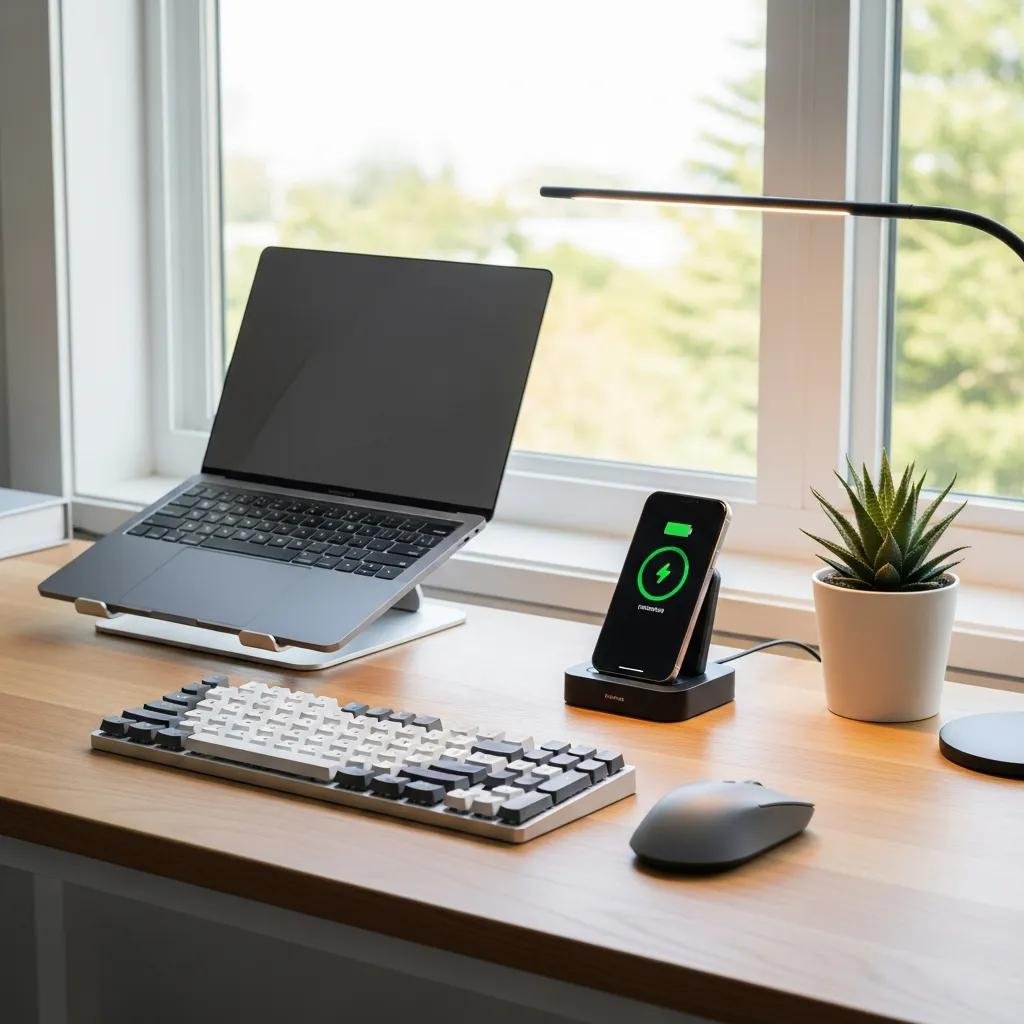
Optimizing a wireless peripheral setup combines battery management, firmware updates, and a clutter-free desk layout to minimize interruptions and speed routine tasks. Keeping firmware and drivers current ensures the operating system and devices communicate efficiently, while thoughtful desk placement reduces reach and supports ergonomic posture. Centralized charging solutions and device sleep settings minimize downtime, and organizing multi-device workflows eliminates mode-switch friction. Below is a targeted best-practice table for battery management across device types, followed by actionable checklist items to maintain a tidy, efficient workspace.
| Device | Attribute | Best Practice |
|---|---|---|
| Keyboard | Power source | Use rechargeable batteries or built-in charging for heavy users |
| Mouse | Sleep/polling | Enable sleep timers and adjust polling rate when available |
| Combined set | Firmware | Keep firmware updated to optimize power and connectivity |
This mapping highlights easy wins: prefer rechargeable options for frequent users, and leverage sleep/firmware settings to extend run time.
What Are the Best Practices for Battery Life Management in Wireless Devices?
Good battery management starts with choosing devices that support rechargeable cells or long-life primary batteries to suit your usage patterns, which minimizes mid-day downtime. Configure device sleep timers and lower polling rates where supported to reduce power draw during idle periods without impacting responsiveness for active tasks. Keep a dedicated charging routine or spare batteries accessible to avoid interruptions, and install firmware updates that may include power-profile improvements. For system-level tweaks such as OS power settings that affect peripheral behavior, mcHelper.com can provide remote assistance to adjust configurations and ensure peripherals perform optimally.
These battery practices flow into a broader approach for maintaining a clutter-free, efficient desktop.
How to Create a Clutter-Free Wireless Desktop Setup for Efficient Workflow?
A clutter-free wireless desktop places frequently used devices within ergonomic reach, groups charging and USB hubs centrally, and reduces visual distractions to support focused work. Minimize the number of active devices to those you use daily, route any necessary cables under a desk or behind a monitor, and use consistent multi-device workflows to avoid frequent mode switching that breaks concentration. Adopt a single, visible charging location for rechargeable peripherals and keep spare batteries in a labeled drawer for quick swaps. Implementing these layout choices reduces micro-interruptions and keeps attention on high-value tasks.





