
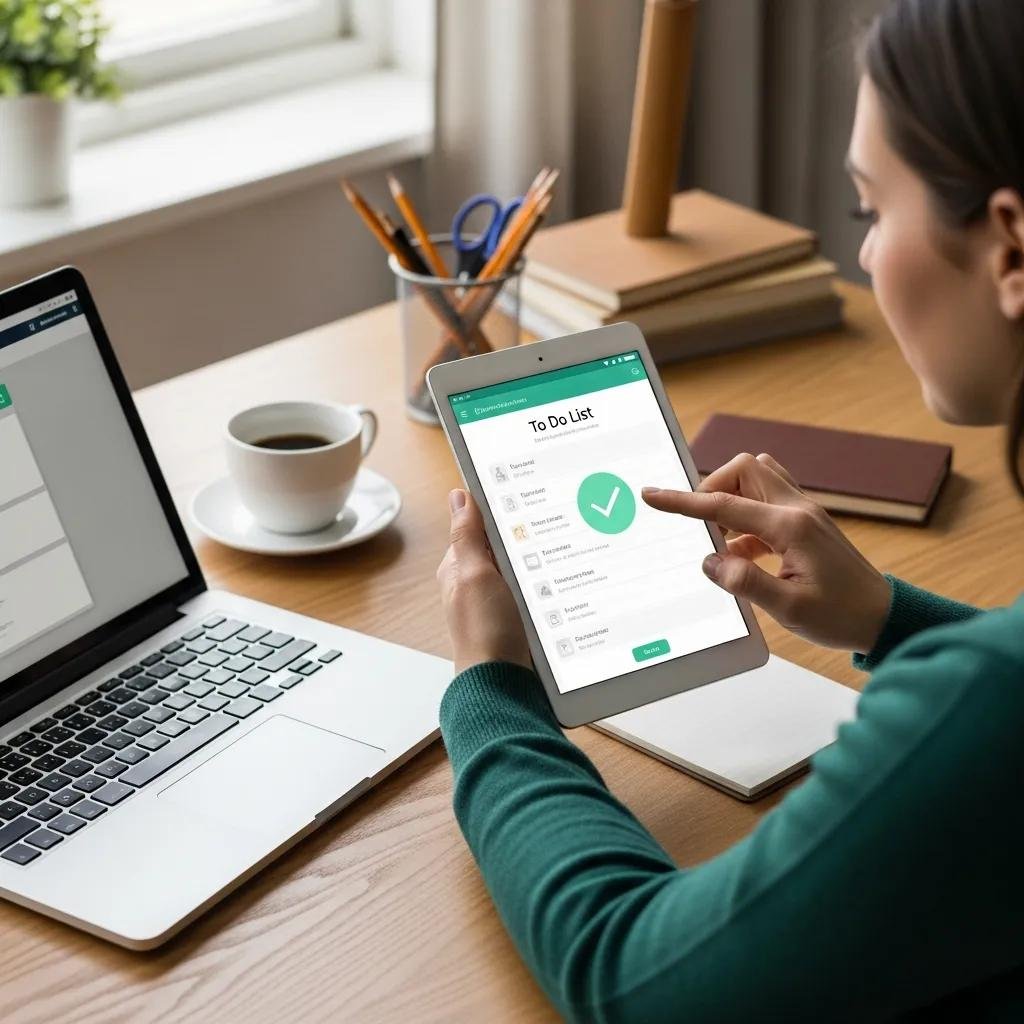
Top To-Do List Apps of 2025 for Personal and Professional Productivity
A to-do list app is a digital tool that captures, organizes, and reminds you about tasks so you can reduce cognitive load and reclaim time for priorities. This guide explains how modern digital to-do list and task management apps work, what features drive results, and how to pick a solution that fits both personal productivity and professional workflows. Readers will learn the top app categories for individuals, professional-grade task management software characteristics, a practical comparison checklist, and why digital productivity planners matter in 2025. The article balances quick recommendations with decision criteria, feature tradeoffs, and hands-on testing tips so you can choose an app that matches your devices, habits, and collaboration needs. Throughout, expect clear examples of reminders, recurring tasks, subtasks, labels/tags, calendar sync, and integrations that determine real-world effectiveness.
Which Are the Top To-Do List Apps for Personal Productivity in 2025?
Personal to-do list apps focus on rapid capture, reliable reminders, and low-friction daily use so individuals complete routines and small projects consistently. These apps work by combining simple list-based interfaces, natural language input, and local or cloud sync to ensure tasks appear where and when users need them. The result is reduced task backlog, fewer missed deadlines, and clearer mental bandwidth for important work. Below are succinct app archetypes and one-line best-for statements to help you scan options quickly and pick a fit that matches your lifestyle.
This quick comparison table highlights representative personal app types and core platform/feature tradeoffs.
Introductory note: The table summarizes common personal app archetypes so you can match platform availability and a key feature to typical users.
| App Type | Platform / Best for | Free tier availability | Key feature |
|---|---|---|---|
| Minimalist list-based app | iOS, Android, Web / best for distraction-free daily lists | Yes | Simple lists + quick capture |
| GTD-style organizer | iOS, Android, Web, Desktop / best for systems thinkers | Freemium | Contexts, next actions, projects |
| Widget-focused mobile app | iOS, Android / best for habit routines | Yes | Home screen widgets + reminders |
| Natural-language capture app | Mobile, Web / best for fast entry | Freemium | NLP task parsing and due dates |
This table clarifies how different personal app archetypes trade simplicity for structure and which free tiers typically cover basic needs.
What Features Make a To-Do List App Ideal for Personal Use?
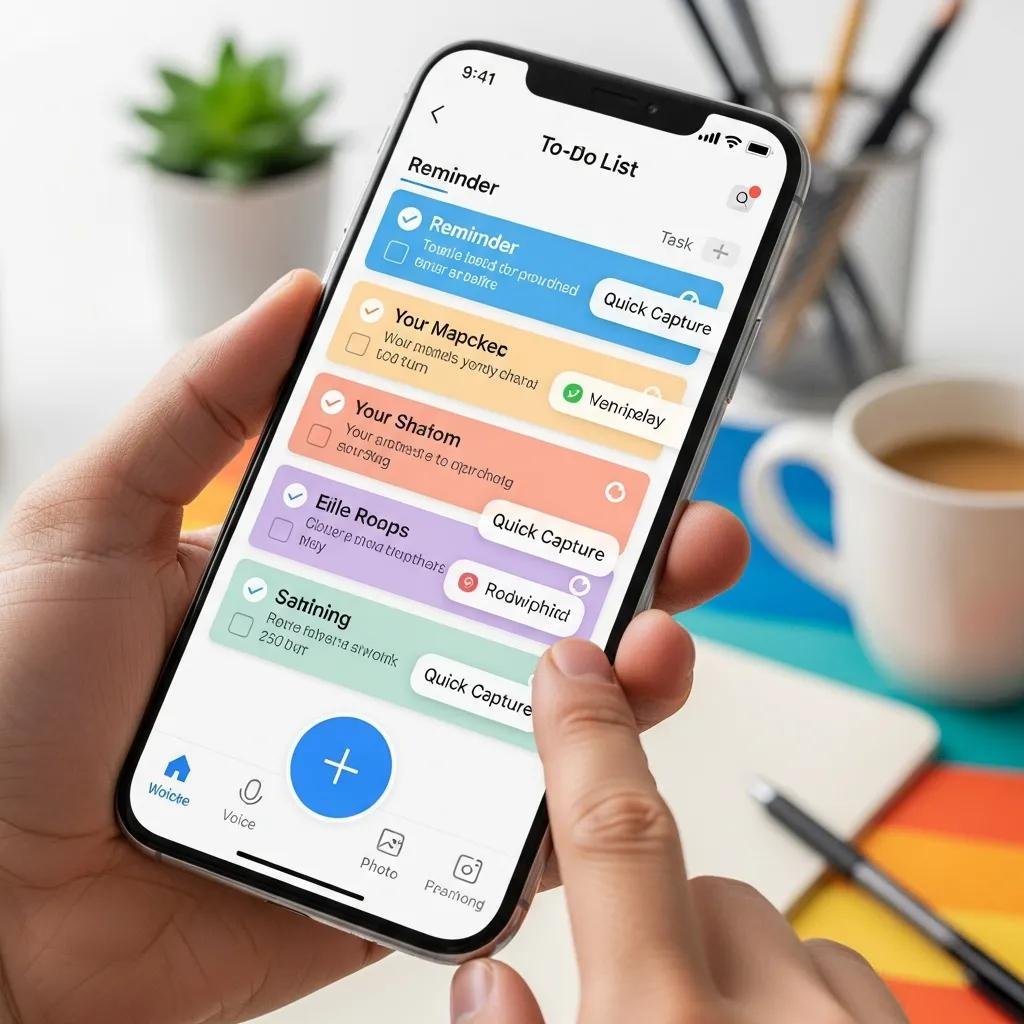
An ideal personal app combines effortless capture, reliable reminders, and a clear view of next actions so users complete daily responsibilities with minimal friction. Capture features like widgets, quick entry, or natural language input reduce task-storing overhead and prevent forgotten commitments. Reminders and notifications deliver context-aware prompts tied to time or location, which directly improve on-time task completion. Simplicity is critical: a minimal visual layout supports routine use, while optional depth like subtasks and labels lets power users organize complex personal projects. These elements together ensure the app supports both quick errands and multi-step life tasks without overwhelming the user.
Intro to list: Key personal features and why they matter are summarized below.
- Quick capture: Rapid entry prevents task loss and keeps momentum.
- Contextual reminders: Time or location prompts improve completion rates.
- Subtasks and labels: Break down complex chores into actionable steps.
Summary paragraph: Prioritizing capture, reminders, and manageable structure helps individuals maintain daily flow and reduces mental overhead while preparing to evaluate free plan limits next.
How Do Free To-Do List Apps Compare for Personal Task Management?
Free tiers often provide core functionality—basic lists, single-user sync, and simple reminders—but they commonly limit advanced features like integrations, large attachment storage, or multiple device sync. For most individuals, free features cover daily lists and simple recurring tasks; upgrade triggers include need for calendar sync, cross-device reliability, or automation. When deciding whether to pay, weigh whether the paid feature will save more time than its cost by reducing manual work or missed deadlines. Testing a free tier for a week of everyday use reveals whether the app’s speed and sync meet your routine needs.
Intro to list: Typical free-tier tradeoffs to watch.
- Sync limits: Some free plans restrict devices or history length.
- Feature locks: Automations and integrations are often behind paywalls.
- Storage caps: Attachments and backups may be limited in free plans.
Summary paragraph: Use free tiers to validate capture speed and reminder reliability, then upgrade only when specific limits (integrations, cross-device sync, or automations) block your workflow.
What Are the Best Task Management Software Options for Professionals?
Professional task management software emphasizes assignments, visibility, and integrations so teams coordinate work, measure progress, and scale processes reliably. These tools connect tasks to calendars, communications, and file storage while exposing reporting and admin controls that support accountability. The outcome for teams is clearer ownership, fewer missed deliverables, and faster handoffs across roles. Below are representative professional archetypes with short use-case notes to guide selection for teams of different sizes and collaboration styles.
Introductory note: The table below compares professional-grade archetypes on team collaboration, integrations, and security considerations.
| Tool Type | Team features | Integrations | Security |
|---|---|---|---|
| Team task manager | Assignments, mentions, shared lists | Calendar, chat tools | Role-based access |
| Project-focused PM | Project templates, Gantt views | Cloud storage, CI tools | SSO, audit logs |
| Enterprise workflow tool | Automations, approvals | API-first integrations | SSO, encryption, admin controls |
Summary paragraph: Professional tools trade simplicity for governance and integrations, making them better suited when teams need reporting, automations, and secure access controls.
Which Professional Features Enhance Productivity in Task Management Apps?
Features that materially boost team productivity include clear task assignment, automations for repetitive workflows, and workload reporting to balance capacity and priorities. Assignment and due-date fields create accountability by linking tasks to owners and deliverable timelines. Automations reduce manual steps—like routing tasks after status changes—and free teams to focus on exceptions rather than routine coordination. Reporting and workload views surface bottlenecks and enable managers to rebalance work before deadlines slip. Together, these features make team coordination predictable and measurable, leading naturally to integration questions addressed next.
Intro to list: High-impact professional features summarized.
- Task assignment with mentions: Clarifies ownership and reduces follow-up messages.
- Automations and recurring workflows: Eliminate repetitive manual updates.
- Reporting and workload balancing: Reveal capacity issues before deadlines.
Summary paragraph: Prioritize tools that combine assignment, automation, and reporting to transform task tracking into proactive team management.
How Do Digital Productivity Planners Integrate with Professional Workflows?
Digital productivity planners integrate with calendar and email systems to turn meeting notes and inbox items into scheduled tasks with deadlines. They often connect to project management and file storage tools so task context includes associated documents and ticket references. Cross-device sync and shared views provide visibility during sprints or handoffs, enabling planners to function as a personal hub that mirrors team workflows. For example, a meeting follow-up can be captured in a planner, assigned to a teammate, and synced with the team calendar to lock in the next steps.
Intro to list: Common planner integration points and benefits.
- Calendar and email sync: Convert meeting actions into scheduled tasks automatically.
- Project and file integrations: Attach relevant documents and ticket links to tasks.
- Cross-device sync: Maintain continuity between personal planning and team schedules.
Summary paragraph: Effective planner integrations bridge personal task capture and team systems, ensuring actions captured individually become visible and trackable across professional workflows.
How to Compare To-Do List Apps: Key Criteria and User Considerations
Comparing to-do list apps requires evaluating usability, platform support, integrations, pricing, and privacy to match an app to your persona and constraints. Usability determines how often you actually use the tool, while platform availability and sync reliability determine whether tasks appear where you need them. Integrations let tasks participate in broader workflows, pricing affects long-term sustainability, and privacy/security matters when tasks contain sensitive work. Use the checklist below to prioritize criteria based on whether you are a solo user, manager, or part of a remote team.
Intro to table: This decision-checklist table maps criteria to practical tips for evaluating apps.
| Criteria | Why it matters | Practical tip |
|---|---|---|
| Usability | Determines daily adoption | Test common actions for 7 days to ensure speed |
| Platform support | Ensures reliable access | Confirm native apps and offline support for critical devices |
| Integrations | Allows workflow continuity | Check calendar, email, and chat integrations before committing |
| Pricing | Affects long-term costs | Calculate per-user cost vs time saved from automations |
Summary paragraph: Prioritize the criteria that block your workflow—if sync or reminders fail, even the best features won’t help—and use trials to validate fit.
What Are the Most Important Factors When Choosing a To-Do List App?
Top factors are usability, platform availability, and integrations because they directly affect whether an app becomes a habit and connects to your other tools. Usability reduces friction on task entry and review, platform availability ensures you see tasks on phone and desktop, and integrations let tasks flow into calendars or team channels. Assess each factor with a short hands-on trial focusing on capture speed, sync reliability, and how easily tasks become calendar events. These three focus areas guide sensible tradeoffs when choosing between lightweight and feature-rich apps.
Intro to list: Actionable selection tips for top factors.
- Prioritize ease of capture: If entry is slow, you will stop using the app.
- Verify sync across devices: Consistent state prevents missed or duplicated work.
- Evaluate integrations: Ensure the app connects with your calendar and communication tools.
Summary paragraph: By testing these core elements you can filter candidates quickly and avoid committing to an app that disrupts your routine.
How Do Pricing, Usability, and Platform Support Affect App Selection?
Pricing, usability, and platform support create tradeoffs: free/simple apps keep cost low and learning curves short, while paid platforms add integrations and admin controls that pay off for teams. If your primary need is individual task capture and habit building, prioritize usability and a reliable free tier. If cross-team visibility, reporting, or automations are essential, a paid solution with broader platform support and admin tools is justified. Use upgrade decision triggers—needing calendar integrations, multi-user permissions, or automation capacity—to time a transition from free to paid.
Intro to list: When to choose free vs paid in plain terms.
- Choose free/simple apps when capture speed and low friction matter most.
- Choose paid/feature-rich platforms when integrations, permissions, or automation scale work.
- Upgrade when a single missing capability (sync, integration, or automation) blocks productivity.
Summary paragraph: Align purchase decisions with the workflows and scale you actually need; avoid buying features you won’t use.
What Are the Benefits of Using Digital Productivity Planners for Task Management?
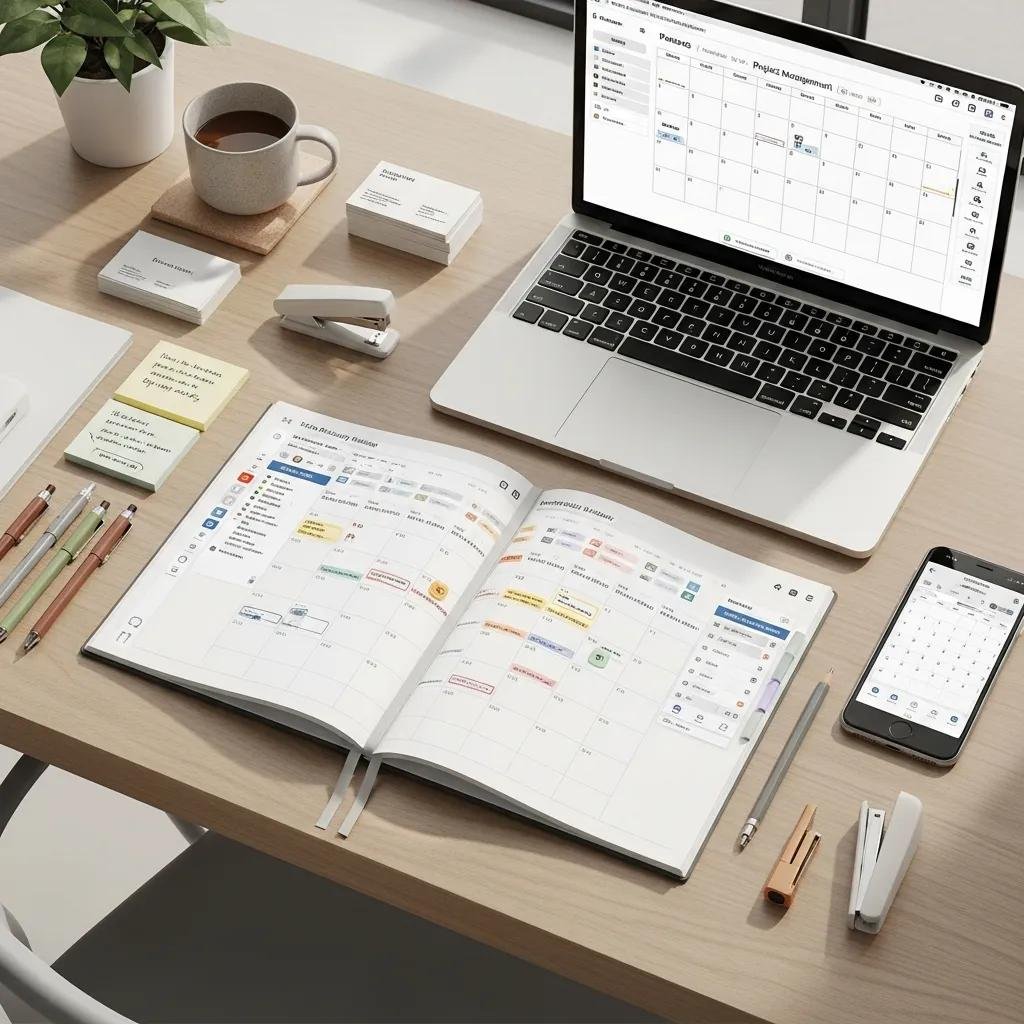
Digital productivity planners consolidate tasks, schedules, and priorities so users align daily actions with broader goals and reduce context switching. Planners work by combining projects, tags, templates, and scheduled reviews to keep priorities visible and routines consistent. The main benefits are better organization, improved time management through planned routines, and clearer alignment between short-term tasks and long-term objectives. These advantages make planners useful both for personal habit building and for professional planning during busy project phases.
Intro to list: Three concise planner benefits.
- Organization: Projects and tags separate life areas and work initiatives.
- Time management: Scheduled planning and recurring tasks lock in focus windows.
- Alignment: Daily tasks map back to weekly goals and long-term projects.
Summary paragraph: Planners turn reactive task capture into proactive scheduling, which reduces decision fatigue and improves task throughput across personal and professional life.
How Do Digital Planners Improve Organization and Time Management?
Digital planners improve organization by grouping tasks into projects and contexts, which clarifies priorities and reduces task scattering across apps. Time management improves through scheduled planning sessions, recurring task templates, and focused work blocks that minimize switching costs. For example, converting a weekly review into templated tasks saves time and ensures consistent follow-through on long-running projects. These mechanisms make planners practical tools for anyone balancing recurring life tasks and variable professional work.
Intro to list: Planner mechanisms to implement today.
- Use project templates for repeatable workflows to save planning time.
- Schedule regular reviews to keep priorities current and actionable.
- Apply recurring tasks for routines to reduce daily decision load.
Summary paragraph: When used consistently, these planner techniques free cognitive capacity for higher-impact work and prevent drift on important goals.
Which Digital Planner Features Support Both Personal and Professional Goals?
Cross-cutting features—tags/labels, shared lists with permissions, and reliable sync/backups—serve both life and work needs by separating contexts while enabling collaboration. Tags let you filter tasks by life area or client, shared lists enable delegation or family coordination, and sync plus backups protect data across devices and prevent loss. Mapping features to both use cases ensures a single planner can handle household projects and team-related deliverables without fragmentation.
Intro to list: Features that bridge personal and professional use.
- Tags/labels: Provide flexible filtering for life areas and projects.
- Shared lists and permissions: Enable collaboration while preserving control.
- Sync and backup: Safeguard tasks and ensure continuity across devices.
Summary paragraph: Selecting planners with these cross-cutting features helps you maintain one trusted system for organizing everything that matters in 2025.





