

Top Cloud Storage Management Tips to Optimize Your Space Effectively
Cloud storage management means actively organizing, pruning, and configuring cloud accounts so your files stay accessible without wasting paid capacity. Many users bump into storage limits because large media, duplicate copies, and unmanaged backups silently consume space; understanding how providers track and bill storage is the first step to reclaiming control. This guide delivers concise, actionable tips to free up cloud storage, establish durable organization patterns, and tune platform-specific settings for Google Drive and Dropbox. You will find quick-win steps for immediate space recovery, best practices to prevent future bloat, platform-specific how-to actions, and clear signals for when to get expert remote help. Throughout, targeted guidance on duplicate removal, archiving strategies, selective sync, and version history will help you optimize Google Drive, Dropbox, and similar services efficiently while keeping file safety and sharing intact.
How Can You Free Up Cloud Storage Space Quickly?

Freeing up cloud storage quickly focuses on identifying large, redundant, or obsolete items, removing unnecessary versions, and clearing trash bins across sync points. The fastest wins come from sorting by size, targeting media and old backups, and eliminating duplicates that live both locally and in the cloud. Below is a prioritized list of quick actions to run in sequence for the best short-term payoff.
These five quick actions can often free the most space in the least time:
- Find and sort largest files: Use storage manager or sort by size to locate top offenders.
- Empty trash and remove previous versions: Permanently delete recoverable items and old file revisions.
- Delete redundant backups and ISOs: Remove local or cloud backup images that are duplicated.
- Remove or compress large media files: Transcode or archive videos and photos to lower-resolution copies.
- Unlink and unsync unused devices/folders: Stop syncing folders you no longer need on a device.
These quick steps typically clear significant space fast and pave the way for longer-term governance and archiving strategies that prevent the same bloat from returning.
If you need help now, mcHelper.com provides 24/7 remote technical support to perform these actions securely for users who prefer guided assistance.
What Are the Best Methods to Identify and Delete Duplicate Files?
Identifying duplicate files means comparing file names, sizes, checksums, and modification dates across cloud accounts and synced local folders; tools that compute hashes provide the safest matches. Start by using the provider’s storage manager to list large files, then run a deduplication tool or trusted third-party app to detect identical contents rather than relying on names alone. Always verify matches before permanent deletion by sampling files and, when possible, moving duplicates to a temporary archive folder for a short retention window. This cautious workflow protects against accidental data loss while enabling substantial space recovery.
Recommended steps for safe deduplication:
- Use provider filters and local sync folder scans to surface likely duplicates.
- Run a checksum-based dedupe tool to confirm true duplicates before removal.
- Keep a short quarantine folder for 7–14 days as a safety net before final deletion.
Following these methods reduces human error and preserves important unique files while eliminating redundant copies that consume disproportionate cloud space.
How Does Archiving and Tiered Storage Help Save Space?
Archiving moves inactive or infrequently accessed data out of active storage into compressed or lower-cost tiers, freeing fast-access capacity while retaining long-term access when needed. Tiered storage splits data into hot (frequently accessed) and cold (rarely accessed) classes so that only the hot set occupies premium quota and bandwidth, while cold archives sit in less expensive, space-efficient buckets. Practical archiving steps include compressing old project folders, exporting and storing yearly archives, and moving large media to infrequent-access storage options provided by enterprise services. These changes reduce the active dataset size, lower ongoing sync costs, and make day-to-day cloud management faster and more predictable.
Archive decision checklist:
- Archive files older than a defined threshold (e.g., 12–24 months) with low access counts.
- Use compressed archival formats (zip, tar) or provider cold-storage tiers for large collections.
- Maintain a simple index or manifest to locate archived content quickly when retrieval is required.
Adopting archiving and tiering integrates with retention policies and saves both storage capacity and operational overhead over time.
What Are the Best Practices to Organize and Manage Your Cloud Files?
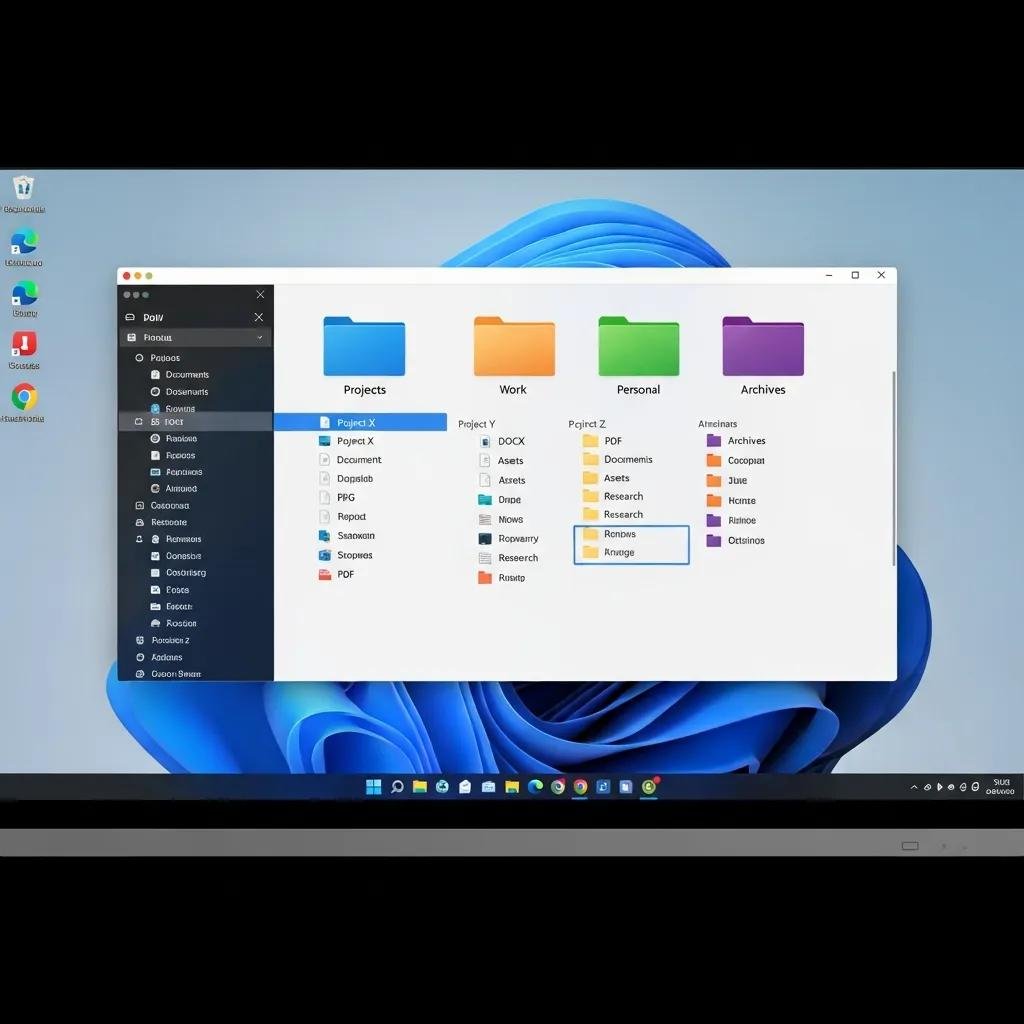
Organizing cloud files well reduces duplication, speeds searches, and prevents shared-folder clutter from inflating storage usage. A consistent folder hierarchy, clear naming conventions, and owner-based responsibility keep content discoverable and make retention and archiving rules easier to apply. Combine folder rules with metadata or tags where the platform supports them, and schedule regular review cycles to remove or archive outdated material. These practices lower accidental storage growth and improve collaboration hygiene across shared drives.
A simple three-level folder template helps structure personal and small-team storage:
- Top-level: Projects / Personal / Archive — separate long-term archives from active work.
- Second-level: Year or Client — group by timeframe or client to simplify archiving.
- Third-level: Deliverables / Sources / References — keep raw files and outputs distinct.
This template reduces overlap and traces ownership, making it easier to apply selective sync and archival policies. Regular governance reviews—monthly for personal users, quarterly for teams—prevent uncontrolled accumulation and simplify backups.
How to Create a Consistent Folder Structure for Efficient Data Management?
A consistent folder structure uses clear semantics, date formats, and version markers to make automated rules and human decisions predictable. Start with a short naming convention: YYYY-MM-DD for dates, v1/v2 for versions, and a client or project code at the front for sorting. Assign ownership to at least one person per top-level folder so cleanup and archiving responsibilities have a clear contact. Finally, document the rules in a short README at the root so collaborators follow the same conventions and automated tools can parse names for lifecycle actions.
Folder-naming rules to adopt:
- Use ISO-style dates (YYYY-MM-DD) at the start of time-sensitive folders.
- Include version tags like v1, FINAL, or DRAFT to avoid multiple “final” copies.
- Keep names concise and avoid special characters to maximize cross-platform compatibility.
These conventions reduce confusion, support automation, and make bulk operations like archiving or retentions safer.
How Can You Automate Cloud Storage Sync Settings for Better Performance?
Automating sync settings cuts unnecessary uploads and local disk use by limiting what actually syncs to each device and by controlling bandwidth. Use selective sync to keep large archives online-only, set file type exclusions for known bulky formats (e.g., raw camera files), and configure cache limits for sync clients to avoid hidden local growth. For teams, standardize sync profiles so shared folders don’t auto-download to every teammate’s machine, and schedule heavy sync tasks during off-peak hours to limit bandwidth contention. These controls reduce both cloud and local storage waste while improving perceived device performance.
Recommended sync settings:
- Enable selective sync for rarely used folders to remain cloud-only.
- Limit local cache size and periodically clear client caches to reclaim disk space.
- Throttle sync bandwidth during active hours to prevent device slowdowns.
Applying these rules helps keep devices responsive and minimizes redundant copies that feed cloud storage use.
How Do You Optimize Storage on Popular Cloud Platforms Like Google Drive and Dropbox?
Platform-specific management relies on each provider’s storage tools, version controls, and selective sync features to surface space hogs and apply fixes. Optimizing Google Drive and Dropbox means using their storage managers, converting editable files to native formats when appropriate, and applying provider-specific online-only settings to keep bulky files out of local disks.
The table below compares common space hogs on these platforms with quick, actionable free-up steps you can run immediately.
| Platform | Common Space Hogs | Quick Free-up Action |
|---|---|---|
| Google Drive | Large Microsoft Office files, Photos, Drive trash | Use Storage Manager, convert docs to Google formats, empty Drive and Photos trash |
| Dropbox | Shared folder copies, full local caches, version history | Enable Smart Sync online-only, run selective sync, purge old versions |
| OneDrive | Camera roll backups, synced device folders | Disable automatic camera roll backup for non-critical devices, use Files On-Demand |
This comparison shows how provider features map to common problems and one-line fixes that yield fast results. If platform-specific configuration or sync troubleshooting feels complex, mcHelper.com can assist remotely with configuration, selective sync tuning, and file organization guidance in short sessions.
What Steps Free Up Space in Google Drive Effectively?
Google Drive frees space fastest by using the storage manager, converting large files to Google Docs formats, and emptying trash across Drive and Photos. Start by opening Drive’s storage view to identify the largest files, then convert Office docs to Google format where possible to remove duplicate binary copies. Next, review “Shared with me” items and remove links to files you don’t own, then empty the Drive and Photos trash to reclaim space immediately. These steps typically surface the biggest savings and reduce redundant uploads by sync clients.
Quick Google Drive steps:
- Open Storage Manager: Sort files by size and note top offenders.
- Convert Office files: Save space by switching to Google Docs/Sheets/Slides formats.
- Review Shared items and Trash: Remove unneeded shares and permanently empty trash.
Executing these steps reduces both counted storage and sync overhead, making Google Drive leaner and faster to use.
How to Manage Dropbox Storage for Maximum Efficiency?
Dropbox offers Smart Sync and selective sync tools to keep files online-only and reduce local disk use while preserving cloud copies; use these first to free local space. Identify large shared folders and ask collaborators to move seldom-accessed archives to shared links rather than full-share membership, and purge old version history when version retention isn’t required. Adjust Dropbox cache and clear it periodically to remove hidden files that inflate device storage while leaving cloud copies intact.
Dropbox efficiency checklist:
- Turn on Smart Sync for bulky folders you rarely open locally.
- Use selective sync to prevent every shared folder from downloading to each device.
- Clear the Dropbox cache and manage version history for long-term cleanup.
These controls let you keep live collaboration intact while preventing unnecessary local and cloud duplication.
When Should You Seek Professional Help for Cloud Storage Management?
Seek professional help when sync conflicts, potential data corruption, or large-scale cleanup risks exceed your comfort level, or when business compliance and retention policies demand careful handling. Complex sync conflicts between multiple devices, corrupted file versions, and unexpected storage spikes from hidden caches or automated backups are signals to escalate. Remote technical support can diagnose local client issues that affect cloud behavior and execute safe deduplication, archiving, and configuration changes without risking data loss. Use professional help when the cost of a mistake exceeds the fee for trained intervention.
Checklist: when to call an expert
- Repeated sync failures or unresolved conflict errors appear across devices.
- Unexpected storage growth from hidden caches, backups, or unknown sources.
- Business compliance needs require audited retention, archiving, or deletion.
mcHelper.com operates as a remote computer repair and technical support service that can assist with configuring sync clients, running deduplication safely, and optimizing local files that sync to cloud storage. Their offering emphasizes fast, secure remote support available 24/7 and a “no fix – no fee” approach to reduce risk for users who need hands-on help.
How Can Remote Technical Support Assist with Cloud Storage Issues?
Remote technical support can remotely configure selective sync, adjust sync client caches, run deduplication and backup audits, and repair local issues that create repeated sync conflicts. Technicians can perform safe scans for duplicate or orphaned files, set up archiving workflows that move old content to cold storage, and apply best-practice naming and ownership rules across shared drives. Secure remote sessions enable experts to make changes without in-person access while preserving user control and consent for deletions and moves. These interventions restore predictable storage consumption and prevent recurring issues from undermining productivity.
Typical remote tasks include:
- Diagnosing sync errors and applying fixes to client settings.
- Running dedupe tools and quarantining duplicates safely.
- Implementing selective sync and archiving rules across devices.
Such remote assistance resolves root causes that DIY steps might miss and speeds recovery when time or expertise is limited.
What Are Common Cloud Storage Problems That Require Expert Troubleshooting?
Common problems that merit expert troubleshooting include repeated sync failures with cryptic error codes, corrupted or conflicting file versions across devices, and unexpected storage usage from hidden caches or backup systems. Permission and access conflicts in shared drives can produce mysterious missing-file scenarios that require careful audit trails to resolve; experts can map ownership and restore intended access. When data integrity or business continuity is at stake, escalate to technicians who can apply safe forensic workflows to recover and stabilize cloud repositories.
When to escalate:
- Persistent sync errors that resist client reinstall or resets.
- Corrupted versions or file inconsistencies across multiple users.
- Sudden, unexplained increases in storage usage despite user deletions.
Timely expert involvement protects data, reduces downtime, and establishes controls to prevent repeat incidents.





