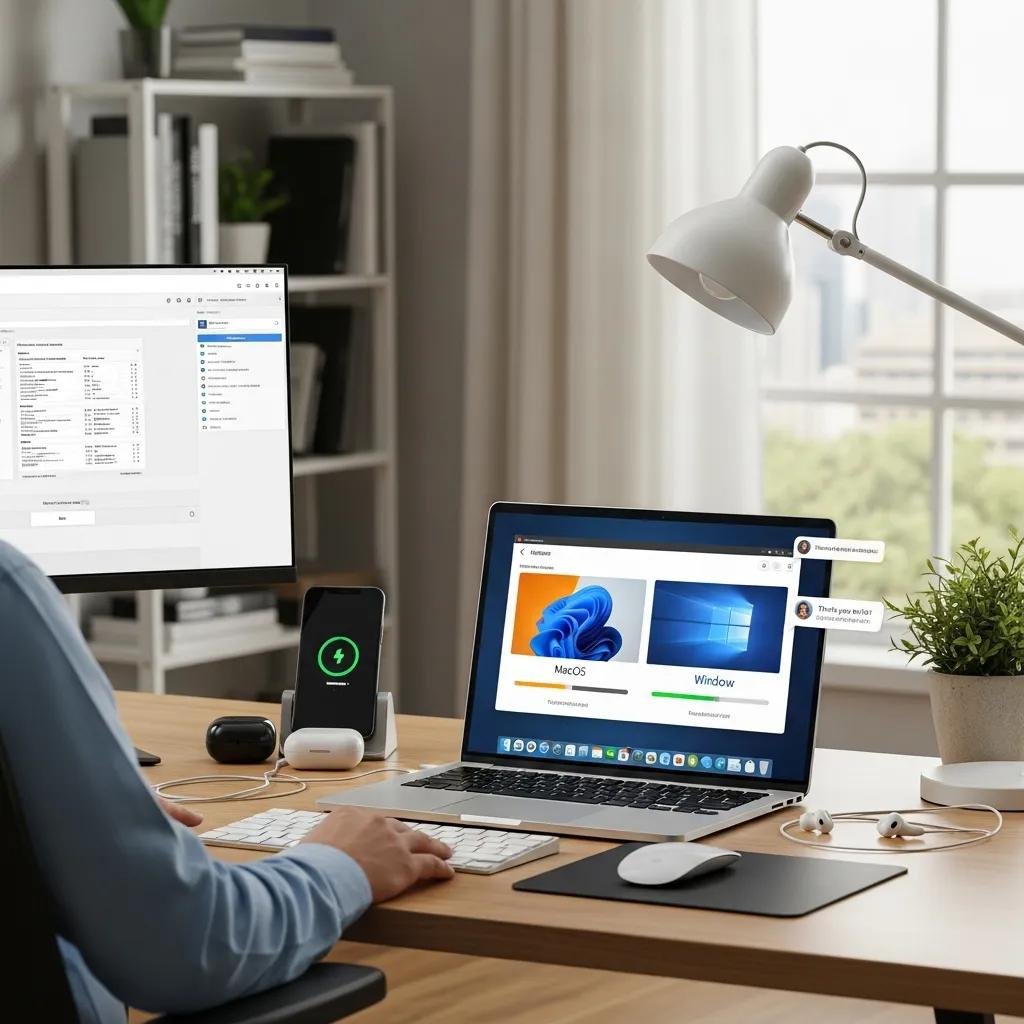
Remote Operating System Reinstallation Service for Mac & Windows: Expert Online Solutions for System Refresh and Repair
Remote operating system reinstallation is a secure, technician-led process that fully refreshes a Mac or Windows device over the internet to resolve system corruption, persistent errors, malware, or to prepare a device for resale. This article explains how remote OS reinstallation works, when it’s preferable to troubleshooting, and what you should prepare before a session to protect data and licensing. You will learn the typical remote workflow, platform-specific steps for Windows and macOS, and practical security measures technicians use to keep sessions safe. The guide also explains expected performance and security benefits after a clean reinstall and highlights why using a certified remote provider can reduce risk and downtime. Read on for concise workflows, comparison tables that map reinstall methods to scenarios, and checklists that make a remote reinstall straightforward and predictable.
What is Remote Operating System Reinstallation and How Does It Work?
Remote operating system reinstallation is the process of erasing and reinstalling an OS over a secure remote session so the device returns to a clean, supported state. Technicians connect using secure remote access, perform full backups if needed, wipe and reinstall the OS, update drivers and firmware, then restore user data to ensure return-to-service. This approach resolves persistent software corruption, removes entrenched malware, and reclaims performance without requiring in-person service, saving time for remote workers and distributed teams. Below is a short micro-process that summarizes the typical remote reinstall for featured-snippet clarity.
- Backup: Secure user files and create a recovery snapshot before any erase operation.
- Erase & Reinstall: Use cloud or installer-based methods to reinstall the OS and apply firmware/driver updates.
- Restore & Verify: Reinstall applications, restore data, verify activation, and confirm system stability.
This micro-process clarifies the high-level flow and leads into a comparison of remote versus traditional repair approaches.
How Does Remote OS Reinstallation Differ from Traditional Repair?
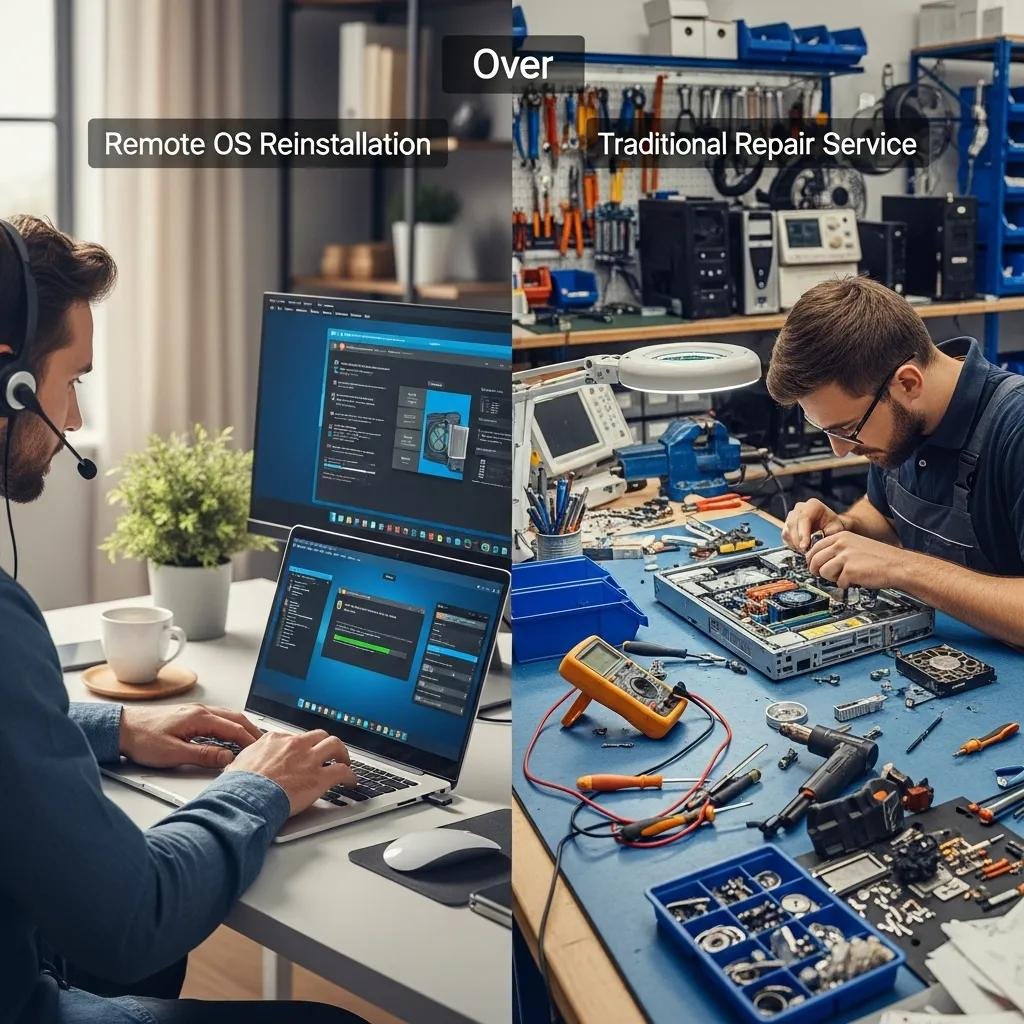
Remote reinstallation differs from traditional repair primarily through its use of internet-based tools and the lack of physical hardware handling. Remote sessions use secure remote desktop clients and guided user consent, enabling rapid turnaround for software-only failures while in-person repair remains necessary for hardware replacement like failed storage or logic board repairs. Remote methods reduce travel time and can often be scheduled 24/7, but they depend on a working network connection and intact boot capability or recovery modes. These distinctions help decide whether to choose remote reinstall or a conventional onsite service when hardware symptoms or physical damage are suspected.
Which Operating Systems Are Supported for Remote Reinstallation?
Remote reinstallation services support modern Windows and macOS releases, focusing on Windows 10 and Windows 11 and current macOS versions such as Ventura and Sonoma. Windows reinstallation may use cloud reinstall options or local ISO-based methods depending on user preference, licensing, and data-preservation needs, while macOS remote procedures rely on Internet Recovery or installer images with Apple Silicon and T2-chip caveats. Older operating systems or heavily damaged devices may require physical intervention or special recovery media, so assessing firmware status and storage health is part of the pre-session checklist. Understanding supported OS versions informs the technician’s choice of reinstall route and the expected recovery steps.
Why Choose mcHelper.com for Your Remote OS Reinstallation Needs?
mcHelper.com provides certified technicians, secure remote access protocols, and a customer-first guarantee that together reduce risk during remote OS reinstallations. The company’s UVPs include 24/7 availability for urgent sessions, a “No Fix – No Fee” guarantee to align incentives, and practiced workflows that emphasize backups and validation. These service attributes shorten downtime for remote workers and distributed teams while ensuring an auditable, privacy-conscious process. Below is a brief list of core advantages customers typically experience when they choose a professional remote reinstall service.
- 24/7 Certified Support: Technicians are available around the clock for urgent reinstall needs.
- No Fix – No Fee: Service alignment ensures payment only when the issue is resolved to agreed criteria.
- Secure Remote Access: Sessions follow strict consent, encryption, and session-auditing practices.
What Are the Benefits of 24/7 Certified Technician Support?
Round-the-clock certified technician support reduces time-to-resolution for critical system failures and offers scheduling flexibility that fits different time zones and work patterns. Immediate access is particularly useful for remote workers facing an unusable workstation outside normal business hours, enabling recovery with minimal productivity loss. Certified technicians follow standard reinstall checklists that lower the chance of missed activation steps or driver mismatches, which improves success rates after a clean install. These operational benefits feed directly into secure session practices and customer confidence in the process.
How Does mcHelper.com Ensure Security and Privacy During Remote Access?
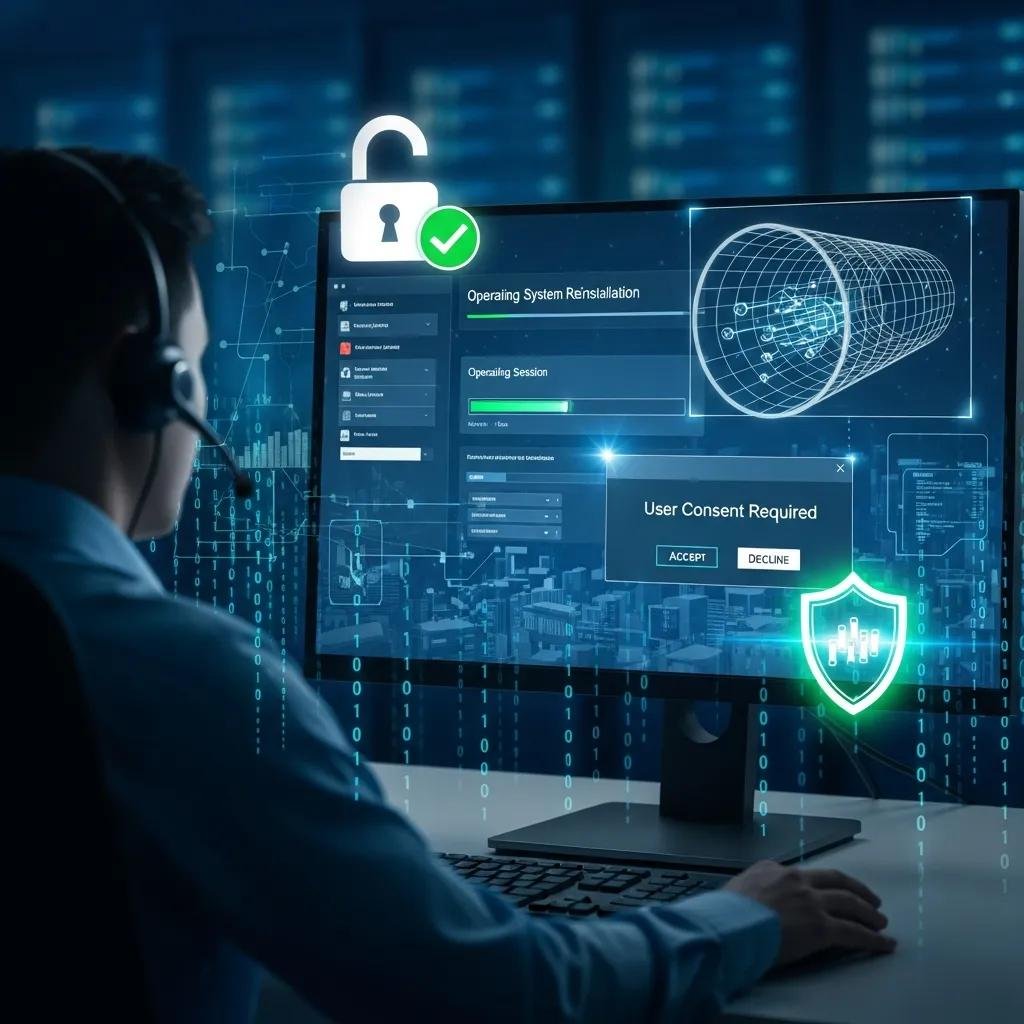
mcHelper.com emphasizes secure remote sessions using end-to-end encryption, explicit user consent before any elevated actions, and session auditing that records key operations for transparency. Technicians request elevated privileges only when necessary and always perform verified backups or confirm user backups before erasing drives, protecting user data and privacy. Below is a concise security EAV comparison that clarifies specific controls and their benefits.
| Security Measure | Technology / Protocol | Benefit |
|---|---|---|
| Session Encryption | AES-256 / TLS | Prevents eavesdropping and man-in-the-middle attacks |
| User Consent & Controls | Interactive confirmation, session termination | Ensures user retains control and can stop access instantly |
| Backup Verification | Full disk or user-data snapshots | Preserves recoverable data and supports rollback if needed |
This table shows how layered controls minimize risk while allowing effective remote reinstalls, and the next section explains Windows-specific remote reinstall steps.
How Is Remote Windows OS Reinstallation Performed?
Remote Windows OS reinstallation uses secure remote connections to run cloud-based or local ISO installs, apply firmware and driver updates, and restore user data while ensuring activation and licensing compliance. The process starts with a pre-reinstall checklist—backups, account credentials, and a software inventory—then moves through secure session setup, reinstall method selection, and post-install verification. Remote tools allow technicians to mount ISOs, trigger Windows’ built-in cloud reinstall, or perform a full wipe and install while monitoring progress and validating device drivers. The brief steps below are optimized for Windows 10 and Windows 11 and are suitable for quick reference or featured-snippet capture.
- Confirm backups, Microsoft account and product activation credentials, and create recovery media if needed.
- Establish an encrypted remote session and transfer any required installer files or initiate cloud reinstall.
- Execute the reinstall, install drivers and firmware updates, then restore user data and verify system activation.
Next is a compact EAV comparison of Windows reinstall options to guide method selection.
| Windows Version | Reinstall Method | Key Notes |
|---|---|---|
| Windows 10 | Local ISO or Recovery Media | Recommended when network or cloud recovery is unavailable or for custom partitioning |
| Windows 11 | Cloud Reinstall vs Local ISO | Cloud reinstall preserves drivers and is faster; ISO may be needed for custom partitions or offline installs |
| Older Windows | Custom recovery steps | May require manual driver installs or migration tools |
What Are the Steps for Remote Windows 10 and 11 Reinstallation?
This ordered checklist summarizes technician-driven remote reinstall steps tailored to Windows 10 and 11, designed for clarity and safe execution. The steps prioritize data protection, correct reinstall route selection, and post-install validation to ensure a stable recovery.
- Verify backups and ensure account credentials and activation information are available.
- Start a secure remote session and prepare the chosen reinstall media or trigger cloud reinstall.
- Perform the erase or refresh operation, apply firmware and driver updates, and monitor progress.
- Reinstall applications, restore user files, confirm activation, and run stability checks.
These steps are compact yet comprehensive, and they emphasize the backup and verification actions that reduce risk during remote work. The following subsection outlines expected improvements.
How Does Remote Windows Reinstallation Improve Performance and Security?
A clean Windows reinstall removes persistent malware, corrupted system files, and accumulated bloatware, restoring a lean baseline that typically improves boot time and application responsiveness. Reinstallation also ensures drivers and firmware updates are applied in a controlled sequence, which resolves device conflicts and reduces crashes. Security posture improves because legacy vulnerabilities are replaced by a freshly patched OS image and updated system components. These measurable improvements make reinstalling a powerful remedial action for chronic performance and security issues.
How Does Remote macOS Clean Install Service Work?
A remote macOS clean install erases the startup disk and reinstalls macOS using Internet Recovery or an installer image, restoring a pristine system state while preserving privacy through verified backups. Technicians confirm Time Machine or alternative backups, ensure Apple ID and firmware passwords are available where required, then guide the device into recovery modes remotely when hardware permits. The method varies by macOS version and by hardware platform—Apple Silicon, T2-chip, and Intel machines have distinct recovery and secure-boot considerations that dictate steps. Below is an ordered workflow that captures the macOS remote install essentials for featured-snippet eligibility.
- Back up with Time Machine or an alternate backup and confirm Apple ID and firmware credentials.
- Establish a secure remote session and use Internet Recovery or a USB installer to enter recovery mode.
- Erase the drive, reinstall macOS, apply firmware updates, and restore user data and settings.
An EAV table below compares macOS routes and considerations to help choose the appropriate reinstall path.
| macOS Version | Supported Remote Route | Considerations |
|---|---|---|
| macOS Sonoma | Erase macOS & Reinstall via Internet Recovery | Apple Silicon supports internet-based reinstall; check firmware status first |
| macOS Ventura | Erase & Reinstall using Installer or Recovery | Intel and Apple Silicon have different key combinations and steps |
| Older macOS | Custom recovery paths | May need Migration Assistant or external installers for legacy hardware |
What Are the Supported macOS Versions for Remote Clean Install?
Remote macOS clean installs commonly cover recent releases such as macOS Ventura and macOS Sonoma, with procedures tailored to Apple Silicon and Intel platforms. Apple Silicon devices use a different recovery workflow and can leverage internet-based reinstall more consistently, while T2-equipped Intel Macs require secure-boot and firmware password handling before erasure. Older macOS versions or machines with firmware problems may not support fully remote erasure and may instead require local technician assistance. These version-specific details determine which remote routes are feasible and which require alternative recovery strategies.
What Are the Key Benefits of a Remote macOS Clean Installation?
A remote macOS clean install restores system stability, eliminates user-space corruption and persistent malware, and returns the device to a known-good configuration ready for secure handover or resale. The process removes lingering software conflicts, refreshes system libraries and drivers, and ensures firmware updates are applied where applicable, delivering measurable reliability gains. For users preparing a device for sale or transfer, a proper remote clean install combined with verified backups provides confidence that user data has been removed and the system is current. These benefits explain why many remote users choose a professional reinstall over piecemeal troubleshooting.