
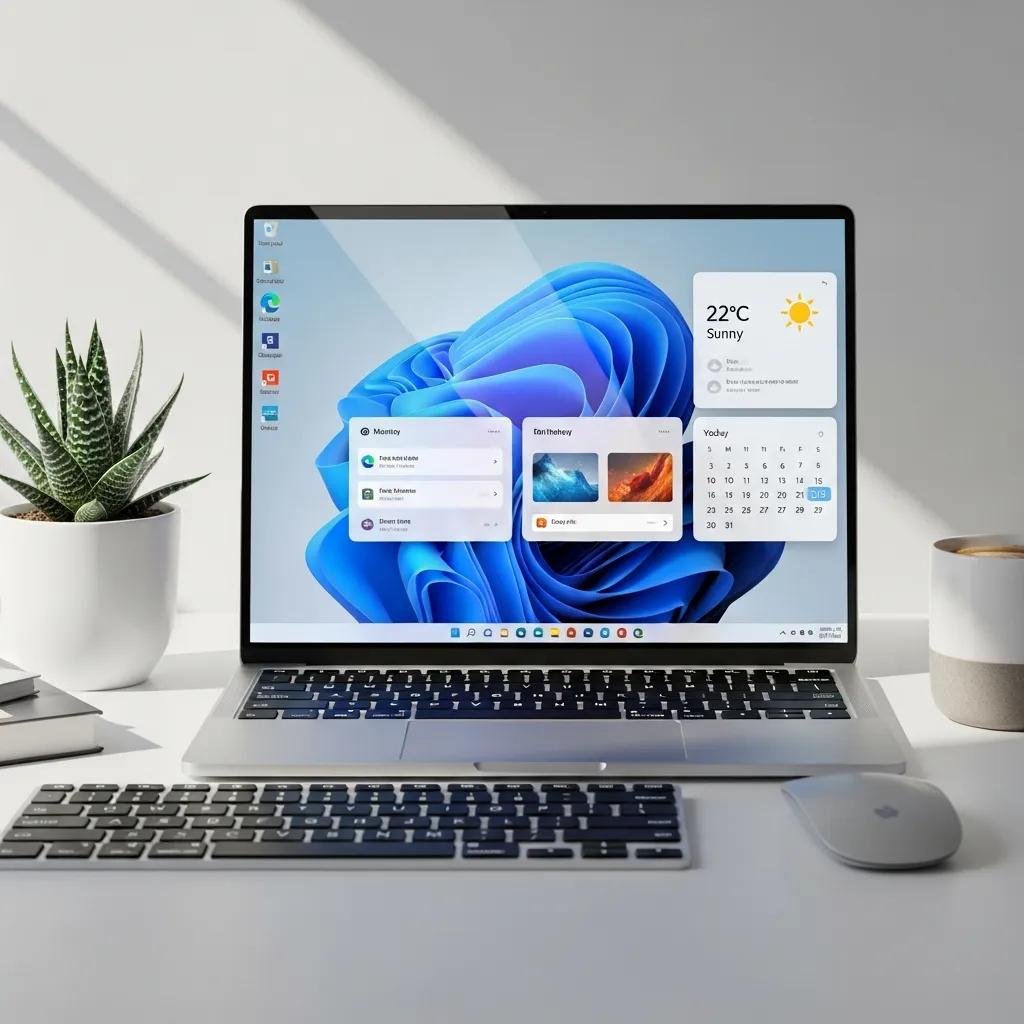
Customize Windows 11 Desktop with Top Themes, Backgrounds & Widgets
Desktop personalization tailors Windows 11 to your taste and workflow by changing themes, backgrounds, and widgets to boost clarity and productivity. This guide shows how to customize Windows 11 safely, apply themes and dynamic wallpapers, and manage widgets while keeping performance in check. You will learn what a Windows 11 theme contains, where to find trusted theme packages, how to set up animated or slideshow wallpapers, and how to add or control widgets — with quick troubleshooting for common issues. The article also compares tools such as Lively Wallpaper and Wallpaper Engine and explains when to prefer built-in options. Finally, it covers persistent errors and when remote technical support can help, using clear how-to steps and concise checklists to get your desktop looking and working the way you want.
How do I choose and apply the best Windows 11 themes?
A Windows 11 theme bundles visual and UI elements that change your desktop’s look and feel to improve aesthetics or focus. Themes typically include a wallpaper, accent colors, sound scheme, cursor set, and optional icon packs; selecting the right combination can reduce visual clutter and speed decision-making.
Choosing a theme depends on compatibility with your display, GPU capability, and whether you want static or animated elements that affect performance. The steps below explain how to apply themes and evaluate sources, then a compact compatibility table helps compare official store options versus third-party packages.
What are Windows 11 themes and their key components?
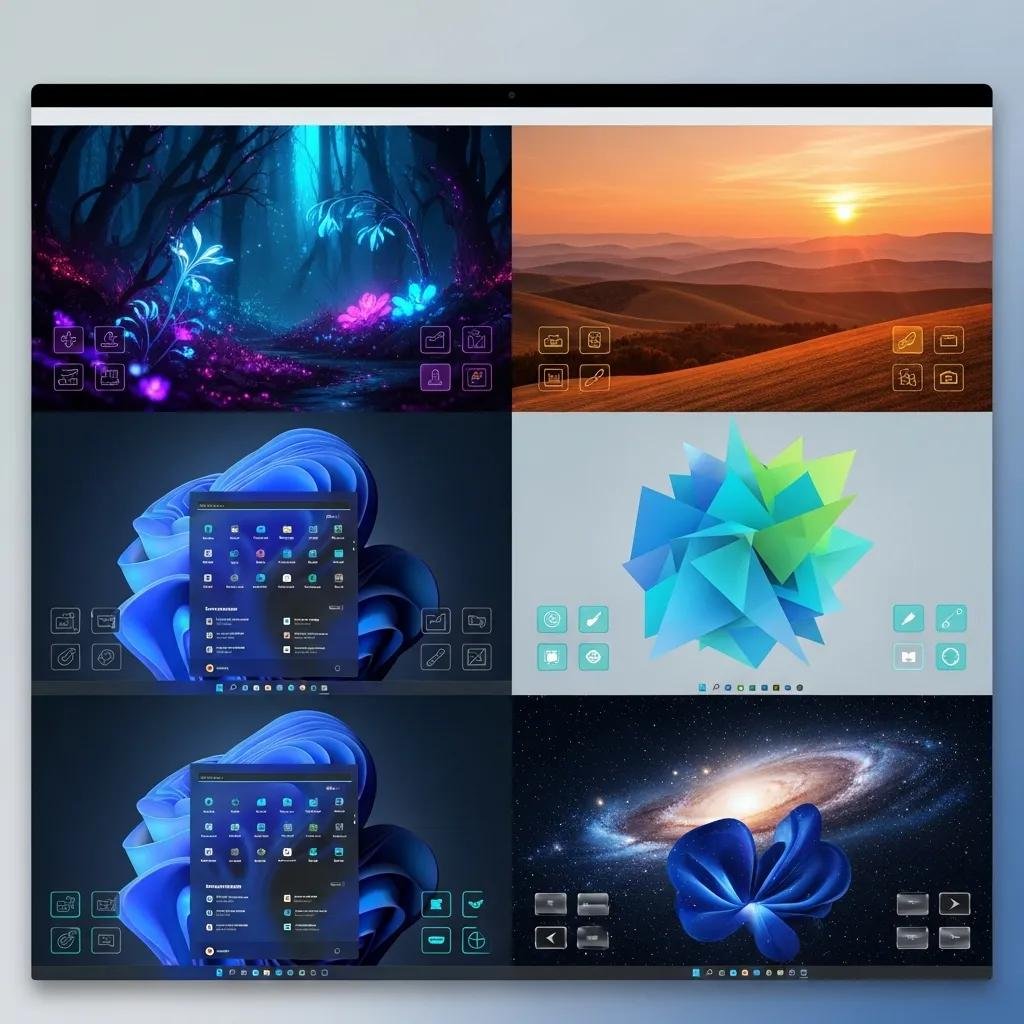
Windows 11 themes are collections of visual assets that alter the desktop environment to create a cohesive appearance. Components include background (wallpaper), accent color, sounds, cursor set, and icons; each component modifies a specific UI part and can be swapped independently. Theme packages come in formats such as .deskthemepack and .theme files, and unsupported formats may fail to apply or require third-party installers. Animated cursors or large icon packs increase memory and GPU load, so balance aesthetics with system performance to keep responsiveness high.
Where can I find and download top Windows 11 themes?
Trusted sources for themes minimize security risk and ensure compatibility with Windows 11. The Microsoft Store offers signed themes that install cleanly and update through the OS, while curated third-party sites provide broader creative options but require caution.
Before installing third-party themes, scan files with your security tool, create a restore point, and prefer packages with clear installation instructions. Following those steps reduces risk of corrupt files and preserves system stability while you explore custom looks.
Different theme sources compared before you install:
| Source | Installation | Notes |
|---|---|---|
| Microsoft Store | Settings > Personalization or Store install | Signed, auto-updates, safest for compatibility |
| Community sites (e.g., theme galleries) | Manual extract + installer | Wide variety, requires scanning and restore point |
| Icon/Cursor packs | Manual replacement or installer | Visual impact is high; check GPU/scale support |
This comparison shows the trade-off between safety and variety, and preparing a restore point provides an easy rollback if a theme causes problems.
What are the best options for Windows 11 live and dynamic wallpapers?
Live and dynamic wallpapers add motion or context to the desktop through video, interactive scenes, or timed slideshows to refresh your workspace visually. Animated wallpapers run as a background process and use CPU/GPU resources, while slideshows rotate static images with minimal overhead; choosing depends on whether you prioritize visual flair or system performance.
Use built-in slideshow for low impact, Lively Wallpaper for a free animated option, and Wallpaper Engine for a feature-rich paid ecosystem with community content. The short tool table below highlights cost, features, and expected performance footprint to help you decide.
How to set up animated and slideshow wallpapers on Windows 11?
Setting a slideshow uses built-in Settings and is friendly to battery and CPU usage. Open Settings > Personalization > Background, choose Slideshow, pick a folder, and set timing and power options to avoid high CPU use on battery.
For animated backgrounds, install a lightweight app like Lively Wallpaper, add a video or web scene, and cap frame rate to reduce GPU load. If the wallpaper stutters, lower resolution or frame rate; this quick tuning preserves responsiveness while keeping motion smooth.
Which tools like Lively Wallpaper and Wallpaper Engine offer dynamic backgrounds?
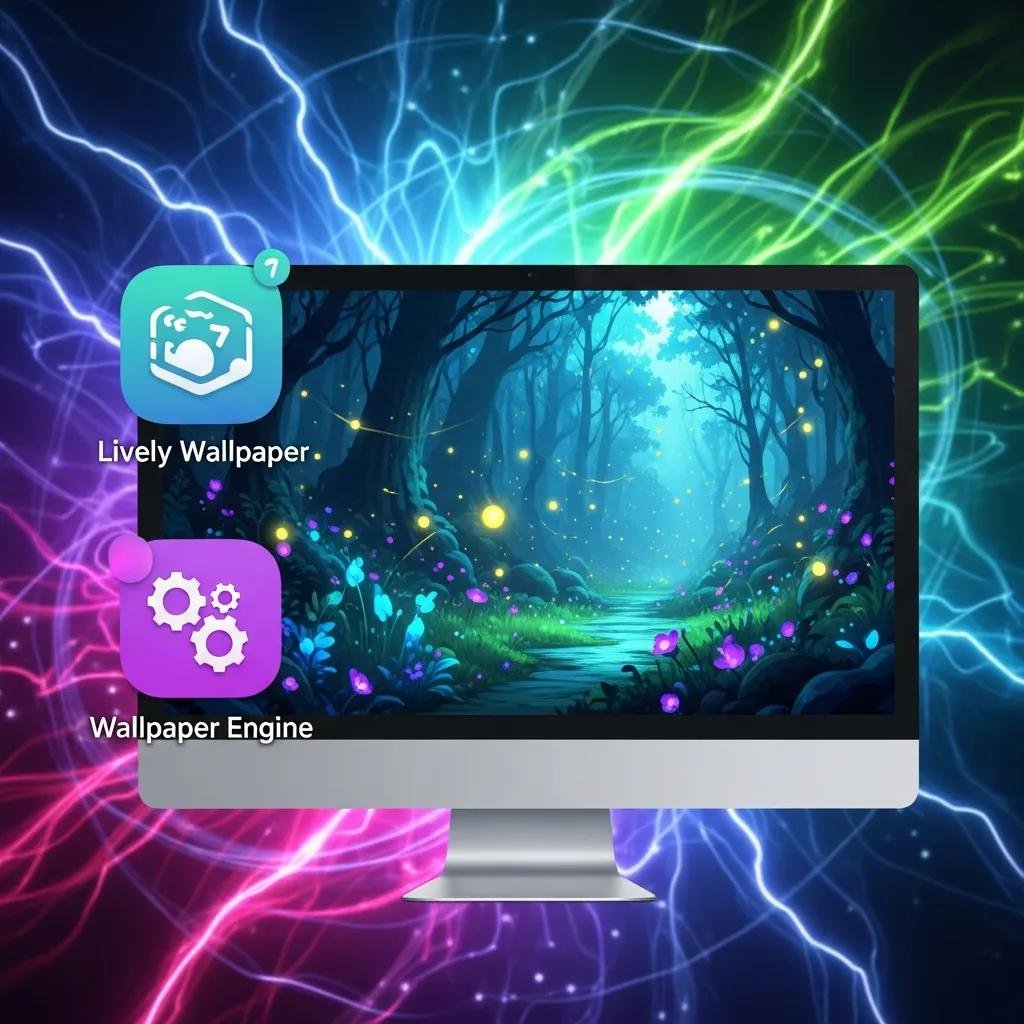
Several tools provide dynamic backgrounds with different trade-offs for cost and features. Lively Wallpaper is free and open-source, suitable for lightweight animations and simple video backgrounds.
Wallpaper Engine is paid, with rich effects, workshop content, and robust performance controls for enthusiasts who want deep customization.
The built-in slideshow is zero-cost and lowest-impact, ideal when battery life or minimal CPU usage is a priority.
Dynamic wallpaper tools comparison:
| Tool | Cost | Notes |
|---|---|---|
| Built-in Slideshow | Free | Lowest performance impact, simple rotation |
| Lively Wallpaper | Free | Open-source, supports video and web scenes |
| Wallpaper Engine | Paid (around $4.99 USD) | Feature-rich, large community content, performance tuning |
Use this table to match your performance budget and desired effects, choosing the simplest option that meets your needs.
How can I customize and manage Windows 11 desktop widgets effectively?
Widgets in Windows 11 surface timely information such as weather, calendar events, and news directly on the desktop to reduce app switching and keep relevant data visible.
The Widgets board aggregates multiple widget tiles that you can add, remove, and resize, tailoring the feed to your priorities while keeping distractions low.
For advanced customization, third-party tools like Rainmeter allow fully custom skins and data sources, but they require careful configuration to avoid performance impacts. The next sections explain widget management and how Rainmeter skins work in practical terms.
How do I add, remove, and personalize widgets on Windows 11?
To manage widgets, open the Widgets board from the taskbar or gesture, then use the Add Widgets option to insert tiles and the three-dot menu to resize or remove them. Sign in with a Microsoft account for personalized news and calendar syncing; limit feed sources to preserve privacy and reduce background network use. Reordering tiles helps prioritize frequently used information while minimizing visual clutter. Adjusting these settings improves both productivity and privacy for a cleaner desktop experience.
Widget management quick tips:
- Open Widgets: Use taskbar icon or keyboard shortcut to access the board quickly.
- Add or remove tiles: Use Add Widgets and context menus to customize layout.
- Limit sources: Sign in only where needed and disable unnecessary feeds to reduce noise.
What are Rainmeter skins and how to use them for advanced widget customization?
Rainmeter is a modular desktop customization platform that runs small, scriptable skins showing system stats, media controls, or custom shortcuts. Install Rainmeter, download a skin package, then load or tweak individual meters and measures to display the data you want. Skins can query system APIs, web data, or local files, offering deep personalization for power users who want information at a glance.
If a skin causes slowdowns, disable nonessential measures or unload heavy skins, and keep backups of configurations before major changes.
Widget types mapped to typical uses:
| Widget Type | Data Source | Customization | Performance Footprint |
|---|---|---|---|
| Weather | Online APIs | Units, layout, refresh rate | Low–Medium (network calls) |
| System Monitor | Local sensors | Display metrics, thresholds | Low–Medium (CPU sampling) |
| Calendar/Notes | Microsoft account/local files | Sync, color, size | Low (sync overhead) |
This mapping helps pick widgets by purpose and expected resource use to maintain a responsive desktop.
What are common issues with Windows 11 desktop personalization and how to fix them?
Personalization failures usually stem from incompatible files, permission problems, or conflicts with third-party UI tools; diagnosing the cause quickly restores a working desktop. Common quick fixes include reapplying a default theme, restarting Windows Explorer, updating graphics drivers, and running system integrity checks like SFC and DISM. If third-party tools such as Rainmeter misbehave, disable skins and test one-by-one to isolate the problematic item. For persistent or complex failures that affect productivity, professional remote troubleshooting is a practical next step.
Why might Windows 11 themes or widgets not apply correctly?
Themes or widgets may fail because the file format is unsupported, package files are corrupted, or user account permissions block changes. Another common cause is interference from modified UI tools or recent OS updates that change personalization APIs. Start by switching to a default theme and testing with a clean profile to isolate corruption or permission issues. If a theme fails repeatedly, check file signatures and reinstall or remove third-party UI modifiers before reapplying.
How to troubleshoot and resolve errors with Rainmeter and other customization tools?
Troubleshoot Rainmeter by first disabling all skins, then enabling them one at a time to find the faulty skin; check logs for syntax or measure errors. Ensure required dependencies and runtime libraries are present, and reinstall the app if configuration files are irreparably corrupted. Before major changes create a system restore point so you can revert safely. If troubleshooting exceeds your time or comfort level, consider remote technical assistance from mcHelper.com, which offers 24/7 remote Windows support and can help resolve stubborn personalization or system issues under a fast, secure “no fix – no fee” promise.
Quick resolution checklist for persistent issues:
- Reapply default theme: Confirms whether the problem is theme-related.
- Restart Explorer: Often restores missing widgets or UI elements.
- Run SFC/DISM: Repairs system file corruption that blocks personalization.
- Disable third-party UI tools: Isolates conflicts from customizers.
Following this checklist usually restores normal behavior; when it does not, expert remote support can complete deeper diagnostics.





