

Master macOS Features: Essential Tips and Shortcuts to Boost Your Apple Operating System Efficiency
This guide explains key macOS features and simple shortcuts that boost daily productivity on a Mac, helping you move faster through common tasks and stay organized. You will learn high-impact macOS productivity tips, practical customization steps, lesser-known features that save time, and a concise optimization checklist for peak performance. By focusing on keyboard shortcuts, Spotlight search techniques, Dock and Menu Bar tweaks, Continuity features, and native automation tools, this article delivers actionable steps you can apply immediately. If a persistent problem or potential data risk appears while following these tips, the article also outlines when professional remote support is the sensible next step. The sections below map to top user needs: productivity tips, personalization and customization, hidden power features, and troubleshooting plus optimization. Throughout, keywords like apple os tips, mac customization, macos productivity, and mac keyboard shortcuts are used in context to help you find and apply the best workflows.
What Are the Top macOS Productivity Tips Every User Should Know?
Top macOS productivity tips center on mastering shortcuts, Spotlight, window management, and simple automation to reduce repetitive actions and speed up daily work. The reason these work is that macOS exposes keyboard modifiers, system search operators, and automation building blocks that remove menu navigation and repetitive clicking. The specific benefit is less friction—faster file retrieval, quicker app switching, and fewer interruptions while writing or coding. Below are prioritized, bite-sized tips you can adopt now to improve efficiency and reduce cognitive load.
Here are five high-impact productivity tips and why they matter:
- Use global shortcuts such as Cmd+Space to open Spotlight and Cmd+Tab to switch apps for immediate navigation.
- Learn window-management keys like Control + Up Arrow for Mission Control and use Stage Manager for tidy workflows.
- Use Spotlight operators (e.g., kind:pdf, date:today) to find files fast and run quick calculations.
- Automate repetitive tasks with the Shortcuts app or text expansion to eliminate manual steps.
- Use Quick Look (Space) and Preview Markup to review and edit files without launching full apps.
These tips focus on immediate gains: faster search, smoother app switching, and repeatable automations that compound into hours saved weekly.
Different productivity tools serve complementary roles; the table below compares common macOS tools and their primary use-cases to help you choose what to adopt first.
| Feature | Primary Use | Example Benefit |
|---|---|---|
| Keyboard Shortcuts | Fast navigation & editing | Reduce mouse time and speed text editing |
| Spotlight Search | File/app discovery & quick calculations | Locate files with filters or compute without opening apps |
| Stage Manager | Window grouping and focus | Keep related windows visible for focused tasks |
| Shortcuts | Task automation & chaining actions | Automate exports, renames, or uploads |
This quick-reference table clarifies where to invest time learning: global shortcuts give instant ROI, while Shortcuts creates long-term efficiency gains. Practicing one tip per day makes adoption sustainable and measurable.
How Can Keyboard Shortcuts Enhance Your Mac Efficiency?

Keyboard shortcuts are compact commands that map complex actions to a few keystrokes, which reduces friction and keeps your hands on the keyboard. They work because macOS exposes both global and app-specific shortcuts, allowing you to navigate, edit, and manage windows without switching to a mouse. The result is measurable time saved per task and improved concentration during workflows. Start with global keys, then add window-management and text-editing combinations to your routine.
Common shortcut groups to learn:
- Navigation: Cmd+Space (Spotlight), Cmd+Tab (switch apps), Cmd+` (cycle windows).
- Editing: Cmd+C/V/X/Z for copy/paste/cut/undo and Option+Delete for word deletion.
- Window control: Control+Up Arrow (Mission Control), Control+Down Arrow (App Exposé).
- Custom keys: Create app-specific shortcuts in System Settings to match your workflow.
Practice the smallest set that solves your daily pain points, then expand. Clear keystroke habits translate into fewer context switches and a smoother mental workflow when you open your Mac for work.
Which Spotlight Search Tricks Save Time on macOS?
Spotlight is more than an app launcher; it accepts filters and operators to refine searches, run calculations, and preview files instantly, which shortens the path from intent to result. The mechanism is text parsing and indexed metadata: Spotlight indexes file metadata, mail, messages, and system info to return precise matches. The primary benefit is speed—complex queries return near-instant results that would otherwise require folder navigation or launching apps.
Use these Spotlight techniques daily:
- Use filters like kind:pdf or kind:image to narrow results quickly.
- Combine keywords and date operators (date:this week) to find recent files.
- Enter math or unit conversions directly (e.g., 23*7 or 5 miles in km) for instant answers.
- Press Cmd+Return in results to reveal the file in Finder without opening it.
For power users, third-party launchers such as Alfred or Raycast extend Spotlight with workflows and scripting, but Spotlight alone handles many frequent needs, reducing the number of tools you must learn.
How Do You Customize macOS to Personalize Your Apple Experience?
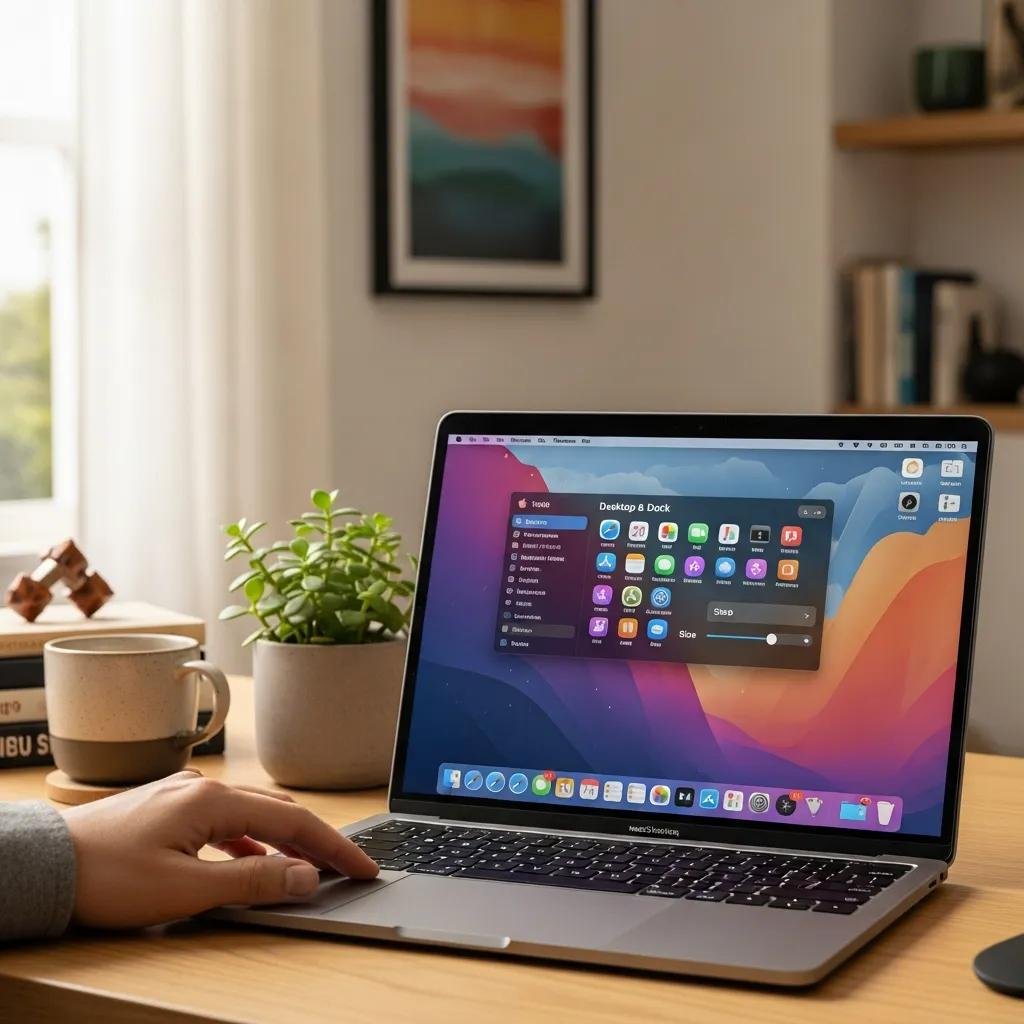
Customizing macOS tailors appearance and behavior to your preferences by adjusting the Dock, Menu Bar, Control Center, System Settings, and accessibility options, creating a personally optimized environment. The mechanism is simple: macOS exposes adjustable attributes (size, position, visibility, and shortcuts) that change how and where you interact with items. This yields immediate UX improvements—less visual clutter, faster access to essentials, and accessibility adjustments that reduce strain. Below are practical customization steps and a concise comparison to help you choose a starting point.
Customize these areas first:
- Dock: Resize, change position, and enable hiding to reclaim screen space.
- Menu Bar: Add or remove Control Center items to surface essential toggles.
- System Settings: Create custom keyboard and mouse behaviors for efficiency.
The table below outlines key customization targets with straightforward steps to implement them.
| Target | Customizable Attribute | Steps to customize |
|---|---|---|
| Dock | Size, position, auto-hide | Open System Settings > Desktop & Dock, adjust sliders and toggles |
| Menu Bar | Visible icons & Control Center items | Use Control Center settings to add or remove status items |
| Hot Corners | Screen-corner actions | System Settings > Desktop & Dock > Hot Corners, assign actions |
This comparison makes it clear that small adjustments—like auto-hiding the Dock and removing unused Menu Bar icons—reduce distractions and speed routine tasks. Make one change at a time and test for a day to see the impact on your workflow.
What Are the Best Ways to Customize the Dock and Menu Bar?
The Dock and Menu Bar control app access and quick toggles; customizing them focuses attention on what you use most and hides what you don’t. The Dock can be resized, moved, set to hide automatically, and populated with frequently used apps and folders for one-click access. The Menu Bar is managed through Control Center settings where you can add system toggles or third-party status icons for immediate access to Wi-Fi, Bluetooth, or battery status.
Practical steps to optimize the Dock and Menu Bar:
- Remove rarely used icons from the Dock by dragging them out and pin important apps for persistent access.
- Set Dock to auto-hide to reclaim vertical space when working in full-screen apps.
- Use Control Center to consolidate status items and reduce Menu Bar clutter.
- Create a minimal, task-oriented Dock layout for focused work sessions.
A tidy Dock and a purposeful Menu Bar reduce visual noise and make essential controls reachable with minimal effort, improving both focus and speed.
How Can Hot Corners and Desktop Stacks Improve Workflow?
Hot Corners and Desktop Stacks give you immediate screen actions and tidy file organization that save repeated clicks and keep your desktop readable. Hot Corners let you assign quick actions (Mission Control, Lock Screen, Start Screen Saver) to screen corners, triggering them with a swift mouse or trackpad movement. Desktop Stacks group files by type, date, or tags, reducing visual clutter and making it easier to find recently saved items without complex folder structures.
How to set them up and use them effectively:
- Configure Hot Corners in System Settings and assign actions you use often to minimize travel time.
- Enable Desktop Stacks in Finder to group files by kind, date, or tag for instant cleanup.
- Combine Stacks with tags to create persistent organization that surfaces projects.
- Use Hot Corners for quick context changes like showing the desktop or activating Mission Control.
When Hot Corners and Stacks are configured to match your habits, they lower the activation cost of common tasks and make desktop maintenance a background task rather than a chore.
Boost macOS Efficiency: Essential Tips, Shortcuts & Hidden Features
Hidden macOS features—Continuity tools, Quick Look, Live Text, Shortcuts, and Automator—offer outsized productivity gains because they connect devices, surface content without full app launches, and automate repetitive workflows. The reason they matter is that they move work between apps and devices seamlessly, letting you act on content faster while preserving context. The result is fewer interruptions and more fluid multi-device workflows.
Key hidden features to explore immediately:
- Continuity: Universal Control and Handoff connect nearby Macs and iPads for seamless input and file sharing.
- Shortcuts & Automator: Create automations to batch-rename files, move screenshots to cloud folders, or run multi-step exports.
- Quick Look & Live Text: Preview and copy text or data from images without opening full apps.
- Markup & Quick Actions: Edit PDFs or images in place to finish simple tasks rapidly.
Each feature removes a step from a multi-step task, turning manual routines into single actions that preserve your focus and momentum.
How Do Continuity Features Like Universal Control and Handoff Work?
Continuity features let devices share input, clipboards, and file transfers by linking them through iCloud and local network discovery, enabling drag-and-drop, universal keyboard/mouse control, and instant handoff of tasks. The prerequisites are matching Apple IDs, Bluetooth and Wi-Fi enabled, and current macOS/iPadOS versions; when configured, the mechanism uses secure peer-to-peer connections to move data and input streams. The benefit is seamless context transfer: you can copy text on one device and paste on another, or move a cursor across screens without extra adapters.
Quick setup and common use-cases:
- Ensure devices are signed into the same Apple ID and have Bluetooth/Wi-Fi enabled.
- Enable Handoff in System Settings to allow app state transfer between devices.
- Use Universal Control to control an iPad from your Mac, dragging files or typing across screens.
- Troubleshoot by toggling Bluetooth or re-signing into iCloud if devices fail to connect.
These features remove friction in multi-device setups and let you treat nearby Apple devices as extensions of a single workspace.
What Are Useful Automation Tools in macOS Like Shortcuts and Automator?
Shortcuts is a modern automation app that chains native actions and third-party app steps into single workflows, while Automator remains useful for legacy, scriptable batch processes; both speed repetitive tasks and reduce manual errors. Shortcuts integrates with system services and apps to zip images, rename files, or upload assets automatically; Automator still excels at file-based batches and AppleScript-driven tasks. The benefit is predictable execution of routine tasks, freeing mental bandwidth for creative work.
Two micro-tutorial examples:
- Create a Shortcut that takes the latest screenshot, resizes it, and uploads it to a designated cloud folder with one trigger.
- Build an Automator workflow to batch-rename files in a folder based on date or a project prefix.
Start with small automations and expand as confidence grows; automations that save even a minute per day quickly justify the time spent creating them.
How Can You Troubleshoot and Optimize macOS for Peak Performance?
Optimizing macOS begins with diagnostics—Activity Monitor for CPU/memory, Storage management for disk space, and checking login items for startup delays—so you can prioritize fixes by impact. The reason diagnostics work is they reveal resource bottlenecks and permission or indexing problems that commonly cause slowdowns and feature failures. The benefit of a disciplined diagnostic checklist is faster root-cause identification and targeted remediation, which reduces wasted time troubleshooting symptom-only fixes.
Start with this quick diagnostic checklist:
- Check Activity Monitor for runaway processes consuming CPU or memory.
- Review Storage/Optimized Storage and clear large unused files or caches.
- Reset Spotlight indexing if search results are incomplete.
- Inspect login items and background agents that may slow startup.
The table below summarizes common issues, likely causes, and quick fixes, and indicates when to escalate to remote professional support.
| Issue | Likely Cause | Quick Fix / When to Seek Support |
|---|---|---|
| Slow performance | High CPU or memory usage, full disk | Quit or update offending app; seek help if hardware limits suspected |
| Spotlight not indexing | Corrupt index or permissions | Rebuild index via System Settings or Terminal; contact support if persistent |
| Continuity failures | Network, Bluetooth, or iCloud mismatch | Reboot devices and re-sign into iCloud; consult support for device-level faults |
This compact troubleshooting guide helps you triage problems quickly and determine whether a DIY fix suffices or professional intervention is warranted.
What Are Common Issues When Using Advanced macOS Features?
Advanced macOS features can fail due to permission settings, indexing problems, network conflicts, or outdated system components, creating interruptions in continuity, automation, or search. For example, Shortcuts or Automator may require explicit permissions for file access or scripting, Spotlight can fail if its index is corrupted, and Universal Control often breaks when Bluetooth or Wi-Fi flaps. The quick fixes typically involve resetting permissions, rebuilding indexes, and ensuring devices run compatible OS versions.
If issues persist after basic fixes, professional remote support can help with deeper diagnostics such as secure credential checks, advanced index rebuilds, and safe data recovery. Remote technicians can run targeted traces, correct permission chains, and advise on whether hardware diagnostics or backups are necessary to protect data. mcHelper.com offers remote Mac and Windows tech support, 24/7 availability, remote access troubleshooting, and a “no fix – no fee” guarantee for issues that require professional intervention, making it an option when DIY steps do not resolve persistent or high-risk problems.
When Should You Seek Professional Mac Support for Optimization?
Seek professional support when symptoms indicate hardware faults, repeated crashes, data loss risk, or when an issue resists standard diagnostics like index rebuilds and permission resets; these signs mean deeper system or hardware-level investigation is needed. Professionals collect logs, run hardware tests, and perform safe data-recovery steps that go beyond in-system fixes. The expected outcome from a support engagement is a clear diagnosis, recommended remediation steps, and, when appropriate, remote fixes that preserve data integrity.
When contacting support, provide these items to speed resolution:
- A brief history of the problem and recent changes (updates, new apps).
- Screenshots of error messages and approximate timestamps of events.
- Basic device details like macOS version and whether iCloud is enabled.
- Note any prior troubleshooting steps you’ve already tried.
If you prefer remote assistance, mcHelper.com specializes in remote troubleshooting and repair for Mac and Windows systems; they provide 24/7 remote support and operate under a service model that emphasizes remote access solutions and a “no fix – no fee” promise for qualifying issues. This option keeps the focus on restoring stability and protecting data while minimizing disruption to your workflow.





