

How to Choose the Perfect External Monitor: Complete Buying Guide
An external monitor is a separate display you connect to a laptop or desktop to expand workspace, improve visual clarity, or tailor a system for gaming, creative work, or productivity. This concise buying guide explains the key monitor features to evaluate, how ports and cables affect compatibility, which specs match common use cases, and why ergonomics and brand matter when selecting the best display for your setup. Many buyers struggle to balance resolution, panel type, and refresh rate with budget and desk space, so this article breaks down those trade-offs in plain language and offers practical recommendations you can apply immediately. You’ll find quick checklists, comparison tables, and short use-case mappings designed to help you pick between 1080p, 1440p, 4K, ultrawide, and portable USB-C options without getting lost in jargon. Read on to learn how resolution, panel technology, connectivity, and ergonomic choices combine to determine the best display for your needs and how to verify compatibility with your computer before purchase.
What Key Features Should You Consider When Buying an External Monitor?
Core monitor features determine image quality, responsiveness, and fit for your tasks: resolution sets clarity and workspace, panel type affects color and viewing angle, refresh rate and response time matter for motion, connectivity controls compatibility, and ergonomics define comfort. Understanding these attributes helps you prioritize what matters for productivity, creative color-critical work, or gaming performance. Below is a short checklist that highlights the five most influential features to check before buying, followed by a brief explanation of each item to guide your decision and prepare you for deeper comparisons.
Key features checklist to evaluate before buying an external monitor:
- Resolution and screen size: choose balanced pixel density for clarity and workspace.
- Panel type: IPS for color, VA for contrast, TN for speed.
- Refresh rate and response time: higher Hz and lower ms for smoother motion.
- Connectivity and power delivery: ensure compatible ports and USB-C charging if needed.
- Ergonomics and mounting: height, tilt, swivel, and VESA for comfortable setup.
These checklist items form the baseline for selecting the best display for different tasks, and the next subsection explains how resolution and size combine to shape viewing experience and workspace.
How Do Resolution and Screen Size Affect Your Viewing Experience?
Resolution is the pixel count of a display and, combined with screen size, determines pixel density (PPI), which governs perceived sharpness and readable text at typical viewing distances. Higher resolutions like 1440p (QHD) and 4K (UHD) provide more workspace for multitasking and finer detail for creative editing, while 1080p keeps costs and GPU load lower for general productivity. As a simple rule, a 24–25″ screen pairs well with 1080p for crisp text at arm’s length, 27″ is a sweet spot for 1440p offering more workspace without tiny UI elements, and 27–32″ suits 4K for color work and detailed imagery. Consider viewing distance and GPU capability when choosing resolution to avoid scaling issues or poor frame rates, which naturally leads into panel type choices.
Below is a quick resolution-use guidance table showing typical matches by use.
| Resolution | Typical Screen Size | Best For |
|---|---|---|
| 1080p (FHD) | 21–24″ | Budget productivity, secondary displays |
| 1440p (QHD) | 24–27″ | General productivity, mixed gaming |
| 4K (UHD) | 27–32+” | Creative work, detailed imagery |
| Ultrawide | 34+” | Multitasking, immersive workflows |
| Portable USB-C | 13–17″ | Travel, laptop extension |
This table summarizes how resolution choices map to common uses so you can match pixel density and workspace to your tasks.
What Are the Differences Between IPS, VA, and TN Panel Types?
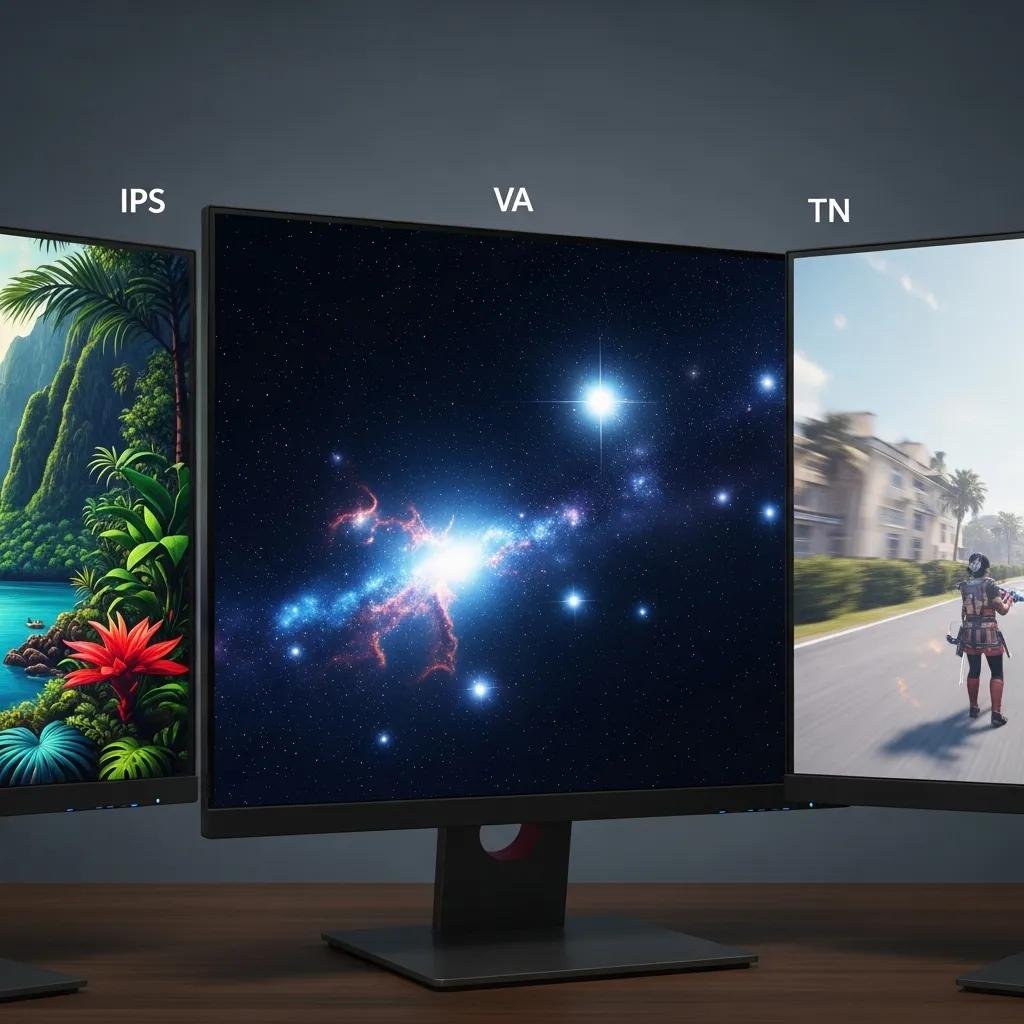
Panel technology is a meronym of a monitor that directly impacts color accuracy, contrast, and motion performance; different panels trade off these attributes for specific use-cases. IPS panels provide wide viewing angles and strong color fidelity, making them preferable for creative work and general desktop use. VA panels deliver deeper contrast and better blacks, which benefits media consumption and darker room viewing. TN panels offer the fastest response times and can be the most affordable, suiting competitive gamers who prioritize low input lag over color depth. Choosing a panel depends on whether you prioritize color accuracy, contrast, or speed, and that decision informs which adaptive sync and refresh rate combo you should seek.
A brief pros/cons list clarifies appropriate scenarios and transitions to connectivity considerations.
- IPS: Best color and viewing angles; slightly higher cost.
- VA: Strong contrast and deep blacks; slower pixel response.
- TN: Fastest response; weaker color and viewing angles.
These panel trade-offs guide the selection of refresh rates and compatibility expectations discussed next.
Which Connectivity Options Are Essential for Your External Monitor Setup?
Connectivity determines whether your monitor will deliver the resolution, refresh rate, and power you expect; common ports include HDMI, DisplayPort, and USB-C/Thunderbolt with alt-mode and power delivery. Understanding port bandwidth and laptop/graphics card capabilities prevents surprises like reduced refresh rates or unsupported resolutions when using adapters. Before buying, check whether your system supports USB-C alt-mode for video, whether HDMI is recent enough for 4K60, and whether DisplayPort can pass the desired refresh rate—these checks ensure compatibility and avoid bottlenecks. The following table compares the typical capabilities and compatibility notes for the main port types so you can match your monitor to your computer.
| Port | Max Typical Resolution/Refresh | Common Use / Compatibility Notes |
|---|---|---|
| HDMI 2.0+ | 4K @ 60Hz | Widely supported; older HDMI versions limit bandwidth |
| DisplayPort 1.2+ | 4K @ 60Hz (DP1.4 supports higher refresh rates) | Preferred for high-refresh and daisy-chaining |
| USB-C / Thunderbolt | 4K @ 60Hz + PD | Supports video and power; requires host alt-mode |
This compatibility table helps you choose cables and adapters that preserve resolution and refresh rate, and the next paragraph outlines common adapter pitfalls to watch for when connecting mixed hardware.
Common adapter and compatibility tips prevent losing features when bridging older ports to modern displays.
If you need help configuring ports, choosing adapters, or resolving compatibility problems, mcHelper.com offers remote setup and troubleshooting to verify port capabilities and optimize monitor connections.
How Do HDMI, DisplayPort, and USB-C Ports Impact Compatibility?
Each video port carries a semantic relationship between bandwidth and supported display modes: higher bandwidth enables higher resolution and refresh rate combinations, and adapters can reduce capability when they lack the required signaling. HDMI 2.0 and later commonly support 4K60 but older HDMI limits reduce refresh or resolution; DisplayPort provides higher bandwidth and supports daisy-chaining in many monitors, while USB-C with DisplayPort alt-mode and power delivery combines video, data, and charging for laptop workflows. Using passive or active adapters can change supported modes—active adapters translate signals and preserve capability more reliably—so verify GPU and cable specs before purchase. Check your laptop or GPU documentation for exact port versions to ensure the monitor will run at the desired settings.
What Should You Know About Monitor Refresh Rate and Response Time?
Refresh rate (Hz) defines how often the display updates per second, while response time (ms) measures how quickly pixels change state; together they determine motion clarity and input responsiveness. For general productivity, 60Hz is acceptable because desktop interactions and video content rarely exceed that threshold, while gamers targeting competitive performance typically seek 120–240Hz and low response times to minimize motion blur and input lag. Higher refresh rates benefit fast-paced gameplay and perceived smoothness, but they demand more GPU power—so balance resolution and Hz according to your graphics card capability. Adaptive sync technologies (FreeSync, G-Sync) further reduce tearing and provide smoother frames across variable frame rates, which helps the next section on use-case matching.
How to Choose the Best Monitor Based on Your Specific Use Case?
Choosing the best monitor depends on mapping tasks to concrete specs: productivity prioritizes readable workspace and ergonomics, creatives need color accuracy and calibration, and gamers balance resolution with refresh rate and adaptive sync. Evaluate whether an ultrawide improves workflow versus dual monitors for window management, and whether you need factory calibration or hardware calibration tools for precise color work. Below is a compact use-case table that links each common scenario to recommended core features and specs so you can quickly select a display profile and narrow choices.
| Use Case | Key Features Needed | Recommended Specs |
|---|---|---|
| Productivity | Readability, ergonomics, pixel density | 27″ 1440p, adjustable stand, USB hub |
| Creative Work | Color accuracy, uniformity, calibration | 27–32″ 4K IPS, wide gamut, calibration support |
| Gaming | High refresh, low input lag, adaptive sync | 24–27″ 1440p @ 144Hz+, FreeSync/G-Sync compatible |
This mapping clarifies trade-offs and guides matching GPU power to monitor targets so you avoid over- or under-specifying your display.
mcHelper.com can assist with optimizing monitor settings for specific workflows, including color calibration for creatives, multi-monitor arrangement for productivity, and GPU/driver troubleshooting for gamers.
What Are the Best Monitors for Productivity and Creative Work?
For productivity, prioritize a balance of resolution and screen ergonomics—27″ 1440p often provides readable text and sufficient workspace without extreme scaling. A flexible stand, VESA compatibility, and integrated USB hubs improve workflow by enabling easy posture adjustments and peripheral routing.
For creative professionals, prioritize IPS panels with high sRGB/Adobe RGB coverage, factory calibration, and support for external calibration tools to ensure consistent color across devices. Implementing color profiles and a stable lighting setup enhances accuracy, and considering ultrawide or dual-monitor arrangements can significantly increase efficiency for multitasking and editing.
Which Features Matter Most When Choosing a Gaming Monitor?
Gamers should prioritize refresh rate, low response time, and adaptive sync support while aligning resolution to GPU capability to sustain target frame rates. Competitive players often choose 1080p or 1440p panels at 144Hz+ with TN or fast IPS panels for minimal input lag, whereas immersive gamers may prefer 1440p or 4K with high refresh if their GPU can sustain it. Adaptive sync technology reduces tearing and stutter across fluctuating frame rates, improving perceived smoothness without relying solely on V-sync. Balance panel type, resolution, and Hz according to your GPU and competitive goals to optimize both visual fidelity and responsiveness.
How Can Ergonomics and Brand Influence Your External Monitor Choice?
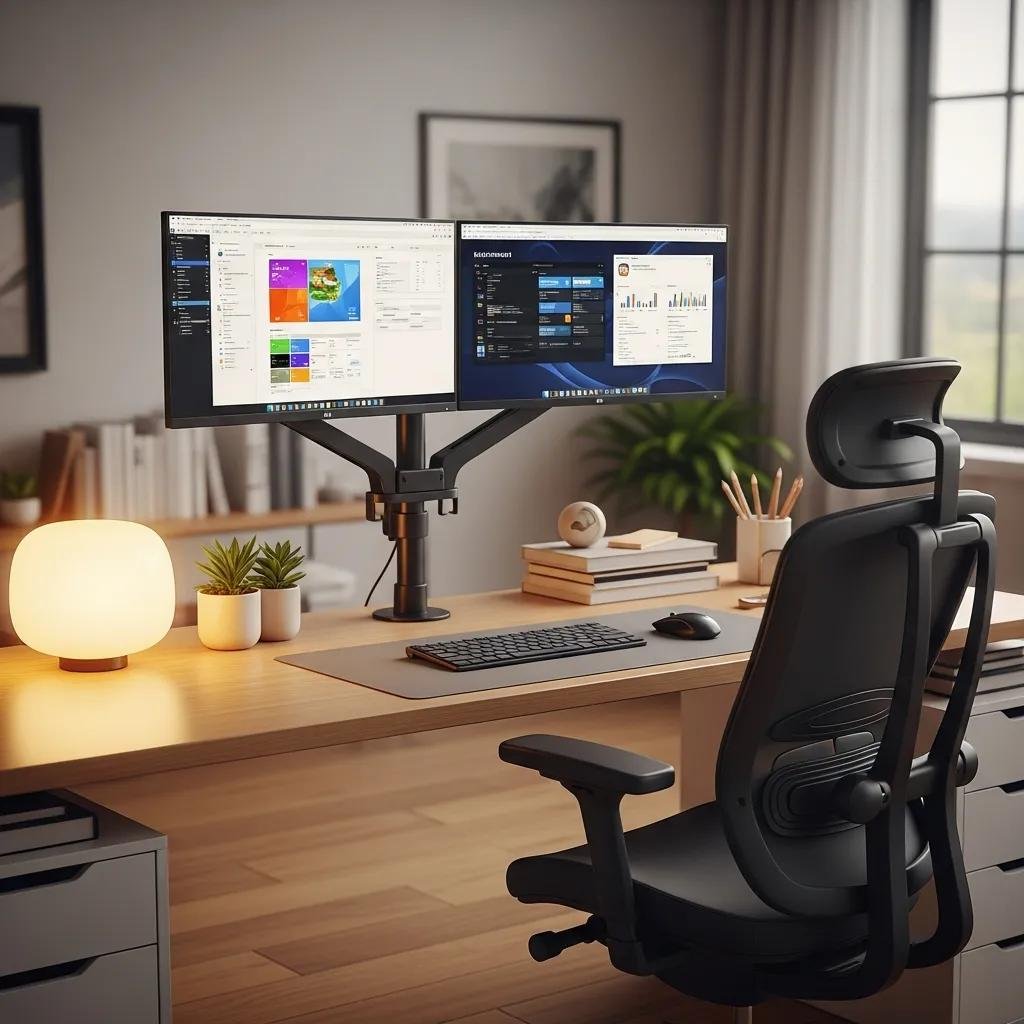
Ergonomics and brand support shape long-term comfort and reliability: adjustable stands, VESA mount compatibility, and stable warranty/support policies influence daily usability and total cost of ownership. Good ergonomic design reduces neck and eye strain by enabling the top of the screen to sit at or just below eye level and keeping displays at an arm’s length distance, which improves posture and productivity. Brand reputation often signals consistent quality of components like backlight uniformity and reliable customer service; consider support and return policies when choosing between similarly specced models. The next subsection covers specific ergonomic setup tips to implement once you have your display.
Why Is Ergonomic Design Important for Comfortable Monitor Setup?
Ergonomic design directly affects health and productivity by minimizing awkward head tilt, neck strain, and eye fatigue; placing the screen top at or slightly below eye level and keeping the display about an arm’s length away promotes a neutral posture. Adjustable height, tilt, swivel, and pivot allow you to align the monitor to your workflow, while VESA-compatible mounts offer further flexibility with monitor arms for multi-display setups. Anti-glare coatings and proper ambient lighting reduce reflections and eye strain, and ensuring the primary monitor is centered reduces repetitive neck movement. These setup practices support sustained comfort and better long-term work performance.
Which Trusted Brands Offer Reliable External Monitors?
Several established manufacturers are commonly recognized for strengths across segments: some brands emphasize business-class reliability and uniformity, others lead in ultrawide and IPS innovation, while specialized manufacturers focus on color-critical displays or gaming performance. Warranty and support policies vary by brand and model, so verify service options and return policies before purchase to reduce risk. Reading professional reviews and user feedback helps confirm real-world uniformity, backlight behavior, and long-term reliability. Comparing brand reputations alongside specs ensures you select a monitor that matches both functional needs and expected aftercare.
Need help setting up or troubleshooting your new monitor? mcHelper.com provides 24/7 remote support with a no fix – no fee guarantee, offering fast, secure assistance from certified technicians to configure ports, calibrate displays, and resolve driver or GPU issues.





