

Essential OS Hacks to Boost Windows, macOS & Linux Usability
Usability in an operating system means clear workflows, fast responses, and fewer interruptions so work feels natural and efficient. This guide shows practical operating system tricks and platform-specific tips that reduce friction, free resources, and streamline multitasking on Windows, macOS, and Linux. You will learn how to optimize Windows 11 multitasking and startup behavior, apply macOS Sonoma widgets and shortcuts for focused workflows, and customize Linux desktops and terminal aliases to accelerate routine maintenance. The article also covers cross-platform security and cleanup steps to remove malware, reclaim disk space, and optimize browsers for smoother day-to-day use. Each section supplies short, actionable lists, comparison tables, and example keystrokes so you can apply the changes quickly and measure improvement. By the end, you’ll have a compact toolkit of operating system tricks to speed up your computer and maintain a reliable, distraction-free environment.
How Can You Optimize Windows 11 for Better Productivity and Performance?
Windows 11 optimization focuses on reducing boot-time background work, using built-in multitasking features, and trimming unnecessary resource use so the system feels faster and more responsive. Practical improvements come from combining Snap Layouts and virtual desktops for task separation, disabling high-impact startup programs, and using Storage Sense and Task Manager to clear temporary files and monitor performance. Apply these steps to see immediate gains and to create a repeatable maintenance routine that preserves responsiveness. Below is a concise action checklist you can follow now to optimize startup, multitasking, and responsiveness.
- Disable unnecessary startup apps via Task Manager to shorten boot time and reduce background CPU usage.
- Use Win+Z to pick Snap Layouts and arrange windows for common workflows (email + browser, code + terminal).
- Create virtual desktops (Win+Ctrl+D) to separate work contexts and reduce on-screen clutter.
- Enable Storage Sense or schedule disk cleanup to remove temporary files and cached installers.
These steps prioritize high-impact changes that deliver fast, measurable improvements in perceived performance and multitasking efficiency by reducing interruptions and freeing memory for active tasks.
What Are the Best Windows 11 Snap Layouts for Multitasking?

Snap Layouts are Windows 11’s built-in window arrangement presets that let you position multiple apps quickly, improving focus and context switching. They work by offering grid and column templates; invoking them with Win+Z or dragging a window to the top of the screen provides layout choices that match single-monitor and multi-monitor workflows. Example layouts include a two-column split for writing and reference, a three-pane grid for email, calendar, and notes, and side-by-side code/terminal placement for development. Using these layouts with virtual desktops helps keep task-specific groups of apps separated for deeper focus and faster context restoration when returning to work.
- Two-column: Browser left, document right — ideal for research and writing.
- Three-pane: Mail, calendar, notes — best for meeting prep and planning.
- Code + terminal: Editor left, terminal right — optimized for debugging and builds.
Switching layouts with Win+Left/Right and Win+Z reduces manual resizing and keeps multitasking fluid.
How to Manage Startup Programs to Speed Up Windows 11?
Startup program management trims the processes that launch automatically so boot time and background load decrease, improving overall system speed. Open Task Manager → Startup to view impact, then disable programs with high startup impact like unused updaters or helper tools while keeping security and essential drivers enabled. Use the table below to compare common startup items, their impact, and recommended actions to make safe choices without removing vital protections.
| Program | Impact on performance | Action to take |
|---|---|---|
| Cloud sync clients | Medium to high | Keep for active sync; set to manual if rarely used |
| Update checkers | Medium | Disable if you update manually or use OS update service |
| Chat/messaging apps | Medium | Disable autostart; launch when needed |
| Helper utilities (printers, peripherals) | Low to medium | Keep if required; disable if unused |
Reviewing this list lets you target the highest-impact items first, restoring startup speed without sacrificing essential functionality or security.
For users who prefer guided help or want remote-assisted optimization, a professional option is available: mcHelper.com offers a “Speed-Up and Optimize your Computer” remote service that can apply these startup and tuning changes on your behalf. Their remote support model handles configuration remotely, which is convenient for users who want hands-on assistance without visiting a shop.
What Essential Tips Enhance macOS Sonoma Usability and Efficiency?
macOS Sonoma adds workflow-oriented features like interactive desktop widgets and Stage Manager, which increase context awareness and reduce distraction when used intentionally. Improving usability on Mac requires combining widgets for glanceable information, managing login items to preserve performance, and practicing a small set of system and app shortcuts to move faster. Keep macOS updated, limit heavy widgets to essential utilities, and use Stage Manager or Spaces to group related apps for focused sessions. The following list outlines practical macOS Sonoma adjustments to improve efficiency today.
- Add focused widgets (calendar, timers, quick notes) on the desktop for at-a-glance info while working.
- Use Stage Manager to group apps by task and reduce visual switching cost.
- Remove unused login items in System Settings to reduce background activity at sign-in.
- Learn 5–8 shortcuts for app switching and window management to cut repeated mouse travel.
These adjustments reduce interruptions and improve speed by making context switches intentional and lightweight.
How Do macOS Sonoma Desktop Widgets Improve Workflow?
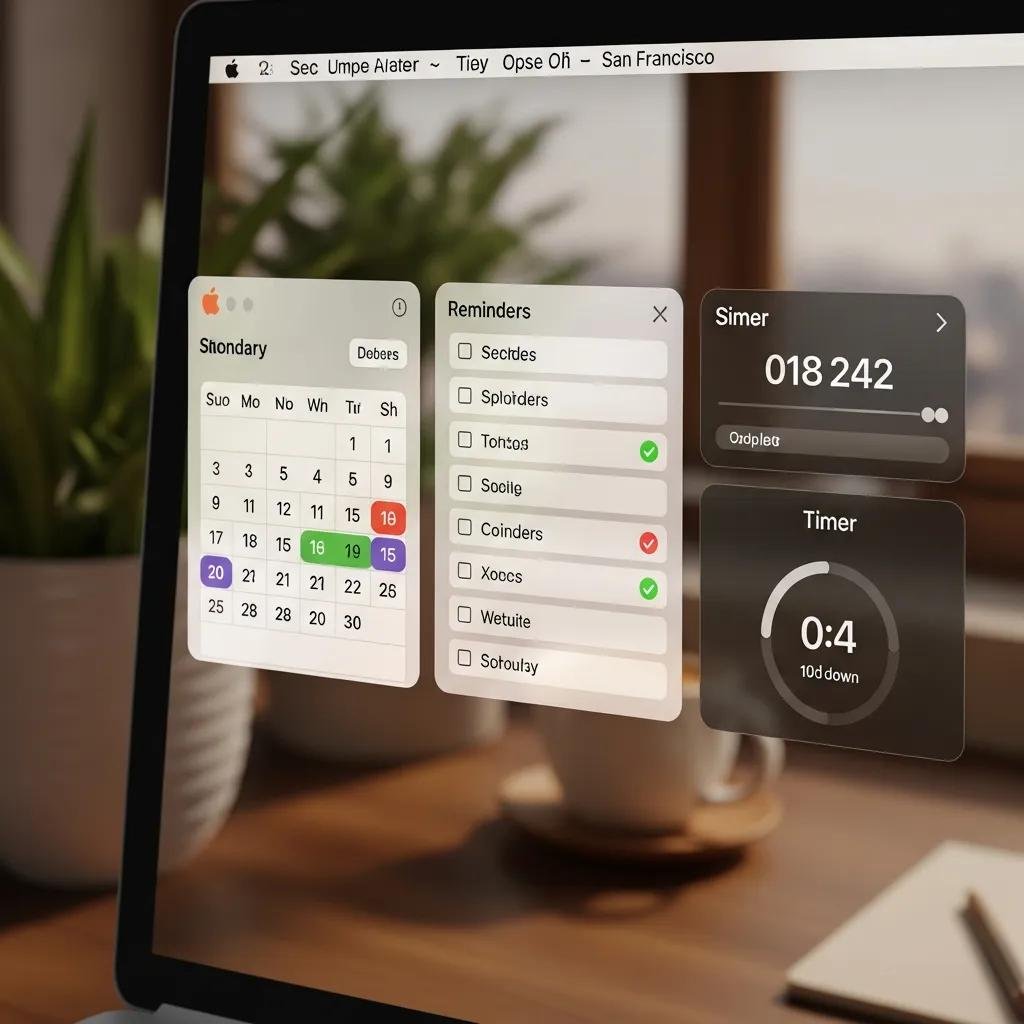
Desktop widgets in macOS Sonoma are small, glanceable app components that surface critical information and quick actions without opening full apps, improving preparation and recall for scheduled tasks. Widgets like calendar, reminders, and shortcuts enable one-click access to meeting details, checklists, or commonly used scripts, which reduces the friction of finishing routine actions. Customize widget stacks and limit active widgets to essentials to avoid visual clutter; each active widget consumes a small amount of memory, so balance convenience against system responsiveness. When widgets provide immediate value—such as a meeting agenda or a timer—they reduce context switching and accelerate task flow throughout the day.
Adding just a few targeted widgets creates a persistent information layer that keeps priorities visible and speeds common operations.
Which Mac Keyboard Shortcuts Boost Your Productivity?
Keyboard shortcuts reduce reliance on pointing devices and speed common operations by converting repetitive tasks into muscle memory, which in turn accelerates workflows across writing, navigation, and window management. Essential shortcuts include system-level commands like Cmd+Space for Spotlight, Cmd+Tab for app switching, and Cmd+Shift+4 for precise screenshots, while window-management gestures and trackpad swipes complement keyboard use for spatial navigation. Group shortcuts into categories (system, window, text) and practice small sets daily to build fluency; customizing shortcuts in System Settings tailors them to your most frequent actions. The table below compares a few high-impact shortcuts and their use cases.
| Shortcut | Use case | How to invoke |
|---|---|---|
| Cmd + Space | Quick search and app launch | Press Cmd and Space |
| Cmd + Tab | Switch between open apps | Hold Cmd, tap Tab |
| Cmd + Shift + 4 | Capture area screenshot | Press Cmd+Shift+4 and drag |
| Ctrl + Left/Right Arrow | Move between Spaces | Press Ctrl + Arrow keys |
Learning these shortcuts and pairing them with trackpad gestures speeds routine navigation and reduces mental overhead when switching tasks.
How Can You Customize and Optimize Your Linux Desktop for Usability?
Linux desktop usability centers on choosing a desktop environment that matches your workflow (GNOME for simplicity, KDE for configurability) and minimizing background services to keep systems snappy. Customize panels, workspaces, and hotkeys to mirror your habitual workflow so transitions feel natural, and prefer lightweight themes and icons to reduce visual clutter on lower-spec hardware. Combining GUI tweaks with a few terminal aliases for common maintenance tasks provides both a friendly interface and automated upkeep. The following list covers quick customization moves that yield immediate usability gains on most distributions.
- Select a desktop environment (GNOME or KDE) that aligns with your preference for simplicity or customizability.
- Configure hotkeys and workspaces to mirror your common task flows and reduce repeated clicks.
- Apply lightweight themes and icon sets to improve visual clarity and reduce rendering overhead.
- Use autostart/session manager settings to control what runs after login.
These customizations make the desktop predictable and responsive, letting you focus on tasks rather than window management.
What Are Key Linux Desktop Customization Techniques?
Key customization steps include adjusting workspace behavior, setting up persistent panels or docks, and installing lightweight themes that improve focus and reduce eye strain. For GNOME, use the Extensions app to add workspace and window tiling tools; for KDE, configure Activities to separate project contexts and tweak the panel layout for quick app access. Install icon and GTK/Qt themes from trusted package sources to keep appearance consistent and lightweight, and use session settings to disable unnecessary autostart apps. These practical tweaks help align the Linux desktop with your workflow and reduce the time spent organizing windows and apps.
Customizing the environment creates predictable patterns that speed interaction and lower cognitive load between tasks.
How to Use Linux Terminal Tricks to Enhance Performance?
Terminal commands and aliases automate routine maintenance and provide rapid diagnostics to resolve slowdowns quickly without digging through GUIs. Useful commands include top/htop for live process monitoring, journalctl for system logs, and package-manager cleanup commands (such as apt autoremove) to reclaim space safely. Create short aliases for common sequences like updating and cleaning to run maintenance with one command, and use small scripts to purge caches on a schedule if disk pressure is recurring. Always verify commands before running and prefer package-manager or distro-recommended utilities to avoid removing critical files.
Automating these checks with aliases and small scripts reduces repetitive maintenance time and keeps the system lean and performant.
What General Computer Performance and Security Tips Improve Usability?
A short, platform-agnostic checklist improves day-to-day usability: keep the OS and drivers updated, run regular malware scans, clear large or old files, and streamline browser profiles and extensions to reduce memory use. These actions prevent slowdowns from software rot, insecure processes, and bloated profiles, delivering a cleaner, faster experience across Windows, macOS, and Linux. Follow the checklist below, then use the subsequent sections for precise steps and tool comparisons that fit your platform and comfort level.
- Keep your operating system and drivers updated to maintain security and compatibility.
- Run periodic malware scans and isolate suspicious activity immediately.
- Remove unused applications and large files; use built-in disk utilities to identify space hogs.
- Audit browser extensions and use separate profiles for work and personal browsing.
Applying this checklist regularly sustains improved responsiveness and reduces unexpected interruptions caused by security issues or disk pressure.
How to Identify and Remove Malware to Secure Your Computer?
Recognize infections by unusual popups, unexplained CPU spikes, unknown processes, or redirected browsers, then isolate the device from networks and run offline or safe-mode scans with trusted security tools. Begin with built-in tools (Windows Defender, macOS malware removal mechanisms, or distro-recommended scanners) and escalate to reputable third-party scanners if automated detection fails. If automated steps do not restore normal behavior or if persistent rootkit-level activity appears, consider professional remote remediation; mcHelper.com‘s “Virus and Spyware Removal” and “Software and Operating System Restoration and Updates” services offer remote assistance and system restoration for cases that require expert intervention. Act promptly to contain spread and restore a clean, usable system.
Early detection and decisive removal preserve usability and prevent performance degradation from persistent malicious processes.
What Are Effective Data Cleanup and Browser Optimization Strategies?
Data cleanup and browser optimization remove clutter and free resources so applications and pages open more quickly and use less memory. Start by identifying large files and old downloads, use built-in utilities like Storage Sense or Disk Utility to run safe cleanups, and archive seldom-used files to external storage. For browsers, disable or remove unused extensions, clear caches selectively, and use separate profiles to isolate work-related sessions from personal browsing to reduce tab and extension memory overhead. The table below compares common cleanup and browser tools, their function, and when to use them to guide safe choices across platforms.
| Tool | Function | When to use / Expected result |
|---|---|---|
| Built-in disk utility | Identify large files and run safe cleanups | Use quarterly to reclaim space without risk |
| Browser profile manager | Separate browsing contexts | Use if multiple projects or heavy extensions slow browsing |
| Trusted third-party cleaner | Deep cache and temp removal | Use sparingly and only from reputable vendors for stubborn clutter |
| Backup utilities | Archive large or old files | Use before major cleanups or OS upgrades to preserve data |
These comparisons help you pick the right tool for each cleanup task and maintain a predictable, fast system.
mcHelper.com provides remote repair and support options for users who prefer hands-off assistance: their services include targeted virus and spyware removal as well as software and operating system restoration and updates, delivered via remote support to resolve issues from home or office. Their remote model emphasizes convenience and a no-fix-no-fee promise, alongside 24/7 availability for urgent situations.
For readers who want hands-on remote assistance with any steps in this guide, mcHelper.com offers remote support designed to apply these optimizations, remove malware, or restore system software while you remain at your desk. Their approach can save time for users who prefer an expert to implement changes securely and efficiently.





