

Best Gaming PC Components 2025: How to Choose Hardware for High Performance
Choosing the right gaming PC hardware in 2025 means matching components to resolution targets, frame-rate goals, and platform longevity. This guide explains how CPUs and GPUs share the rendering workload, how to verify compatibility across motherboard, RAM, storage and power, and how to prioritize parts when on a budget. Readers will learn concrete CPU+GPU pairings for 1080p, 1440p and 4K play; a compatibility checklist to avoid bottlenecks; essential component roles and recommended spec ranges; and a simple budget-priority framework to guide purchases and upgrades. Recent research and market trends through early 2025 emphasize higher core counts, PCIe bandwidth, and NVMe performance as dominant factors for gaming responsiveness. The article uses clear tables and lists to help you pick parts that minimize bottlenecking, manage thermals, and deliver consistent frame rates at your chosen resolution.
Which CPU and GPU combinations deliver top gaming performance?
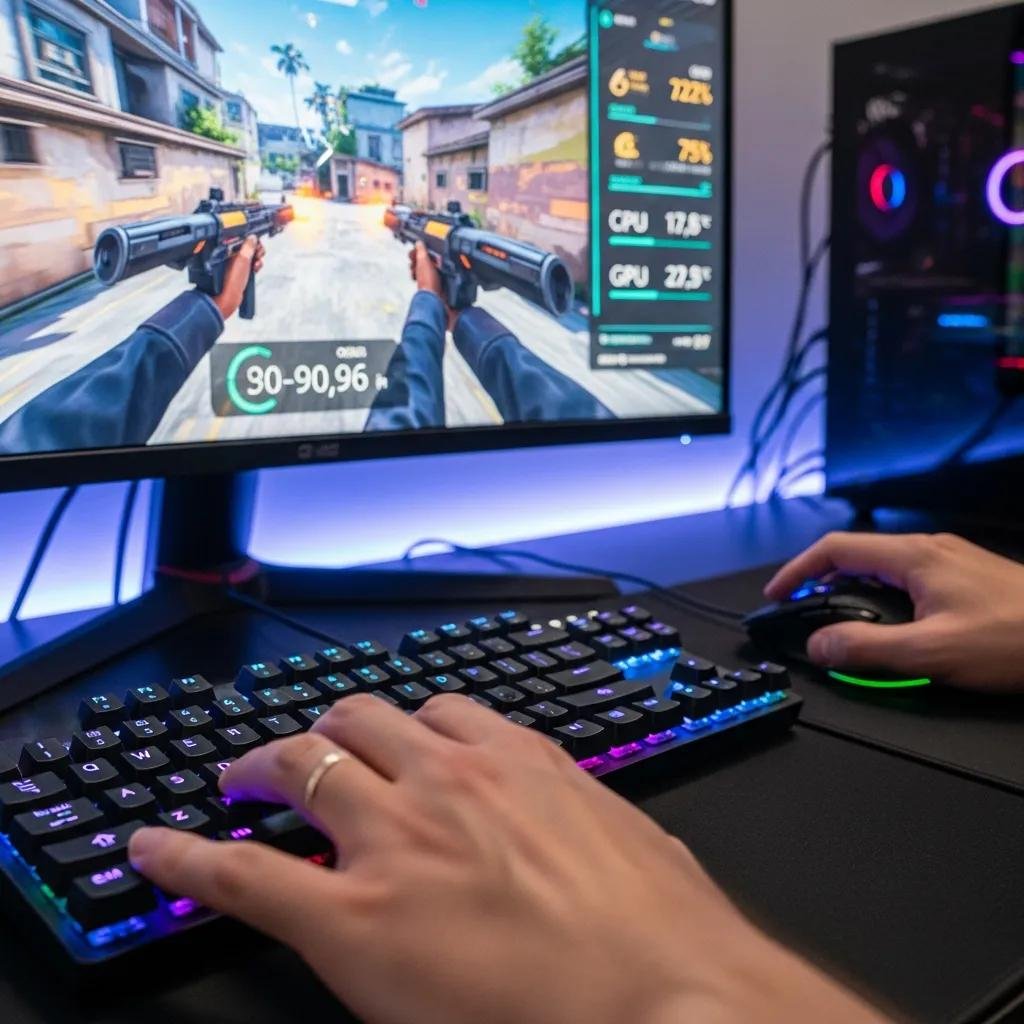
A CPU+GPU pairing determines frame-rate ceilings and where bottlenecks occur because the CPU handles game logic and draw calls while the GPU renders frames; balancing core count, IPC, and GPU compute ensures smooth FPS. Choose pairings by target resolution: higher resolutions shift load to the GPU, while high-FPS 1080p relies more on CPU single-thread performance and CPU core availability. Below are practical pairings by common targets followed by a compact comparative table that maps expected performance and notes about power or bottleneck risk.
Best CPU+GPU pairings by target:
- Best for 1080p high-FPS: Mid-to-high CPU with a strong midrange GPU — expect 120+ FPS in esports titles.
- Best for 1440p: Balanced high-frequency CPU and upper-mid GPU — expect 60–140 FPS depending on settings and ray tracing.
- Best for 4K: High-end GPU with a capable multi-core CPU — expect 60+ FPS at native 4K with settings tuned.
The following table helps compare combos by typical use-case and expected outcomes.
| CPU + GPU Combo | Best Use-case (Resolution / FPS) | Expected Performance / Notes |
|---|---|---|
| Mid-core CPU + Upper-mid GPU | 1080p / 120+ FPS | CPU can drive high frame rates; low GPU bottleneck risk |
| High-core CPU + Upper GPU | 1440p / 60–140 FPS | Balanced; good for streaming while gaming |
| High-core CPU + Top-tier GPU | 4K / 60+ FPS | GPU-limited at 4K; ensure PSU and cooling match TDP |
This comparison shows how resolution shifts workload onto the GPU and why matching PCIe lanes, TDP headroom, and VRAM to your target resolution matters for consistent performance. Understanding these trade-offs leads naturally to how to select the best CPU for 2025.
How to select the best gaming CPU for 2025
A gaming CPU in 2025 is chosen by balancing single-thread performance (IPC and clocks), core/thread count, platform longevity (socket/chipset), and TDP constraints. Single-thread speed still benefits many game engines for minimum frame stability, while higher core counts help multitasking and streaming alongside gaming. When selecting, confirm the CPU’s socket compatibility with available motherboards and consider chipset features like PCIe lane counts and memory generation support to future-proof upgrades. TDP and cooling requirements affect case and cooler choices, so estimate sustained power draw under load and match VRM quality accordingly. These compatibility checks lead into picking a motherboard that supports your chosen CPU and GPU.
What are the leading GPUs for high frame rates and visuals
Leading GPUs in 2025 split into tiers based on VRAM, ray-tracing throughput, and power draw; choose a GPU tier that fits your resolution and visual goals. For high-FPS 1080p, a power-efficient upper-mid GPU with 8–10 GB VRAM is typically sufficient, while 1440p benefits from 10–12+ GB VRAM and stronger ray-tracing acceleration. Native 4K and ray-traced titles demand top-tier GPUs with 16+ GB VRAM and robust cooling and PSU support due to high TDPs. Also account for card length and slot width to ensure case clearance and airflow. Knowing GPU size and power needs transitions directly into ensuring overall hardware compatibility across the build.
How to ensure gaming PC hardware compatibility?
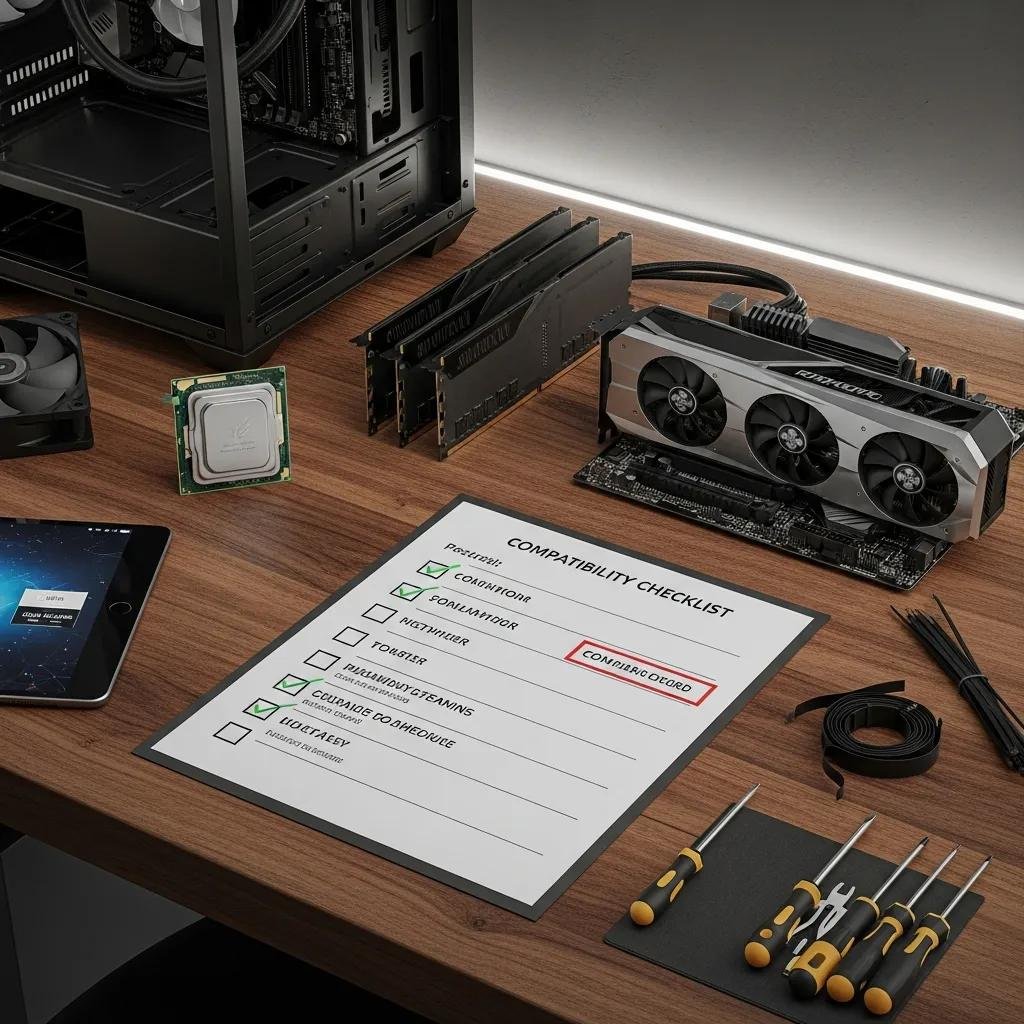
Hardware compatibility means verifying socket and chipset, RAM generation and speeds, PSU wattage and connectors, and case/form-factor clearance so that components work together reliably. The checklist below summarizes the critical compatibility points you must confirm before buying parts; following it prevents common issues like mismatched memory types or insufficient PSU connectors.
Compatibility checklist:
- Motherboard socket and chipset: Match CPU socket and verify chipset features for PCIe lanes and future upgrades.
- RAM type and speed: Ensure motherboard supports DDR generation and targeted memory frequency in dual/quad channel mode.
- PSU capacity and connectors: Confirm wattage headroom, 80 PLUS efficiency preference, and required EPS/PCIe power plugs.
- Case size and GPU clearance: Check GPU length, cooler height, and airflow layout for the chosen chassis.
Use this checklist to guide part selection and buy components that avoid bottlenecks and thermal issues. To choose a motherboard that supports both CPU and GPU demands, focus on VRM quality, PCIe version, and expansion options next.
What motherboard features support your chosen CPU and GPU?
A motherboard must match CPU socket and offer a chipset with sufficient PCIe lanes, robust VRMs for high-TDP CPUs, and adequate M.2 slots for NVMe storage. VRM quality affects voltage stability under load and is critical if you run high core-count CPUs or overclock; look for heatsinked VRMs and quality power phases. Confirm PCIe slot allocation and version (PCIe 4.0/5.0) for GPUs and add-in cards, plus the number and placement of M.2 slots for NVMe SSDs. Form factor (ATX/mATX/ITX) sets expansion and cooling possibilities, and headers for case fans and AIO pumps determine cooling flexibility. These motherboard choices inform RAM and storage matching decisions described next.
How to match RAM and storage with gaming hardware
Match RAM capacity and speed to typical 2025 gaming workloads: 16 GB remains a minimum for many titles, while 32 GB is recommended for heavy multitasking or content creation alongside gaming. Higher memory frequency can slightly improve frame rates in CPU-sensitive scenarios, but diminishing returns occur beyond motherboard/CPU-supported limits; prioritize dual-channel kits for bandwidth. For storage, NVMe PCIe SSDs deliver the fastest load times and streaming performance in modern games; allocate an NVMe drive for the OS and main game library, with larger SATA or NVMe capacities for archives. Plan capacity based on game sizes and leave room for OS and swap overhead to avoid performance slowdowns. With RAM and storage matched, you can decide on power and cooling needs for the complete system.
2025 Gaming PC Components: Selecting Hardware for Peak Performance
A high-performance gaming PC requires seven core components—each plays a distinct role in performance and system stability. Below is a concise list of essential parts and a compact EAV-style table that recommends key specs for high-performance builds so you can quickly check minimum and recommended ranges.
Essential components and roles:
- CPU: Handles game logic and draw calls; pick for IPC and core balance.
- GPU: Renders frames and handles ray tracing; prioritize for resolution targets.
- Motherboard: Provides socket, VRM, PCIe lanes, and expansion.
- RAM: Affects bandwidth and multitasking; 16–32 GB recommended.
- Storage: NVMe SSDs for fast load times; capacity based on game library.
- PSU: Supplies stable power; choose wattage with headroom and quality.
- Cooling: Maintains performance under sustained load; match to TDP.
| Component | Key Spec to Check | Recommended Range for High Performance |
|---|---|---|
| CPU | Cores / IPC / Socket | 6–12 cores; strong IPC; current socket support |
| GPU | VRAM / TDP / Size | 8–16+ GB VRAM; ensure adequate TDP and cooling |
| RAM | Capacity / Speed | 16–32 GB; dual-channel DDR4/DDR5 as supported |
| Storage | Interface / Capacity | NVMe PCIe SSD 1TB+ for OS/games |
| PSU | Wattage / Efficiency | Headroom 20–30% above peak; 80 PLUS certified |
This table condenses the minimum and recommended ranges to help you verify parts quickly and move on to calculating PSU needs and cooling strategies, which are covered next.
Which power supply units provide reliable performance?
Estimate PSU wattage by summing CPU and GPU peak draws, adding motherboard, drives, fans and peripherals, then add 20–30% headroom to ensure efficiency and longevity. Prefer higher efficiency tiers for thermal and electrical stability; modular cables simplify cable management and airflow. Verify required connectors such as EPS for CPU and multiple PCIe power plugs for GPU models, and consider single 12V rail designs for simpler high-current delivery. Quality markers include solid capacitors, built-in protections (OVP, OCP, SCP), and positive reviews for sustained performance. Determining PSU capacity and connector layout informs your case and cable planning for optimal airflow.
How to choose cooling solutions for optimal hardware efficiency
Choose between high-performance air coolers and AIO liquid solutions based on CPU TDP, case airflow, noise targets, and available clearance. Air coolers deliver reliability and lower maintenance for most builds, while AIOs offer higher thermal headroom for overclocked or high-TDP CPUs but require pump maintenance and radiator space. Case airflow—balanced intake and exhaust, dust filters, and correct fan placement—often has a larger effect on GPU and VRM temps than a marginally better CPU cooler. Use quality thermal paste and ensure contact for best heat transfer. Good cooling choices reduce thermal throttling and maintain frame-rate stability under long gaming sessions.
How to balance budget and performance when choosing gaming PC parts?
Balancing budget and performance requires prioritizing the GPU for FPS targets, the CPU for minimum-frame stability and multitasking, then allocating remaining budget to a reliable motherboard, PSU and adequate RAM. Prioritize parts that deliver the largest measurable FPS or load-time improvements per dollar, and consider previous-generation components for value when current-gen pricing is unfavorable. The tiered table below helps assign priority by budget tier and suggests upgrade focus to maximize gaming impact.
Budget priority tiers:
- Under $800: Prioritize a capable GPU and a mid-range CPU; accept simpler motherboard features.
- $800–$1,500: Balance CPU and GPU, aim for NVMe storage and a quality PSU.
- $1,500+: Focus on top-tier GPU, high-core CPU, robust cooling and fast NVMe arrays.
| Budget Tier | Component Priority | Example Upgrade Priority |
|---|---|---|
| <$800 | GPU first, CPU second | Upgrade GPU when possible |
| $800–$1,500 | Balanced GPU/CPU | Add NVMe and 32GB RAM next |
| $1,500+ | GPU high-end, CPU high-core | Improve cooling and storage |
This budget mapping clarifies where each dollar yields the biggest gaming return and prepares you to decide which upgrade path to follow based on observed bottlenecks.
What are cost-effective component options for gamers?
Cost-effective builds focus spend on a solid GPU first, then a CPU that avoids major bottlenecks; look for previous-generation GPUs or CPUs that match performance needs at lower prices. Consider refurbished or lightly used components from reputable sources to stretch value, and prioritize warranties for key parts like PSU and GPU. Seek bundled deals (CPU+motherboard) that reduce overall costs without sacrificing compatibility. Measure in-game performance per dollar to determine if a slightly older GPU delivers better bang-for-buck than a new low-tier model. Diagnosing which component to upgrade next is the final step.
When to prioritize upgrades for maximum gaming impact
GPU upgrades typically yield the largest FPS gains; prioritize the GPU if you see consistent GPU-bound performance or low average FPS at target settings. Upgrade the CPU when minimum FPS, stutters, or CPU-bound scenarios occur, or when multitasking while gaming. Add RAM if you observe high memory usage (>16 GB) or stuttering during heavy scenes, and opt for NVMe upgrades to reduce load times. Use monitoring tools to identify whether bottlenecks are CPU, GPU, RAM, or storage related before spending—this diagnostic approach ensures the most impactful upgrade for your budget.





