Remote Software Installation Troubleshooting: Fixing Mac & Windows Program Install Errors Efficiently
Software installation failures on macOS and Windows interrupt workflows, waste time, and can hide underlying system faults that undermine stability. This guide explains how to identify common install errors, run targeted diagnostics, and apply safe remote fixes so installations complete reliably without risking data or system integrity. You will learn how specific Windows installer service problems, registry or .NET faults, macOS Gatekeeper and App Store blocks, plus cross-platform causes like disk space, antivirus interference, drivers, and network issues produce install failures. Each section offers practical tests you can run remotely, step-by-step mitigations, and clear signs that a problem should escalate to professional remote repair. Where DIY steps reach their limit, the article points to a secure remote support option that operates 24/7 with a No Fix-No-Fee promise and an annual package for ongoing coverage. Read on for platform-specific diagnostics, quick remediation lists optimized for fast answers, and reference tables that map error codes to likely causes and first checks.
What Are Common Software Installation Errors on Windows and How Can They Be Identified?
Windows installers fail for a handful of repeatable reasons that show up in logs, dialogs, and system behavior. Identifying the cause starts with reading the installer error message, checking Event Viewer, and noting whether the installer uses MSI / msiexec or a custom setup program. Common signals include explicit error codes, access denied messages, installer timeouts, and abrupt rollback behavior; these point toward installer service faults, permission or registry problems, or missing prerequisites like .NET. Run installers as an administrator, capture Windows Installer logs, and check disk space before deeper repairs. The short list below highlights top causes and quick diagnostics to determine which remediation path to follow.
Common Windows install causes and quick diagnostics:
- Windows Installer service stopped: The installer fails immediately; check services.msc and start/re-register msiexec.
- Permission or Access Denied (Error 0x80070005): Installer cannot write files or keys; try Run as Administrator and inspect ACLs.
- Error 1603 (MSI fatal error): Often due to locked files, insufficient disk space, or nested install issues; check logs and free space.
- Missing/Corrupt .NET Framework: Install hangs or components fail; use .NET repair tools and check registry keys.
| Error Code / Symptom | Common Cause | Quick Diagnostic Step |
|---|---|---|
| 1603 | File locked / insufficient space / installer conflict | Check installer log, free disk space, reboot and retry |
| 0x80070005 | Permission denied / ACL restrictions | Try Run as Administrator; inspect folder and registry permissions |
| Installer service unavailable | msiexec not registered or stopped | Open Services, restart Windows Installer, re-register msiexec |
| .NET install failures | Corrupt .NET components or missing prerequisites | Run .NET Repair Tool and check Event Viewer for CLR errors |
This table maps typical Windows error signals to likely causes and fast diagnostics that can be run remotely to narrow the repair needed.
Which Windows Installer Service Issues Cause Installation Failures?
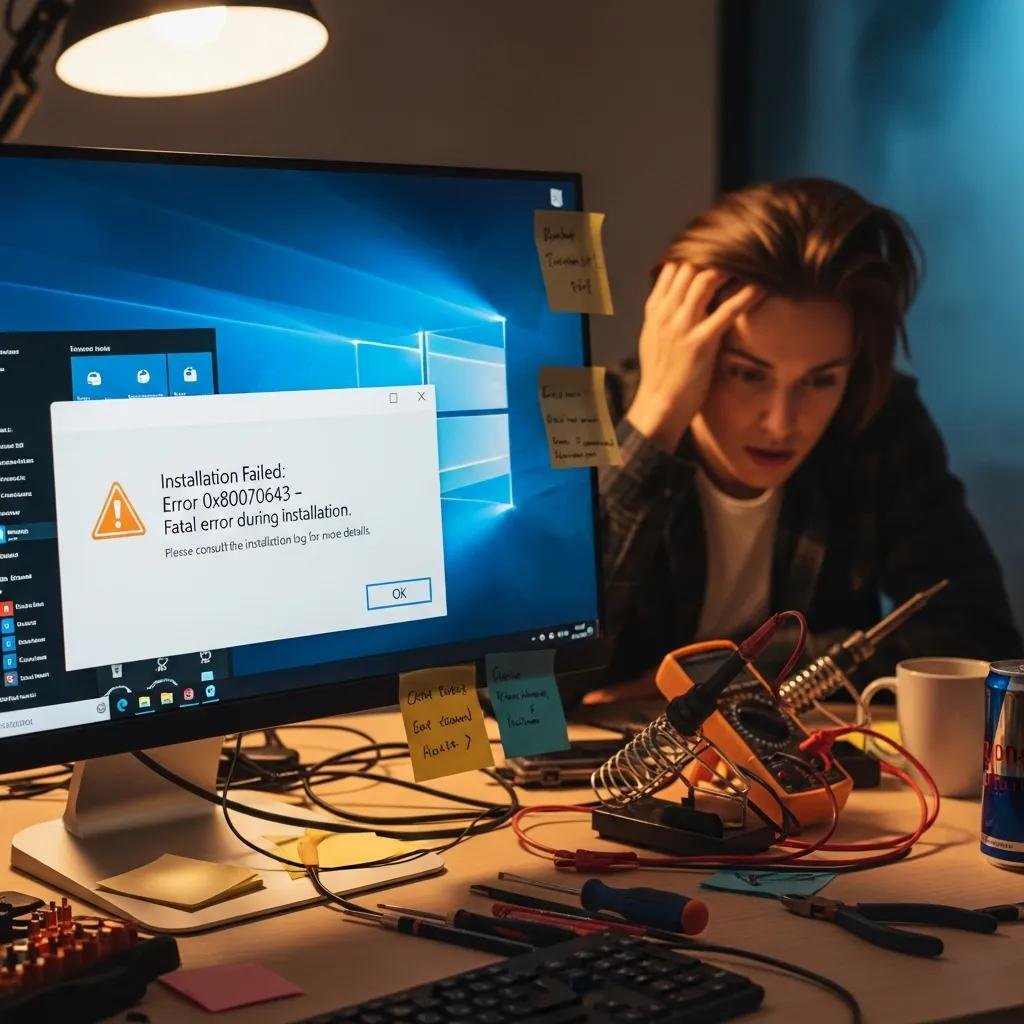
The Windows Installer (msiexec) orchestrates MSI-based setups and must be running and healthy for installs to succeed. When the service is stopped, unregistered, or its supporting registry entries are corrupt, MSI packages either refuse to start or abort with rollback. Symptoms include immediate installer termination, Event Viewer entries referencing MsiInstaller, or repeated retries with identical failure. Remote remediation steps include restarting the Windows Installer service, re-registering msiexec via elevated command prompt, and clearing pending reboot flags that block package commits. If registry keys controlling the installer are damaged, a careful repair or restore is needed; that is when expert remote help is recommended to avoid further registry harm.
How Do Registry Corruption and .NET Framework Problems Affect Software Setup?
Corrupt registry entries and damaged .NET components block installers that expect specific keys or runtime libraries. Installers may fail while creating or validating registry entries or while trying to load .NET assemblies, producing errors and event log traces referring to CLR or MSI failure codes. Diagnostic steps include running System File Checker (SFC) and DISM on Windows, checking specific HKEY_LOCAL_MACHINE\SOFTWARE keys for missing installer entries, and using the Microsoft .NET Repair Tool to detect and fix runtime issues. Safe registry backups are essential before any manual edits; if edits are required, remote technicians can apply precise fixes while preserving system stability and backups to enable rollback.
How to Resolve Frequent Mac App Installation Issues Remotely?
macOS installation blocks commonly arise from Gatekeeper settings, App Store verification failures, and permission restrictions that prevent packages from writing to protected locations. Diagnosing macOS faults begins with Console logs and install dialogs to capture error codes and gatekeeper messages, plus verifying Apple ID and App Store purchase/verification status for App Store apps. Remote remediation typically involves safe adjustments in Security & Privacy settings, temporarily allowing a specific app from an unidentified developer after verifying its origin, resetting installer permissions, and ensuring the installer is compatible with the macOS version. These steps let technicians fix most installer issues remotely while minimizing security risk and preserving system integrity.
| Failure Type | Likely Cause | Remote Remediation |
|---|---|---|
| App Store install error | Apple ID or purchase verification issue | Verify Apple ID, check App Store status, sign out/in and retry |
| Unidentified Developer block | Gatekeeper refuses unsigned app | Use Security & Privacy to allow app after verifying source |
| Permission denied during install | Installer needs write access to protected folders | Reset permissions via Disk Utility and grant required access |
This comparison helps decide whether a safe setting change or deeper certificate/permission repair is needed when handling macOS installs remotely.
What Causes Mac App Store Installation Failures and Unidentified Developer Warnings?
App Store failures often tie to account verification, receipt checks, or Apple server validation problems; unspecified errors may also indicate corrupted purchase receipts. Unidentified developer warnings come from Gatekeeper, which blocks apps without an Apple-registered developer ID unless explicitly allowed. The safe resolution path is to confirm the app’s provenance, verify the Apple ID and App Store receipt, and use the Security & Privacy pane to permit a specific app if you trust the source. Remote technicians can walk through these checks, validate certificates, and re-sign or reinstall correctly vetted packages when necessary to restore normal install behavior.
How to Troubleshoot macOS Permissions and Remote Desktop App Connection Errors?
macOS permission issues arise when installers require Full Disk Access, Automation, or Accessibility rights to complete setup tasks, which Gatekeeper and Privacy controls can block. Remote Desktop clients may also fail to apply installs if the remote session lacks appropriate privileges or if the Remote Desktop app itself is blocked by system privacy settings; errors like 0x104/0x204 indicate connection or permission faults. Troubleshooting steps include reviewing Privacy settings, granting temporary elevated rights for the installer, and ensuring the remote control software is allowed under Accessibility and Screen Recording. If remote access is interrupted by permission hurdles, a secure temporary authorization can let technicians complete the install and then revoke elevated access afterward.
Which General Troubleshooting Steps Address Software Installation Failures on Both Mac and Windows?
Many installation problems stem from cross-platform issues that are quick to check and often resolve the failure without deeper intervention. A consistent diagnostic checklist—checking disk space, pausing antivirus or endpoint protection, confirming network stability, and updating OS components and drivers—eliminates the majority of common blockers. Run disk free-space checks, inspect antivirus logs for quarantined installer files, and verify driver and OS update status before attempting complex fixes. If these steps do not resolve the issue or if edits to system settings and registry are required, consider remote professional support that can safely perform higher-risk fixes with rollback options and secure sessions.
Key cross-platform troubleshooting steps:
- Check disk space: Ensure the installer has room to extract and write files.
- Disable antivirus/firewall temporarily: Confirm the installer is not quarantined or blocked.
- Update OS and drivers: Apply pending updates that provide necessary runtime support.
- Verify network and download integrity: Re-download installers and test connectivity.
These numbered actions are the fastest way to triage install failures and decide whether escalation is required. For complex or risky repairs beyond these steps, remote experts are available 24/7 and operate under a No Fix-No-Fee promise to reduce the risk of paying for unsuccessful work.
| Component | Symptom | Typical Fix |
|---|---|---|
| Disk Space | Installer aborts during extraction | Free space, clean temp folders, retry installer |
| Antivirus / Firewall | Installer blocked or quarantined | Temporarily disable or whitelist installer, restore quarantined files |
| Network | Download incomplete or timeouts | Run ping/traceroute, switch network, retry download |
This cross-platform table helps prioritize checks that typically prevent or cause install failures and which fixes are safe to try before escalation.
How Do Disk Space, Antivirus Conflicts, and Outdated Drivers Impact Installation Success?
Insufficient disk space causes extraction failures and incomplete writes that make installs rollback and corrupt partial installations. Antivirus software can misclassify installers and quarantine critical files, or block installer processes from spawning subprocesses, which leads to access denied errors. Outdated drivers and system components leave installers without required APIs or runtime libraries, especially for device drivers or packages that integrate with hardware. Quick fixes include freeing disk space, temporarily disabling or whitelisting installers in antivirus software, and applying driver/OS updates; if driver updates are risky or affect critical hardware, remote professional assistance can ensure safe rollback points.
What Network Connectivity Diagnostics Help Prevent Failed Software Installations?
Network issues produce partial downloads, certificate validation failures, and timeouts that cause installers to abort or display verification errors. Remote diagnostics include ping and traceroute to the software repository, download speed checks, and testing without VPN or proxy to rule out middleboxes. For cloud-based installers, ensure required ports are open and that TLS certificate validation succeeds. Remote technicians can validate connectivity, reroute traffic through secure tunnels when needed, and reinitiate clean downloads to eliminate corruption as the cause of repeated installation failures.
Why Choose mcHelper.com’s Remote Tech Support for Software Installation Error Fixes?
When local troubleshooting reaches its limit or when edits risk system stability, mcHelper.com provides a remote repair option focused on speed, security, and predictable pricing. The service emphasizes 24/7 availability and remote convenience so technicians can diagnose, patch, and complete installs without a site visit. mcHelper.com also offers a No Fix-No-Fee promise that protects customers financially when a remote repair attempt does not resolve the issue, and an annual support package priced at $199.99 for ongoing coverage and peace of mind. Choosing professional remote help is sensible when registry edits, certificate fixes, or permission resets carry risk or when time constraints make DIY steps impractical.
The mcHelper.com support workflow starts with secure remote connection and system triage. Technicians authenticate the session, gather logs, and run targeted diagnostics to reproduce the error. They then apply minimal-permission fixes, test the installer end-to-end, and remove any temporary elevated permissions used during repair. This approach reduces downtime and provides a clear audit trail of changes for customer review.
What Are the Benefits of 24/7 Expert Support and No Fix-No Fee Guarantee?
Access to around-the-clock expertise matters for urgent installs that affect business continuity or time-sensitive deployments. 24/7 support means technicians can respond outside normal hours and minimize operational impact. The No Fix-No-Fee policy provides financial protection and confidence that charges align with successful outcomes; it applies when the remote repair attempt cannot resolve the installation fault under the scoped session. For many users, these guarantees reduce the risk inherent in escalating complex system repairs and make professional help a practical choice.
How Does mcHelper.com Ensure Secure and Fast Remote Software Installation Repairs?
mcHelper.com balances speed with security by initiating authenticated remote sessions and limiting technician permissions to the scope needed for the repair. Sessions focus on reproducing the error, applying precise fixes, and validating the installation, then removing temporary access. This minimizes exposure and ensures that only necessary changes are made. The remote model is typically faster than in-person service because technicians can begin diagnostics immediately and leverage centralized tooling and logs to accelerate root cause analysis while preserving user privacy.