
Essential Laptop Buying Checklist 2025: What to Look For in Your New Laptop
A compact checklist to help buyers evaluate the most important laptop specs and choices in 2025. This guide explains which hardware and design choices matter, how they affect everyday performance, and how to match a new laptop to your use case so you save money and avoid buyer’s remorse. Readers will learn which components—CPU, RAM, storage, GPU, display, battery, operating system, and ports—drive real-world experience, and how AI acceleration (NPUs) and NVMe SSDs change purchase priorities in 2025. Many shoppers struggle to translate marketing labels into practical decisions; this article provides clear rules of thumb, short comparison tables, and quick checklists to simplify selection. The sections below cover core performance components, display and battery trade-offs, operating systems and connectivity, and how use case and budget shape the final choice. Throughout, you’ll find keyword-friendly guidance like new laptop checklist, laptop specs explained, SSD vs HDD laptop performance, and long battery life laptops 2025 to make comparison shopping faster.
Laptop Buying Checklist 2025: Key Specs to Prioritize
Key performance components are the processor (CPU), memory (RAM), storage, and graphics (GPU), and each directly shapes responsiveness, multitasking, loading times, and media performance. The CPU determines single-thread and multi-thread throughput, RAM governs how many apps and browser tabs you can run smoothly, SSD type affects boot and load times, and the GPU handles rendering for gaming and creative apps. Prioritizing these components according to use case yields the best value: a balanced CPU+SSD+16GB RAM often outperforms a higher-clocked CPU with slow storage. Below is a quick list of the four components to inspect and why they matter before we show recommended tiers and an EAV comparison.
Core performance components and their impact:
- CPU: Choose a modern multicore chip with NPU/AI acceleration for better multitasking and on-device AI features.
- RAM: Ensure enough capacity for your workflows—insufficient RAM causes slowdowns even with a fast CPU.
- Storage: NVMe SSDs deliver large real-world speed gains over SATA or HDD options.
- GPU: Required for gaming and creative rendering; integrated graphics suffice for basic productivity.
| Component | Typical Attribute | Recommended Value |
|---|---|---|
| CPU | Tier / Use case | General: i5/AMD Ryzen 5/Apple M-series; Demanding: i7/Ryzen 7/M-series Pro; Heavy creation: i9/Ryzen 9/Apple M-series Max |
| RAM | Capacity / Impact | Basic: 8GB (light use); Multitasking: 16GB (recommended); Heavy editing: 32GB+ |
| Storage | Type / Capacity | NVMe SSD preferred; 256–512GB for OS+apps, 1TB+ for creatives/gamers |
This compact EAV table highlights actionable defaults: favor NVMe SSDs, aim for at least 16GB of RAM if you multitask, and pick a CPU tier that aligns with your workload. Understanding these component trade-offs naturally leads to examining processor choices in more detail below.
How Do Processors Impact Laptop Performance and Which Should You Choose?
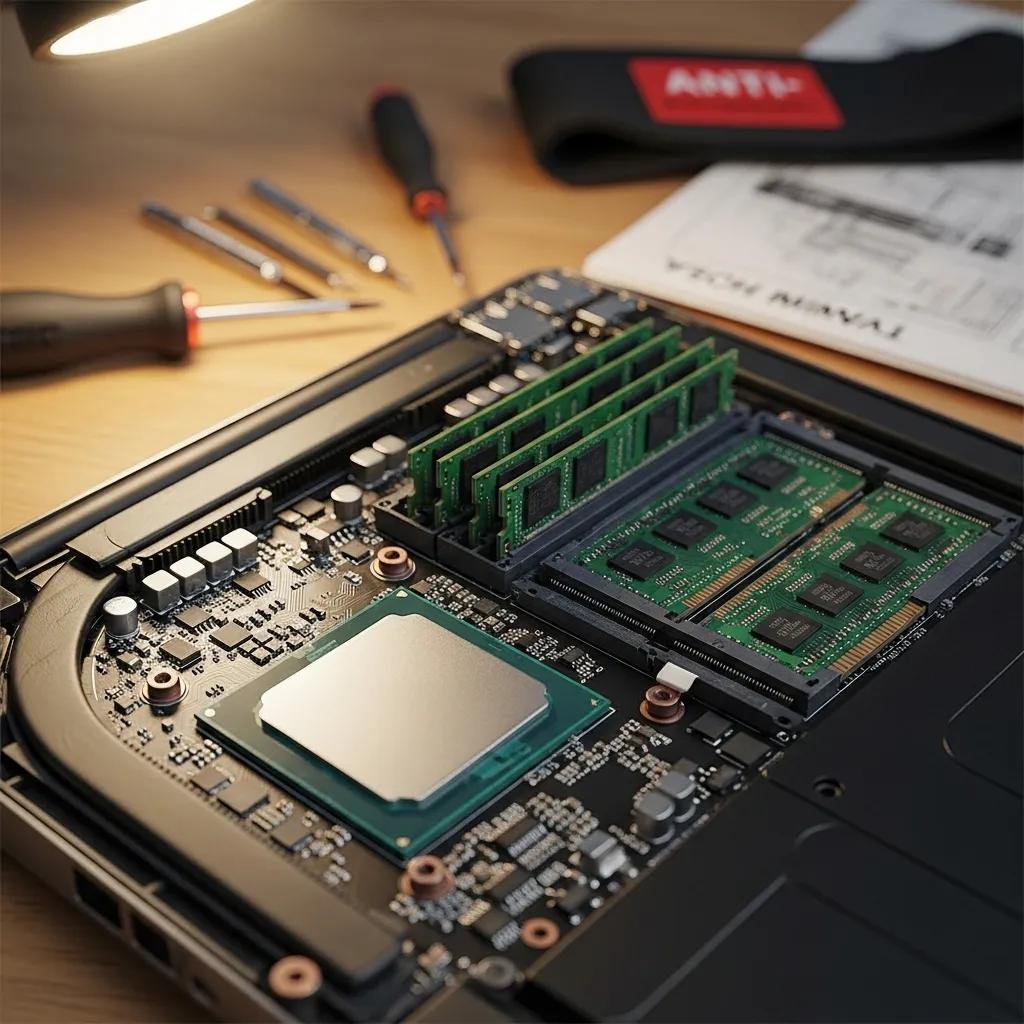
A processor (CPU) executes instructions and manages workloads; higher core counts and modern microarchitectures increase parallel throughput while higher clock speeds boost single-thread performance. In 2025, many laptop CPUs include dedicated NPUs (neural processing units) that accelerate AI tasks such as on-device inference, image enhancement, and transcription, which speeds everyday workflows. For general productivity, mid-tier chips like Intel Core i5, AMD Ryzen 5, or Apple M-series entry chips offer balanced power and efficiency; professionals benefit from i7/Ryzen 7 or Apple M-series Pro for content creation and heavy multitasking. Choosing a CPU tier should consider thermals and sustained performance—thin laptops can throttle under load—so pick models with adequate cooling for sustained tasks. This processor overview sets the stage for how much RAM and storage you should pair with your chosen CPU.
What Are the Recommended RAM and Storage Options for Different Users?
RAM and storage determine how many tasks you can run simultaneously and how fast files and apps load; together they shape perceived system speed. For most buyers, 16GB RAM paired with an NVMe SSD (512GB) is the sweet spot: it supports browser-heavy workflows, light photo editing, and productivity apps without frequent swapping. Gamers and video editors should target 32GB+ RAM and 1TB+ NVMe drives to accommodate large project files and texture assets. SSD type matters: NVMe (PCIe) SSDs deliver far lower latency and higher sequential read/write than SATA SSDs or HDDs, translating to faster boot and app load times. If you need more storage later, choose a model with an accessible M.2 slot or plan for fast external NVMe enclosures; these upgrade strategies preserve value and extend a laptop’s useful life.
How Should Display and Battery Life Influence Your Laptop Purchase Decision?
Display quality and battery life directly trade off: higher-resolution, high-refresh, or OLED panels often consume more power, reducing real-world battery hours compared with efficient FHD IPS displays. Display choice affects color accuracy, clarity, and portability: creatives prioritize wide color gamut and high resolution, while travelers and students focus on long battery life and lightweight panels. When evaluating battery life, consider the battery’s Wh rating, the panel type, and real-world test figures rather than manufacturer claims. Below is a short breakdown of display features and a compact EAV table comparing panel types and expected battery outcomes to help you balance portability against visual fidelity.
Key display attributes and their role:
- Size and resolution: Larger, higher-res panels increase workspace but reduce portability and battery life.
- Panel type: OLED offers deeper blacks and better contrast for creative work; IPS is efficient and accurate for general use.
- Refresh rate and color: High refresh rates benefit gaming; wide color gamut (DCI-P3) matters for color-critical tasks.
Displays and battery expectations:
| Display Type | Typical Resolution | Real-world Battery Impact |
|---|---|---|
| IPS FHD | 1920×1080 | Efficient; 8–12 hours on balanced workloads |
| IPS QHD / 1440p | 2560×1440 | Higher clarity; 6–10 hours depending on refresh rate |
| OLED 4K | 3840×2160 | Best color/contrast; 4–8 hours with heavy use |
This table shows how panel choices correlate with likely battery outcomes; if portability and long battery life matter most, favor FHD IPS panels with efficient CPUs and larger battery capacities, which leads to practical battery evaluation methods next.
What Display Features Matter: Size, Resolution, Panel Type, and Refresh Rate?
Display selection balances work area, clarity, and power consumption: a 13–14″ ultraportable with FHD resolution maximizes battery life and portability, while 15–16″ or higher-res panels increase workspace for creative tasks. Panel type defines color and contrast—OLED panels deliver superior contrast and deeper blacks for HDR and media work, whereas IPS panels provide reliable color and lower power draw for long sessions. Refresh rate matters for gaming and perceived smoothness; 120Hz or higher benefits gamers and UI fluidity, but adds battery demand. For creatives, look for percentage coverage of color gamuts like sRGB and DCI-P3 and factory calibration; for most office users, accurate sRGB and anti-glare finishes are adequate. Understanding these trade-offs helps you prioritize what to test in-store or what to verify in reviews.
How to Evaluate Battery Life for Portability and Daily Use?

Battery life should be evaluated using real-world scenarios—web browsing, document editing, streaming, and light media playback—rather than relying only on manufacturer video playback numbers. Check independent reviews for consistent benchmark figures and note the battery capacity in watt-hours (Wh) as a baseline; larger Wh generally equals longer runtime but also larger chassis weight. To extend battery life, favor efficient CPUs, lower screen brightness, and FHD panels; disable unnecessary background apps and use power-saving profiles. For students and frequent travelers, target laptops that deliver at least 8–10 real-world hours under mixed workloads; professionals who need all-day editing sessions should plan for 10+ hours or a secondary power plan. These battery evaluation tactics naturally connect to operating system choices and connectivity strategies discussed next.
Which Operating Systems and Connectivity Ports Are Essential for Your Needs?
Operating system choice and port selection shape software compatibility, security, and peripheral workflows; together they determine whether a laptop integrates smoothly into your existing setup. Windows 11 offers broad application compatibility and configuration flexibility, macOS Sonoma pairs tightly with Apple hardware and creative toolchains, and ChromeOS simplifies management for education and budget devices with cloud-first workflows. For ports, prioritize USB-C with Thunderbolt support, at least one USB-A or a docking option, and an HDMI or DisplayPort for external displays; wireless standards like Wi-Fi 6E/7 and Bluetooth 5.x future-proof connectivity.
Operating system strengths and port essentials:
- Windows 11: Best compatibility for legacy and professional apps; choose for broad hardware options.
- macOS Sonoma: Strong for creatives within the Apple ecosystem and optimized M-series performance.
- ChromeOS: Lightweight, secure, and ideal for education and budget-focused users.
| Operating System | Best For | Key Consideration |
|---|---|---|
| Windows 11 | Compatibility, business apps | Wide hardware support; security depends on patching |
| macOS Sonoma | Creatives, Apple users | Tight hardware-software integration; ecosystem lock-in |
| ChromeOS | Students, budget users | Cloud-first workflows; limited native apps for some pro tools |
This concise OS comparison clarifies where each platform excels; next we examine OS differences in practical terms before recommending ports and wireless features.
What Are the Differences Between Windows 11, macOS, and ChromeOS for Laptops?
Windows 11 provides the broadest software compatibility and supports niche professional applications, making it ideal for enterprise and specialized workflows; it benefits from a vast driver and peripheral ecosystem but requires active security management. macOS Sonoma runs natively on Apple silicon with strong single-chip performance and energy efficiency, and its ecosystem advantages—like seamless device handoff—favor creatives and users already invested in Apple services. ChromeOS emphasizes simplicity, security, and low-cost hardware, using web apps and Android compatibility to meet education and basic productivity needs. Match the OS to your software requirements: if key apps run only on Windows, prioritize Windows laptops; if you rely on Apple-exclusive creative software and prefer integrated hardware-software optimization, choose macOS.
Which Laptop Ports and Connectivity Features Should You Prioritize?
Prioritize versatile, high-bandwidth ports and modern wireless standards to avoid adapter clutter and ensure future-proofing. At minimum, look for USB-C with Thunderbolt 4 (or equivalent), one or two USB-A ports or an included adapter, HDMI or DisplayPort for external monitors, and a headphone jack for audio work. Wireless capabilities matter too: Wi-Fi 6E or Wi-Fi 7 and Bluetooth 5.x improve latency and multi-device reliability for modern docks and peripherals. For ultraportables with limited ports, plan for a compact docking station or a USB-C hub to reclaim desktop connectivity without sacrificing portability. Proper port selection supports workflows and reduces long-term friction when connecting external displays, storage, or audio devices.
How Do Use Cases and Budget Affect Your Laptop Buying Choices?
Use case and budget determine which components to prioritize: gaming machines need powerful GPUs and cooling, students prioritize battery life and portability, and creative professionals require color-accurate displays and large SSDs. Budget constraints force trade-offs—prioritize RAM and SSD over an entry-level discrete GPU for many users, and consider refurbished or last-gen CPUs to save money while retaining strong performance.
| Use Case | Minimum Specs | Recommended Specs |
|---|---|---|
| Gaming | Quad-core CPU, 8–16GB RAM, GTX-class GPU | 6–8 core CPU, 16–32GB RAM, RTX-class GPU, 144Hz+ display |
| Student | Efficient CPU, 8GB RAM, 256–512GB SSD | Efficient CPU, 16GB RAM, 512GB SSD, 10+ hr battery |
| Professional (office) | Dual/quad-core CPU, 8–16GB RAM | 6-core CPU, 16GB RAM, 512GB NVMe SSD |
| Creative | 6+ core CPU, 16GB RAM, 512GB SSD | 8+ core CPU, 32GB RAM, 1TB NVMe, color-accurate display |
| Budget | Efficient CPU, 8GB RAM, 256GB SSD | Mid-tier CPU, 8–16GB RAM, 512GB NVMe |
This use-case mapping clarifies how to allocate budget to components that matter most for each scenario; the following subsections provide concise, actionable recommendations for specific groups and budget strategies.
What Specs Are Best for Gaming, Students, Professionals, and Creatives?
Different users need different priorities: gamers need discrete GPUs, high-refresh displays, and good cooling to avoid throttling during long sessions. Students benefit most from lightweight chassis, long battery life, and reliable Wi-Fi for campus use—16GB RAM is a comfortable sweet spot for multitasking with browser tabs and note apps. Professionals in business and office roles should focus on CPU performance, security features, and SSD speed for fast document handling and virtualization. Creatives require powerful CPUs, ample RAM (32GB+), large NVMe storage, and color-accurate displays for photo and video work. Align the spec priorities above with your workflow to avoid overspending on unused features.
How to Balance Features and Cost in a Budget Laptop?
Maximize value in a budget laptop by prioritizing SSD storage and RAM over top-tier CPUs or discrete GPUs for many users; a fast NVMe SSD and 8–16GB RAM deliver the most noticeable responsiveness improvements. Consider last-generation CPUs or reputable refurbished units to get higher-tier features at lower cost while still maintaining reliability. Confirm upgradeability: if a model allows adding RAM or swapping the SSD later, you can buy now and improve performance affordably later. Avoid sacrificing battery life or keyboard quality for small CPU gains, and test real-world battery and thermal behavior where possible before purchase.
- Prioritize upgrades: Invest in a laptop with an accessible SSD or RAM slot.
- Test real-world performance: Use reviews and remote diagnostics before buying.
- Choose maintainability: Models with serviceable components extend usable life.
These budget tactics help you make focused choices that preserve performance while controlling upfront cost. The next natural step after purchase is routine maintenance and onboarding, which remote support can simplify.
How to Balance Features and Cost in a Budget Laptop?
When working with limited funds, aim to maximize perceived speed—choose NVMe storage and as much RAM as your budget allows, and accept a mid-tier CPU or integrated GPU if gaming is not a priority. Look for clear upgrade paths so future investment (like adding RAM) yields better long-term value. Consider certified refurbished units from reputable sellers and verify them with a pre-purchase diagnostic; for those unsure about hardware health or configuration, remote diagnostic and optimization services such as those offered by mcHelper.com provide convenient verification and setup support. Avoid skimping on battery life and keyboard quality, as these affect daily usability more than marginal CPU improvements.
- SSD and RAM first: Faster storage and adequate RAM improve everyday responsiveness.
- Refurbished for value: Last-gen chips often provide excellent price/performance.
- Plan upgrades: Pick models where upgrades are straightforward and cost-effective.
Choosing components and services with these priorities lets you achieve the best balance between cost and long-term satisfaction when purchasing a laptop in 2025.





