

Customize Mac Hot Corners: Quick Setup, Tips & Troubleshooting
Hot Corners are configurable screen-corner triggers in macOS that run an action when you move the pointer into a corner, providing instant access to frequent tasks. They speed common workflows by turning mouse gestures into desktop shortcuts, reducing clicks and preserving focus during creative or administrative work. This guide explains where Hot Corners live in modern macOS (Ventura and Sonoma), how to set and refine them, which actions and modifier-key patterns boost productivity, and how to troubleshoot common faults. You’ll find step-by-step setup instructions, recommended default actions for different roles, a troubleshooting decision table, and a look at third-party tools that expand capability. Throughout, the focus is practical: assign corners to tasks you perform repeatedly, use modifier keys to avoid accidental triggers, and escalate to expert remote help when system-level problems persist.
How do I set up and customize Mac Hot Corners in macOS?
Hot Corners live in System Settings under Desktop & Dock and let you assign specific system actions to each screen corner for instant execution. The mechanism is simple: macOS maps a chosen action to a corner, then monitors cursor entry to invoke that action; the benefit is immediate, muscle-memory access to tasks like showing Desktop or invoking Quick Note. Use this section to learn the exact UI path and practical tips for multi-display setups and differences between Ventura and Sonoma. Follow the short checklist below to verify you’re in the right place before making assignments.
What are Mac Hot Corners and how do they improve workflow?
Mac Hot Corners are corner-based triggers that run system-defined actions when the cursor touches a screen corner, and they improve workflow by collapsing multi-step tasks into a single motion. The mechanism—corner detection mapped to system functions—reduces friction for repetitive tasks and supports muscle-memory efficiency, which is especially helpful for designers, writers, and power users who switch contexts frequently. For example, a designer can reveal the Desktop to access assets quickly, while a writer can open Quick Note to capture ideas without interrupting typing flow. These small time savings compound into noticeable productivity gains over a day of focused work.
Step-by-step guide to enable and configure Hot Corners in macOS Ventura and Sonoma
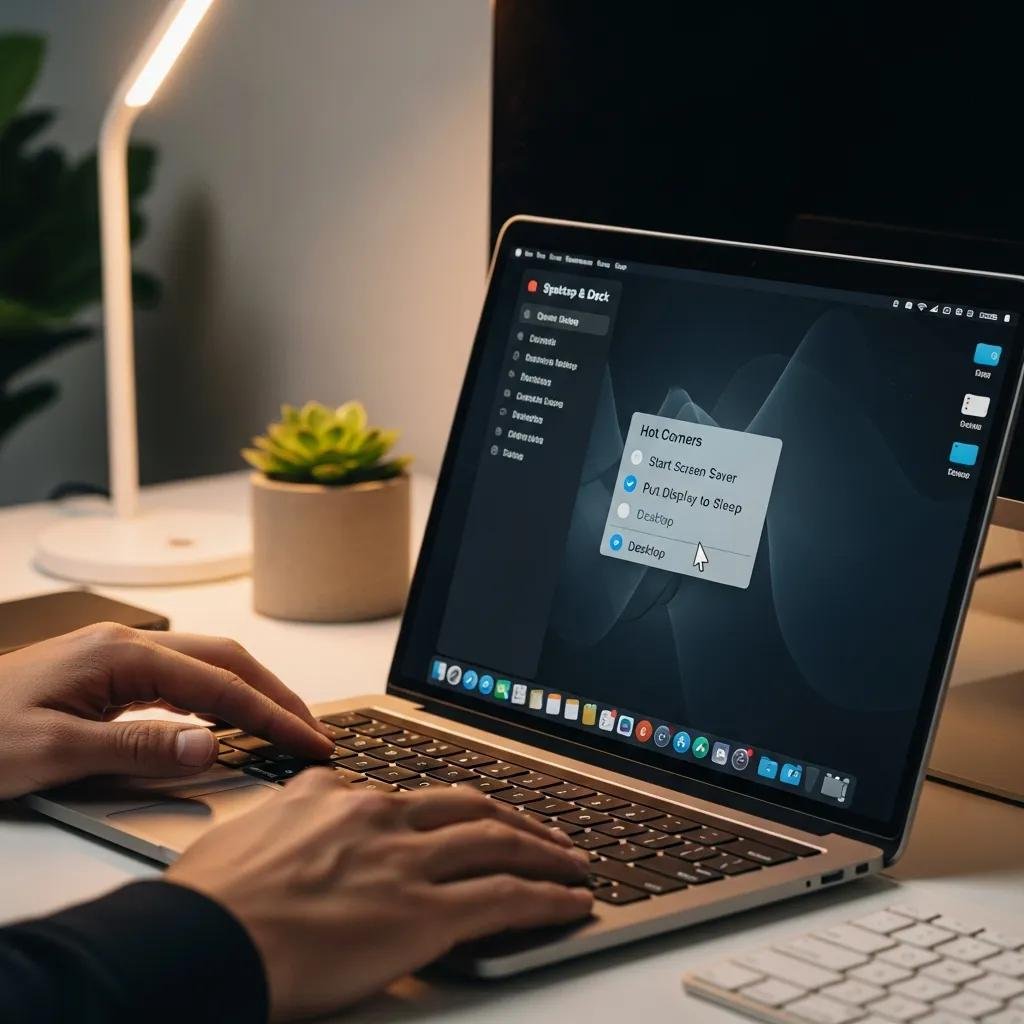
Follow these numbered steps to enable and assign Hot Corners in Ventura and Sonoma; the procedure is similar across both versions with minor UI wording differences. The steps target the System Settings path and include a modifier-key tip to prevent accidental triggers.
- Open System Settings, then select Desktop & Dock.
- Scroll to the Hot Corners section and click the corner you want to configure.
- Choose an action from the menu (e.g., Desktop, Mission Control, Quick Note) and confirm.
- To require a modifier key, hold Option/Command/Shift while selecting the action if the UI shows modifier support.
- Test the corner, then repeat for other corners and verify behavior on any external displays.
These steps map directly to the UI; if a corner doesn’t respond, test with a fresh user account before deeper troubleshooting described later.
Which Hot Corner actions and modifier keys boost Mac productivity?
Choosing the right Hot Corner actions aligns the trigger to your role and reduces interruption cost, while modifier keys prevent accidental activation by requiring a held key during the corner entry. The mechanism ties a small gesture to a high-utility function, producing quick access that feels natural after brief practice. Below are top recommended actions and an at-a-glance comparison table to help pick the best corner assignments for your workflow. After the table, you’ll find short notes on modifier-key patterns to prevent false positives and keep Hot Corners reliable.
- Quick Note: Captures ideas instantly without opening an app; ideal for writers and researchers.
- Lock Screen: Secures your session fast when stepping away from the desk.
- Desktop Reveal: Clears windows to access files or drag items; favored by designers.
- Mission Control: Shows spaces and open windows so you can jump between tasks quickly.
- Notification Center: Offers a glance at messages and alerts without disrupting your workflow.
| Action | Primary Use Case | Best For / Shortcut Alternative |
|---|---|---|
| Quick Note | Capture ideas quickly | Best for writers; shortcut: Fn+Q or Control+Command+N (varies) |
| Lock Screen | Security when away | Best for shared or public environments; shortcut: Control+Command+Q |
| Desktop Reveal | Access files on Desktop | Best for designers; alternative: F11 or Mission Control gesture |
| Mission Control | Navigate windows and spaces | Best for multitaskers; shortcut: Control+Up Arrow |
These choices match common keyboard shortcuts but convert them into single-gesture actions to lower context-switching costs.
How do modifier keys enhance Hot Corners to prevent accidental triggers?
Modifier keys like Command, Option, Control, and Shift add a required keypress to the corner trigger, converting a passive corner into a deliberate shortcut and thereby preventing accidental activations during normal cursor motion. The mechanism requires holding a modifier while entering the corner or selecting a modifier when assigning the corner, depending on macOS version and UI. Practical patterns include Option+corner for rarely used actions, Shift+corner for team-shared fast locks, and Command+corner for power-user shortcuts that must be explicit. Balancing speed and accidental triggers means assigning high-frequency actions without modifiers and sensitive or risky actions with a modifier held.
What common issues affect Mac Hot Corners and how can I fix them?

Hot Corners can stop working due to configuration errors, Dock process faults, conflicting third-party apps, permission restrictions, or multi-display quirks; diagnosing the cause lets you apply a targeted fix quickly. The mechanism of failure is usually either a misassigned setting or an external process intercepting cursor events; the benefit of a structured troubleshooting approach is a faster path to restoration. Below is a compact decision table that links common problems to likely causes and quick fixes, followed by a short checklist of hands-on steps to test before escalation.
| Problem | Likely Cause | Quick Fix / When to Escalate |
|---|---|---|
| Corner assignments ignored | Wrong System Settings pane or per-display mismatch | Reopen Desktop & Dock, reassign; if persistent, reboot Dock |
| Hot Corners trigger randomly | No modifier set or conflicting app | Add modifier or quit suspicious apps; test in Safe Mode |
| No response after macOS update | Corrupt preferences or permission change | Reset preferences, check Accessibility, create test user |
| Multi-display differences | Different display set as primary | Reconfigure per-display or mirror displays; escalate if system-wide |
- Restart the Dock process by running a quick logout or system restart.
- Reassign each corner in System Settings to ensure changes save.
- Test Hot Corners in a new user account to determine if preferences are corrupt.
- Boot into Safe Mode to rule out third-party app conflicts before escalating.
If these steps fail and the problem appears system-wide, persistent across updates, or affects multiple user accounts, professional remote diagnostics can locate permission or corruption issues faster.
mcHelper.com offers remote Mac and Windows technical support that can assist when Hot Corners issues persist after DIY troubleshooting. Their service provides 24/7 remote assistance for system instability, permission problems, and post-update faults, and they guarantee a No Fix – No Fee approach for qualifying repairs. Consider contacting a vetted remote support provider when problems are persistent, system-level, or affect multiple users, as described in the escalation criteria below.
Why are my Hot Corners not working and how to resolve it?
When Hot Corners stop responding, common causes include misconfiguration, Dock or WindowServer hiccups, Accessibility or Screen Recording permissions, or interference from utility apps that change cursor behavior. Start with quick checks: verify assignments in System Settings > Desktop & Dock, restart your Mac or the Dock process, and test the corners in a fresh user account to isolate preferences. If a recent macOS update preceded the issue, reset relevant preference files and check for known compatibility notes for macOS Ventura or Sonoma. These targeted tests separate simple fixes from problems requiring deeper diagnostics.
When should I seek expert remote support for Hot Corners issues?
Seek expert remote support when troubleshooting steps—reassigning corners, restarting the Dock, testing in a new user account, and Safe Mode—do not restore expected behavior, especially if the issue is system-wide or follows a major macOS update. Remote technicians can perform deeper diagnostics such as permission checks, plist repairs, and log analysis that are difficult to execute safely for most users. mcHelper.com provides remote diagnostics for macOS and Windows problems and adheres to a No Fix – No Fee guarantee for qualifying repairs; consider remote support for persistent, multi-user, or permission-related Hot Corners failures.
What third-party tools expand Hot Corners functionality on Mac?
Third-party apps extend macOS Hot Corners by adding app-specific corners, chaining actions, script invocation, and conditional triggers based on active application or time of day. The mechanism is that these utilities intercept corner events at a higher level and route them to custom scripts or app-specific behaviors, providing benefits like context-aware corners and integration with automation tools. Below are short comparisons of two popular approaches and a table summarizing advantages, plus guidance on security and compatibility.
How do apps like BetterTouchTool and SuperCorners customize Hot Corners beyond macOS defaults?
BetterTouchTool enables custom corner actions, chaining, and AppleScript or Shortcuts invocation with per-app profiles, allowing complex workflows like “show specific project files then open a template note” triggered by one corner action. SuperCorners focuses on lightweight corner mapping with modifier support and quick toggles for privacy or Do Not Disturb settings. Each tool adds scripting and conditional logic that macOS built-ins do not provide, letting power users build micro-workflows that reduce repetitive clicks and combine multiple actions into a single gesture.
What are the benefits of integrating Hot Corners with Mac automation tools?
Integrating Hot Corners with Automator, Shortcuts, or AppleScript via third-party tools lets a single corner trigger multi-step automation—open a Quick Note, populate a template, and append a timestamp to a file—saving time on repetitive sequences. The mechanism connects a simple cursor gesture to advanced automation, enhancing reliability and repeatability of routine tasks. When you link corners to scripts or shortcuts, ensure the automation runs with appropriate permissions and consider security implications of scripts that access files or network resources to maintain system integrity.
mcHelper.com can assist remotely with advanced setup or troubleshooting for Hot Corners and automation workflows when integration requires permission adjustments or system-level configuration changes. Their remote service supports diagnostics and configuration for both macOS and Windows, offering a No Fix – No Fee guarantee for qualifying issues, and can help finalize complex Hot Corner automations when local debugging is inconclusive.





