

How to Fix Corrupted System Files in Windows 10 and 11: Essential Repair Commands and Expert Support
Corrupted system files occur when critical Windows components (DLLs, EXE, drivers, or boot files) are altered, missing, or unreadable, causing instability, update failures, or application errors; the fastest way to restore stability is to repair the Windows image with DISM and then run SFC to repair individual system files. This guide explains what corrupted system files are, common causes and symptoms, and provides step-by-step commands— and —along with how to interpret results and what to try if repairs fail. You’ll learn when to run DISM before SFC, how to run both tools from an elevated Command Prompt or PowerShell, and what persistent errors mean for next steps. If you prefer not to run commands yourself or DISM/SFC report unfixable files, professional remote diagnostics and repair are available; see the dedicated section below that explains mcHelper.com’s remote support options. Read on for clear command examples, comparison tables that summarize capabilities, and practical troubleshooting lists to help you repair system file corruption on Windows 10 and Windows 11.
What Are Corrupted System Files and How Do They Affect Windows 10/11?
Corrupted system files are Windows operating system files that have been altered or damaged so they no longer match the verified versions protected by Windows Resource Protection, which can prevent services and apps from running correctly and block updates. When these files are corrupted the operating system can become unstable, updates may fail, device drivers can misbehave, and boot-related errors or blue screens of death (BSOD) can appear. Repairing these files preserves system integrity and avoids the need for a full OS reinstall, restoring update capability and application reliability. Understanding causes and symptoms helps you choose the right repair sequence—start by checking for corruption with DISM and SFC, and escalate to professional repair if automated fixes fail.
What Causes System File Corruption in Windows?
System file corruption typically stems from external or internal disruptions that interrupt file writes or damage storage integrity, and common triggers include malware, sudden power loss, failed updates, and disk errors. Malware can overwrite or remove system DLLs and executables, while abrupt shutdowns during critical writes leave files partially written and unreadable. Failed Windows updates or interrupted driver installs can leave component store entries inconsistent, and physical disk problems like bad sectors cause checksum mismatches. Identifying the likely cause guides whether to run malware scans, check disk health, or repair the component store with DISM before attempting file-level restoration with SFC.
Common causes to consider:
- Malware infection altering system files.
- Sudden power loss or improper shutdown during writes.
- Failed Windows updates or interrupted installations.
- Disk errors and bad sectors leading to read/write corruption.
This cause list helps determine whether repairs should include antivirus cleaning or disk checks before running command-line tools.
What Are the Common Symptoms of Corrupted Files on Windows 10 and 11?
Symptoms of corrupted system files vary from mild performance issues to critical boot failures and include application crashes, slow startup, Windows Update errors, and BSODs, each pointing to different damaged components. Users may see repeated error messages referencing specific DLLs, failed service startups, or Event Viewer logs indicating file integrity violations; tracking these messages narrows which files need repair. Simple checks like Reliability Monitor or Event Viewer can confirm correlations between recent updates or crashes and the onset of symptoms. If symptoms persist after basic fixes, use DISM to repair the Windows component store before attempting to restore individual files.
Quick symptom checklist:
- Frequent application crashes or missing DLL errors.
- Windows Update failures with error codes.
- Slow startup and degraded system responsiveness.
- Blue screen errors or repeated service failures.
Use the above checklist to prioritize running diagnostics and the appropriate repair commands.
How to Use the SFC Scannow Command to Repair Corrupted Files
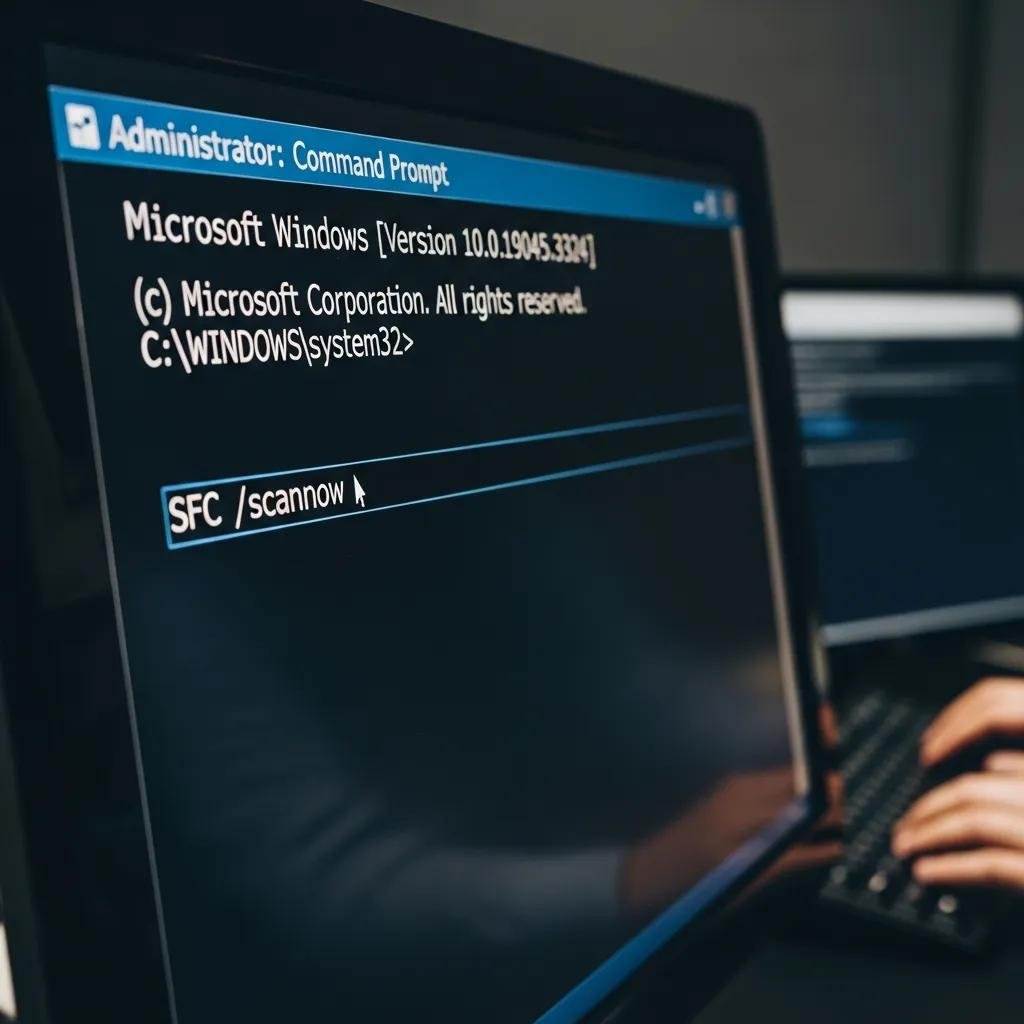
SFC (System File Checker) scans protected Windows resources and replaces damaged or missing system files from the local cached copy, offering a straightforward file-level repair when the component store is healthy. Always run SFC after running DISM RestoreHealth because SFC depends on an intact component store to fetch correct replacement files; running alone may fail if the store is corrupted. To run SFC, open an elevated Command Prompt or PowerShell and execute the exact command shown below, then wait for it to complete and read the summary, which tells whether files were repaired or remain unfixable. If SFC reports unfixable files, the next step is to run DISM with an appropriate source option or consider professional remote repair.
To run SFC and interpret results, follow these steps:
- Open elevated Command Prompt: Search “cmd”, right-click and choose “Run as administrator”.
- Run the command: sfc /scannow
- Wait for completion: Review the summary lines for “Windows Resource Protection found corrupt files and successfully repaired them” or “found corrupt files but was unable to fix some of them”.
This step-by-step process will show whether SFC fixed issues or if further DISM-based image repair is required.
Different aspects of SFC behavior are summarized below to clarify scope and limitations.
| Tool | Scans for | Can repair locally? |
|---|---|---|
| SFC (/scannow) | Protected system files (WRP) | Yes, using local component cache when cache is healthy |
| SFC limitations | Component store dependency | Cannot repair if component store is corrupted; use DISM first |
| Required context | Elevated Command Prompt | Administrative privileges required to replace files |
This table clarifies when SFC is effective and when you should run DISM first; if SFC fails, proceed to the DISM section below.
How to Repair Windows Image Using the DISM RestoreHealth Command
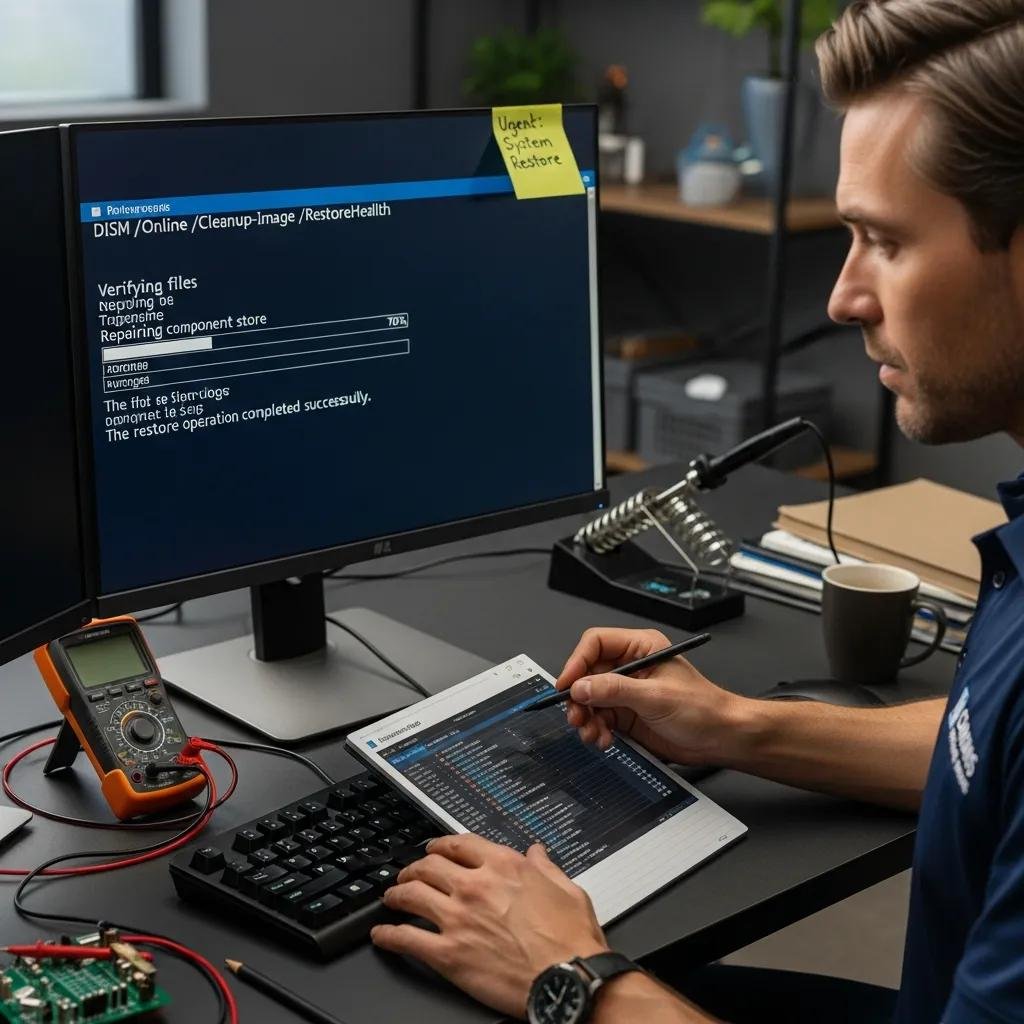
DISM repairs the Windows component store (WinSxS) that SFC depends on, fixing deeper image corruption by fetching healthy files from Windows Update or a specified source, making it essential before SFC when the component store is damaged. The recommended sequence is , then , and finally ; running RestoreHealth can take several minutes to over an hour depending on system state and network source. If DISM cannot find repair files via Windows Update, you can provide a known-good source such as mounted Windows ISO images with a specified path to complete the repair. Running DISM successfully restores the component store and allows to complete repairs of individual system files.
Run these DISM commands in order from an elevated prompt:
- dism /online /cleanup-image /checkhealth
- dism /online /cleanup-image /scanhealth
- dism /online /cleanup-image /restorehealth
If DISM reports source errors, mount a matching Windows ISO and specify to complete restore operations; after DISM completes, run to finalize file repairs.
DISM command comparison for common uses.
| DISM Command | Purpose | Typical runtime / when to use |
|---|---|---|
| /CheckHealth | Quick corruption check | Few seconds; first quick test |
| /ScanHealth | Deeper scan for corruption | Several minutes; verifies issues |
| /RestoreHealth | Repairs component store | Up to 1+ hour; use before SFC if issues found |
After running these DISM steps, if errors persist or DISM cannot complete using local or online sources, you may want professional remote diagnostics.
For users who run DISM and SFC but still face errors, remote support can provide next-level diagnostics and repair; mcHelper.com offers secure remote sessions and step-up assistance to address unresolved corruption without reinstalling Windows.
When Should You Seek Professional Help from mcHelper.com for System File Repair?
Contact professional support when DISM and SFC cannot repair files, when automated tools report unfixable corruption, or when symptoms include persistent BSODs, failed updates that block productivity, or suspected malware that alters system files. mcHelper.com provides remote computer repair and tech support for Mac and Windows users, offering services such as virus and spyware removal, computer speed-up and optimization, data recovery, and software and operating system restoration and updates. Their approach includes fast, secure remote support with certified technicians and a “no fix – no fee” promise, which reduces user risk when DIY attempts do not resolve the issue. If automated commands fail, remote technicians can run deeper diagnostics, supply replacement sources, and perform repairs in a secure session to restore system integrity.
Service features and the benefit each delivers are summarized below.
| Service Feature | Benefit | User outcome |
|---|---|---|
| 24/7 remote support | Immediate access to technicians | Faster resolution outside business hours |
| Certified technicians | Experienced diagnosis | Accurate fault identification |
| No fix – no fee | Reduced financial risk | Pay only if problem is resolved |
This concise comparison helps you decide when professional escalation to mcHelper.com is the appropriate step if DISM/SFC-based repairs do not restore stability.
What Are the Benefits of mcHelper.com's Remote Windows Repair Services?
mcHelper.com’s remote repair service delivers fast diagnostics and remediation without an in-person visit, which saves time and reduces exposure to physical service delays. Certified technicians can perform malware removal, run DISM and SFC with the correct source files, recover data, and restore or update the operating system remotely while maintaining a secure session for privacy. Remote sessions typically include initial diagnostics, a proposed repair plan, and execution with the user’s consent, giving transparency and control during the repair process. This remote model is particularly valuable when system file issues prevent Windows updates or cause recurring crashes and the user needs a reliable, off-device expert to complete repairs.
How Does mcHelper.com's No Fix - No Fee Promise Work?
The “no fix – no fee” promise at mcHelper.com means that customers are not charged if technicians cannot resolve the reported issue through remote repair efforts, which reduces the risk of paying for unsuccessful attempts. This policy builds trust for users hesitant to invest in professional help after attempting DISM and SFC themselves, and it applies specifically to the remote repair engagements described by the service offering. While the promise covers outcomes of remote repair attempts, users should confirm scope during the initial diagnostic phase so expectations are clear before work proceeds. In practice, this assurance encourages users to seek professional assistance when automated commands fail or when system instability threatens data integrity.