


How to Sync Your iPhone with Mac or Windows PC: A Quick Guide for Seamless Data Transfer and Backup
Syncing an iPhone means keeping your photos, contacts, media, and settings coordinated between the phone and a computer so data stays safe and accessible. The two principal approaches are wired syncing via Finder or iTunes and wireless syncing via iCloud or Wi-Fi; this guide gives concise, step-by-step instructions for both macOS and Windows workflows. You’ll learn how to check which tool your system uses, perform backups, transfer photos and media, and enable automatic cloud sync for ongoing protection. The guide also covers common errors, quick troubleshooting steps, and when advanced diagnostics or data recovery may be needed. Read on for direct steps for Finder and iTunes, Windows setup notes for iTunes and the Apple Devices app, wireless sync options, and a practical troubleshooting checklist to resolve most connection and transfer problems.
How do I sync my iPhone to a Mac using Finder or iTunes?
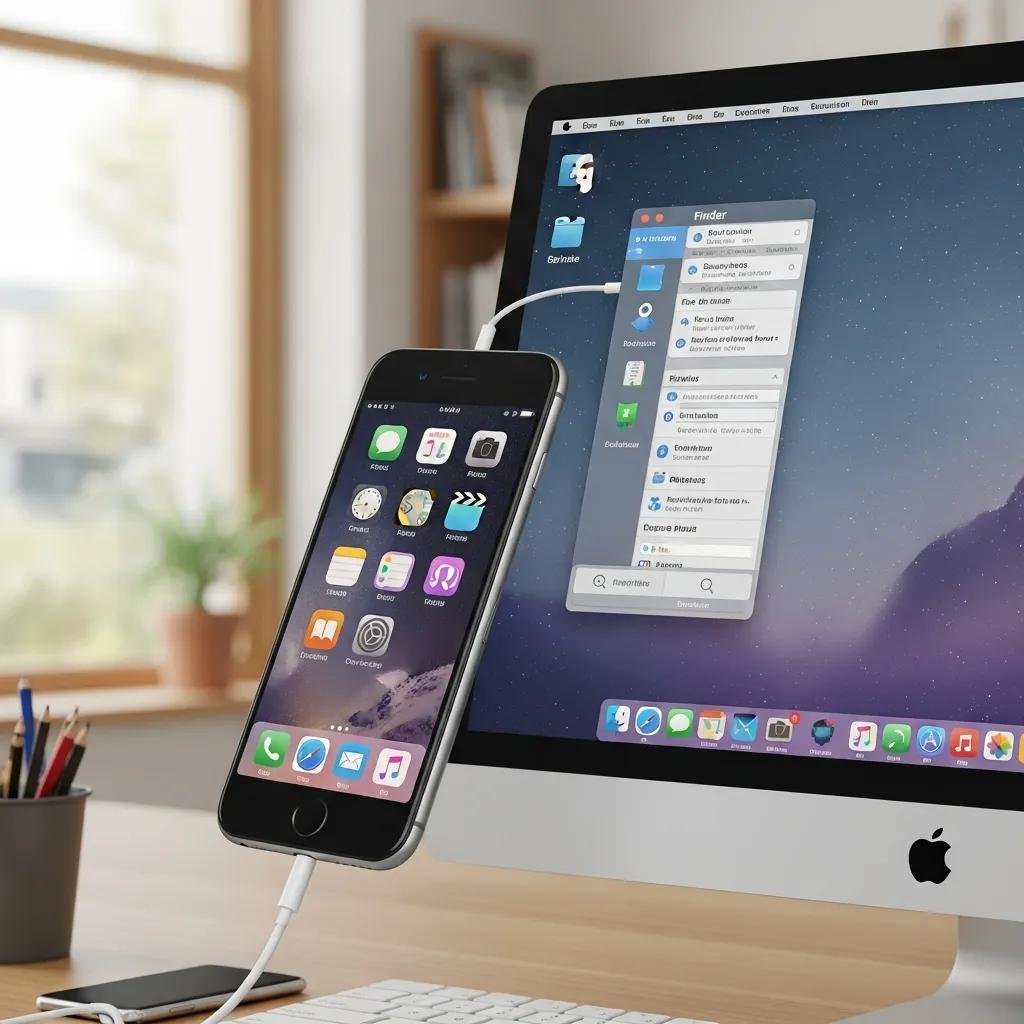
Syncing an iPhone to a Mac synchronizes selected content and can create local backups to preserve app data, device settings, and messages. On modern macOS releases, Finder manages sync and backups; older macOS versions use iTunes to perform the same roles. Both approaches use a USB cable for the first connection and can enable Wi-Fi syncing afterward for convenience. Below is a compact comparison to help you choose the right path based on macOS version and typical use cases.
This table compares Finder and iTunes for quick decision-making.
| Tool | Supported macOS Versions | Primary Functions |
|---|---|---|
| Finder | macOS Catalina (10.15) and later | Sync media, manage app files, local backups |
| iTunes | macOS Mojave (10.14) and earlier; Windows | Sync media, perform encrypted backups, restore |
| Use Case | — | Finder for current Macs; iTunes for legacy Macs or Windows |
This comparison clarifies which tool your Mac uses and what each will sync or back up before you proceed to detailed steps.
What are the steps to sync iPhone with Finder on macOS Catalina and later?
Follow these concise steps to sync and back up using Finder on macOS Catalina and newer systems:
- Connect the iPhone to the Mac with a USB cable and unlock the phone when prompted.
- Open Finder and select the iPhone in the sidebar under “Locations.”
- Choose the types of content to sync (Music, Photos, Files) or select “Back up all of the data on your iPhone to this Mac.”
- Click “Apply” or “Sync” and monitor the status indicator until the process finishes.
These steps establish a trusted connection and create a local backup when selected; if you plan to enable Wi-Fi sync, enable “Show this iPhone when on Wi-Fi” in the Finder device pane to allow future wireless syncs.
How to use iTunes for syncing iPhone on macOS Mojave and earlier?
When using iTunes on older macOS releases or Windows, the workflow centers on the iTunes device icon and sync panels:
- Open iTunes and connect the iPhone via USB; unlock the device and tap “Trust” if asked.
- Click the device icon in iTunes, then navigate the Summary and content tabs to choose sync options.
- To back up locally, select “This computer” under Backups and click “Back Up Now”; enable encryption if you want passwords and health data preserved.
- After syncing, confirm completion in iTunes’s progress bar and check backup timestamps under Preferences > Devices.
Keeping iTunes updated and ensuring Apple Mobile Device drivers (on Windows) are running reduces detection and sync errors when using this legacy method.
How can I sync my iPhone to a Windows PC using iTunes or Apple Devices app?
Syncing an iPhone to a Windows PC commonly uses iTunes or the newer Apple Devices app interface; both require initial USB pairing and may depend on background services for device detection. Alternative Windows integrations like Phone Link provide limited cross-device conveniences but do not replace full device sync or backups. Below is a quick comparison to help choose the best Windows approach for transferring photos, media, and backups.
| Approach | OS Compatibility | What Can Be Synced |
|---|---|---|
| iTunes | Windows 10/11 | Media sync, local backups, app file transfer |
| Apple Devices app | Windows 11 22H2 and later | Device updates, simple backups, media management |
| Phone Link | Windows + iPhone via companion apps | Messages and notifications (limited media support) |
Use iTunes for comprehensive backups and media management on Windows, the Apple Devices app for simpler device tasks when available, and Phone Link for basic message and notification bridging.
How to set up iTunes for iPhone syncing on Windows?

Setting up iTunes on Windows requires installing the correct app and verifying device services:
- Install or update iTunes from the Microsoft Store or Apple installer and restart the PC.
- Connect the iPhone via a known-good USB cable and unlock it; accept the “Trust this computer” prompt on the phone.
- Confirm the Apple Mobile Device Service is running in Services; if detection fails, reinstall drivers or update iTunes.
- In iTunes, click the device icon, choose sync content or “Back Up Now,” and verify backup timestamps in Preferences.
These steps ensure drivers and services permit reliable syncing; if transfer stalls, try a different USB port or temporarily disable restrictive security software on the PC.
What is the Apple Devices app and how does it help sync iPhone?
The Apple Devices app on Windows offers a simplified device management surface with a narrower feature set than iTunes but can streamline updates and basic backups:
- It provides direct device updates, backup initiation, and photo import in a cleaner interface.
- It simplifies common tasks for users who prefer a modern Windows UI rather than the legacy iTunes layout.
- It does not replace iCloud or provide the full media sync features available in iTunes on all Windows versions.
When managing a Windows PC that supports the Apple Devices app, choose it for straightforward updates and simple backups; opt for iTunes when you need full media syncing or advanced backup options.
What are the best wireless methods to sync iPhone data using iCloud and Wi-Fi?
Wireless syncing offers convenience and automatic protection: iCloud stores copies of photos, contacts, calendars, messages, and selected app data in Apple’s cloud, while Wi-Fi syncing lets a local Mac or PC perform syncs without a cable once paired. iCloud performs continuous background syncing for supported data types, subject to your iCloud storage quota; Wi-Fi sync mirrors the wired Finder/iTunes workflow but runs over the local network. Below is a focused comparison to decide between cloud convenience and local network control.
| Method | Data Types Covered | Frequency & Limits |
|---|---|---|
| iCloud | Photos, Contacts, Calendars, Messages (if enabled), App data | Automatic; limited by iCloud storage quota |
| Wi-Fi Sync | Full device backup, media, app files (as in Finder/iTunes) | Manual or scheduled when devices are on same network |
| Privacy Note | — | iCloud stores encrypted data; local Wi-Fi backups remain on your computer |
Choose iCloud for always-on, cross-device sync and automatic backups; choose Wi-Fi when you want local backups that do not depend on cloud storage limits.
How to use iCloud for automatic iPhone backup and syncing?
Enable iCloud to maintain continuous backups and sync selected content across Apple devices:
- On the iPhone, go to Settings > [your name] > iCloud and review which apps use iCloud (Photos, Contacts, Calendars, Messages).
- Enable iCloud Backup under iCloud settings and tap “Back Up Now” to create the first backup.
- Monitor iCloud storage in Settings and upgrade your plan if backups exceed free quota.
- For privacy, use device passcodes and two-factor authentication so iCloud backups remain protected.
iCloud reduces the need for manual transfers, but managing storage and understanding which data (photos, contacts, messages) is included helps prevent unexpected sync gaps.
How to enable Wi-Fi syncing between iPhone and computer?
Wi-Fi syncing replicates local sync behavior without requiring a cable after initial pairing:
- Pair the iPhone to the computer with USB, then enable “Show this iPhone when on Wi-Fi” in Finder or iTunes device settings.
- Ensure both devices are on the same network and the computer is awake and not sleeping during scheduled syncs.
- Start a sync manually from Finder or iTunes or let scheduled sync run when devices meet the network and power conditions.
- If sync fails, check firewall settings and network isolation features that can block device discovery.
Wi-Fi syncing is convenient for regular local backups and media updates but can be slower and less reliable than wired transfers for very large data sets.
How do I troubleshoot common iPhone syncing issues with Mac or Windows PC?
Troubleshooting sync issues follows a prioritized checklist: confirm cables and ports, verify trust prompts on the iPhone, check for updated Finder/iTunes versions, and validate background services and drivers on Windows. Many detection and transfer problems resolve after restarting both devices, trying a different USB cable, or reinstalling Apple Mobile Device drivers. If local fixes fail, a structured escalation path helps protect data and restore syncing without unnecessary data loss. Below are concrete diagnostic steps and common error fixes.
Common detection and basic fixes include the following practical checks:
- Cable and Port Check: Try a known-good Apple-certified USB cable and a different USB port on the computer.
- Unlock & Trust: Unlock the iPhone and confirm the “Trust this computer” prompt; if it doesn’t appear, restart both devices.
- Service/Driver Check: On Windows, ensure Apple Mobile Device Service runs; on Mac, update macOS and Finder/iTunes.
- Restart & Retry: Reboot the computer and iPhone, then reconnect to attempt detection again.
If the iPhone is still not recognized after these steps, consider deeper fixes like driver reinstallation, trying another computer to isolate hardware issues, or using recovery/DFU modes to preserve or restore data. For cases where data access or recovery is at risk, remote diagnostics and data recovery from a specialist can be a safe option to avoid data loss.
What to do if your iPhone is not recognized by your computer?
Diagnose detection problems with a clear, ordered checklist beginning with simple checks and progressing to advanced steps:
- Confirm the cable is Apple-certified and switch USB ports or try another cable to rule out hardware faults.
- Unlock the iPhone and accept any “Trust” prompt; toggle airplane mode briefly to reset network services if prompts fail to appear.
- On Windows, restart the Apple Mobile Device Service or reinstall drivers; on Mac, verify Finder/iTunes updates and reboot the system.
- If detection still fails, test with a different computer; if data is at risk or the device requires recovery mode, consider professional remote diagnostics.
If local troubleshooting does not restore detection, remote diagnostics and recovery services can safely evaluate device logs and perform data recovery steps without requiring in-person visits.
How to fix syncing errors and data transfer problems?
Address common sync errors with targeted fixes and preventive measures to reduce repeat issues:
- Backup Errors: If a backup fails due to storage, free local disk space or manage iCloud storage; for encryption mismatches, remove encryption and recreate backups.
- Stuck or Incomplete Syncs: Cancel the current sync, restart both devices, then retry the transfer with just essential content selected to isolate the cause.
- Transfer Failures: For photo transfer problems, use the Photos app import on Mac/Windows or enable iCloud Photos to transfer via the cloud.
- When to Restore or Recover: If corruption or repeated failures persist, restore from a known good backup or seek recovery services to avoid overwriting recoverable data.
When self-help steps are exhausted, expert remote support can run advanced diagnostics, repair service issues, or recover data. mcHelper.com provides 24/7 remote computer repair and tech support, including data recovery and general technical support, with a “No Fix – No Fee” guarantee; they can assist when local attempts cannot resolve hardware, driver, or complex sync problems.





