

Securing Your Home Wi-Fi Network: Essential Steps for Strong Home Network Security
A secure home Wi-Fi network prevents unauthorized access, protects personal data, and keeps connected devices like laptops and smart home gadgets safe from compromise. This article teaches practical steps to harden your router, choose robust network encryption, deploy advanced protections such as firewalls and guest networks, and maintain ongoing vigilance through audits and monitoring. Home Wi-Fi security combines configuration changes, firmware maintenance, and routine checks to reduce attack surface and stop common intrusions. You will learn specific actions—changing default router credentials, enabling WPA3 or WPA2-AES, disabling risky services like WPS, and setting up isolated guest networks—plus when to seek expert remote assistance. The guide is organized into clear sections: router hardening, encryption best practices (with a comparative table), advanced security features (with another comparison table), and ongoing maintenance with support options including remote help. Throughout, keywords like secure wifi router, change wifi password, network encryption, and router admin access are used to help you find and apply each recommendation.
How Can You Protect Your Wi-Fi Router from Unauthorized Access?
Router hardening means closing easy entry points attackers use and securing administrative access so outsiders cannot change settings or view network activity. Start with basic administrative defenses, then layer settings such as disabling remote management and WPS to limit automated attacks, and finish by enforcing a strong admin passphrase stored in a password manager. If you prefer hands-off help, mcHelper.com can perform these router-configuration changes remotely for home users. The following subsections explain why changing defaults and updating firmware are primary protections and how to verify settings after making changes.
Why Is Changing Default Router Credentials Crucial?
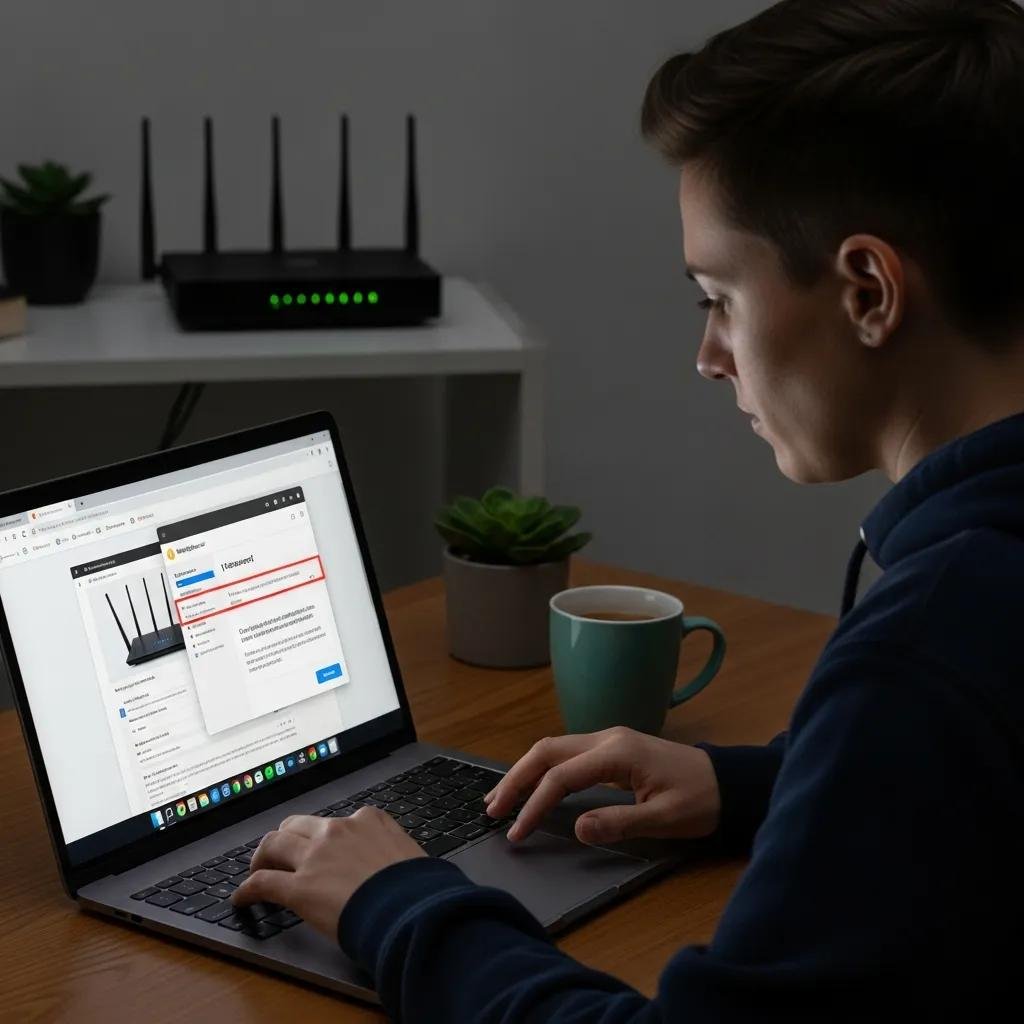
Default router credentials are widely known and actively scanned by threat actors, so changing them immediately eliminates an easy, automated attack vector. To change admin credentials, log into the router’s admin panel using the device IP, locate the administration or system account area, and replace the default username and password with a unique, complex passphrase kept in a password manager. Use a passphrase at least 12 characters long with mixed characters and avoid reused passwords tied to other accounts. After changing credentials, test that admin access requires the new passphrase and record recovery options, which leads naturally to maintaining firmware and settings.
How Do Firmware Updates Enhance Router Protection?
Router firmware updates patch known vulnerabilities, improve stability, and sometimes add security features like stronger encryption or improved firewall rules. Check the router’s administration interface for firmware update options, enable automatic updates when offered, or download verified firmware from the manufacturer and apply updates manually after backing up current settings. Updating firmware reduces the window of exposure to public exploits and should be performed as soon as updates are available or when a critical patch is announced. Regular updates complement credential hardening and prepare your network for stronger encryption and feature configuration.
| Setting | Risk | Recommended Action |
|---|---|---|
| Default credentials | High — widely known | Change username/password immediately; use a password manager |
| Remote Management | Remote admin exposure | Disable unless needed; restrict by IP if required |
| WPS | PIN-based brute-force risk | Disable WPS entirely |
| UPnP | Device-initiated port forwarding | Disable if not required for specific devices |
| Admin password complexity | Weak passwords enable takeover | Use long, unique passphrases (12+ chars) |
What Are the Best Practices for Wireless Network Encryption?
Wireless encryption protects data in transit between devices and the router; choose the strongest supported standard to prevent eavesdropping and credential theft. Use WPA3 where all client devices support it because WPA3 offers improved handshake security and forward secrecy; if WPA3 is unavailable, select WPA2 with AES (CCMP) rather than legacy TKIP or mixed modes. Enabling encryption and a strong Wi-Fi passphrase reduces the risk of brute-force and passive interception, and the table below compares common standards to help you choose.
What Is WPA3 and Why Should You Use It?
WPA3 is the modern Wi-Fi Protected Access standard that strengthens authentication and encryption with protections such as SAE (Simultaneous Authentication of Equals) to resist offline password guessing and provides forward secrecy for session keys. WPA3 also improves security for open networks with Opportunistic Wireless Encryption and better cryptographic algorithms, making it preferable for current devices. Adoption has increased across routers and client hardware, but some older devices may lack support; in mixed environments consider WPA2-AES as a fallback. Understanding device compatibility helps you decide between immediate upgrade and staged transitions.
How to Create a Strong Wi-Fi Password to Prevent Hacking?
A strong Wi-Fi passphrase combines length, unpredictability, and uniqueness: aim for 12+ characters using a mix of words, numbers, and symbols or a four-word random passphrase that is memorable yet hard to guess. Store the passphrase in a password manager to avoid reuse across accounts and to facilitate periodic rotation after any suspected compromise. Avoid personal phrases, predictable substitutions, and short numeric sequences; change the passphrase if an unknown device appears on the network. Good passphrase hygiene supports encryption and reduces the chance that an attacker can brute-force or guess access.
Different encryption standards vary in strength and compatibility; consider these differences when selecting a mode.
| Encryption Standard | Strength | Compatibility Notes |
|---|---|---|
| WPA3 | Strongest — SAE, forward secrecy | Best when all clients support WPA3 |
| WPA2 (AES/CCMP) | Strong — widely supported | Use if WPA3 unsupported; avoid TKIP |
| WPA/WPA2 mixed | Variable | May allow weaker connections; avoid if possible |
How Can You Strengthen Your Home Network with Advanced Security Features?
Advanced features reduce lateral movement and isolate risk by controlling which devices can interact and what traffic is permitted on the network. Use the router’s built-in firewall, create an isolated guest Wi-Fi for visitors, segment IoT devices on their own VLAN or SSID, and consider router-level VPN configuration for remote access privacy. For complicated setups like VPN on the router or VLAN segmentation, mcHelper.com can assist with setup and router-level VPN configuration to ensure policies are correctly applied and devices remain reachable when needed. The following subsections explain firewall roles and guest network benefits and practical configuration tips.
How Does Enabling Your Router’s Firewall Protect Your Network?
A router firewall controls inbound and sometimes outbound traffic, blocking unsolicited connection attempts and reducing exposure to internet scanning and intrusion. Set firewall sensitivity to medium or high for home use, review logs periodically for unusual inbound attempts, and combine firewall rules with NAT and disabled UPnP to limit unexpected port openings. For outbound control, use rules to flag or restrict devices that communicate with suspicious endpoints, especially IoT devices. Monitoring firewall logs helps detect anomalies and informs steps such as device isolation or credential rotation.
What Are the Benefits of Setting Up a Guest Wi-Fi Network?
Guest Wi-Fi isolates visitor devices from your primary LAN and IoT segments, limiting their ability to probe or access cameras, printers, or file shares on the main network. Configure a separate SSID with its own strong passphrase, apply bandwidth or time limits if supported, and enable client isolation so guests cannot access each other’s devices. Use guest networks for short-term access and revoke credentials periodically to reduce lingering risk. Isolating guests reduces attack surface and protects critical devices, leading into the need for regular audits and monitoring.
| Feature | Attribute | Benefit/Notes |
|---|---|---|
| Guest Network | Isolation | Keeps visitors off primary LAN and IoT devices |
| Router Firewall | Rule enforcement | Blocks unsolicited inbound traffic, logs events |
| VPN (router-level) | Encrypted tunnel | Protects remote access and masks external traffic |
| IoT Segmentation | Separate SSID/VLAN | Limits device-to-device attacks and lateral movement |
What Steps Should You Take for Ongoing Wi-Fi Security and Support?
Ongoing security requires periodic audits, scheduled updates, monitoring for unknown devices, and a plan for expert help when issues exceed DIY scope. Establish a monthly routine to review connected devices, apply firmware updates, rotate Wi-Fi passphrases if needed, and inspect firewall logs for anomalies. Use the checklist below as an operational cadence to keep protections current and to catch unauthorized access quickly.
The following checklist helps you maintain a secure home Wi-Fi environment.
- Audit Devices Monthly: Review the router’s connected device list and identify unknown MAC addresses.
- Apply Firmware Updates Regularly: Enable auto-update or schedule manual checks quarterly.
- Rotate Passphrases After Incidents: Change Wi-Fi and admin credentials if suspicious activity appears.
- Monitor Logs and Traffic: Check firewall and router logs for unusual patterns and high bandwidth from unknown devices.
- Use Professional Remote Support When Needed: Engage remote technicians for firmware, complex configuration, or persistent anomalies.
How to Regularly Audit Connected Devices for Suspicious Activity?
A device audit identifies unknown or high-risk endpoints by comparing the router’s connected device list with a maintained inventory of known MAC addresses and device names. Check this list monthly, note devices with excessive bandwidth or frequent new connections, and use manufacturer identifiers in MAC addresses to identify device types. If an unknown device appears, remove or blacklist it, change Wi-Fi credentials, and inspect firewall logs for simultaneous suspicious connections. Regular auditing enforces accountability for network devices and prepares you for escalation steps like reconfiguration or professional assessment.
When and How Can mcHelper.com’s Remote Support Help Secure Your Wi-Fi?
mcHelper.com offers remote computer repair and tech support across all US states with 24/7 availability for Mac and Windows users, including Home Wireless Network and Computer & Internet Security services. Their certified technicians can perform remote firmware updates, secure admin credentials, set up guest networks, configure router firewalls, and implement router-level VPNs using proprietary software; subscription protection is available for ongoing monitoring at $199.99, and the service includes a “no fix – no fee” promise for qualifying cases. Use remote support when you lack confidence making administrative changes, need a hands-off secure configuration, or want continuous monitoring to detect unauthorized access.





