

Extend Laptop Battery Life: Essential Health Tips to Maximize Battery Lifespan and Performance
Laptop battery health describes the capacity of a battery to hold charge compared with its original specification, and it declines over time due to charge cycles, heat, and stress from high power draw. This guide teaches practical, evidence-based strategies to maximize battery lifespan and sustain performance through optimized charging habits, power saving settings, daily care, calibration, and safe replacement diagnostics. Many users see rapid runtime loss because they follow full 0→100 charging routines, expose batteries to heat, or leave devices at extreme charges during long storage; this article provides charge cycle tips and laptop battery care routines that reduce wear. You will learn how to optimize charging (including 20–80% heuristics), configure laptop power saving settings across common platforms, adopt daily practices to limit thermal and electrical stress, and recognize battery replacement signs and safe disposal steps. The sections that follow cover charging behavior, power profiles and settings, everyday maintenance and thermal management, and clear diagnostics for when replacement becomes necessary.
How Can You Optimize Charging Habits to Extend Laptop Battery Life?
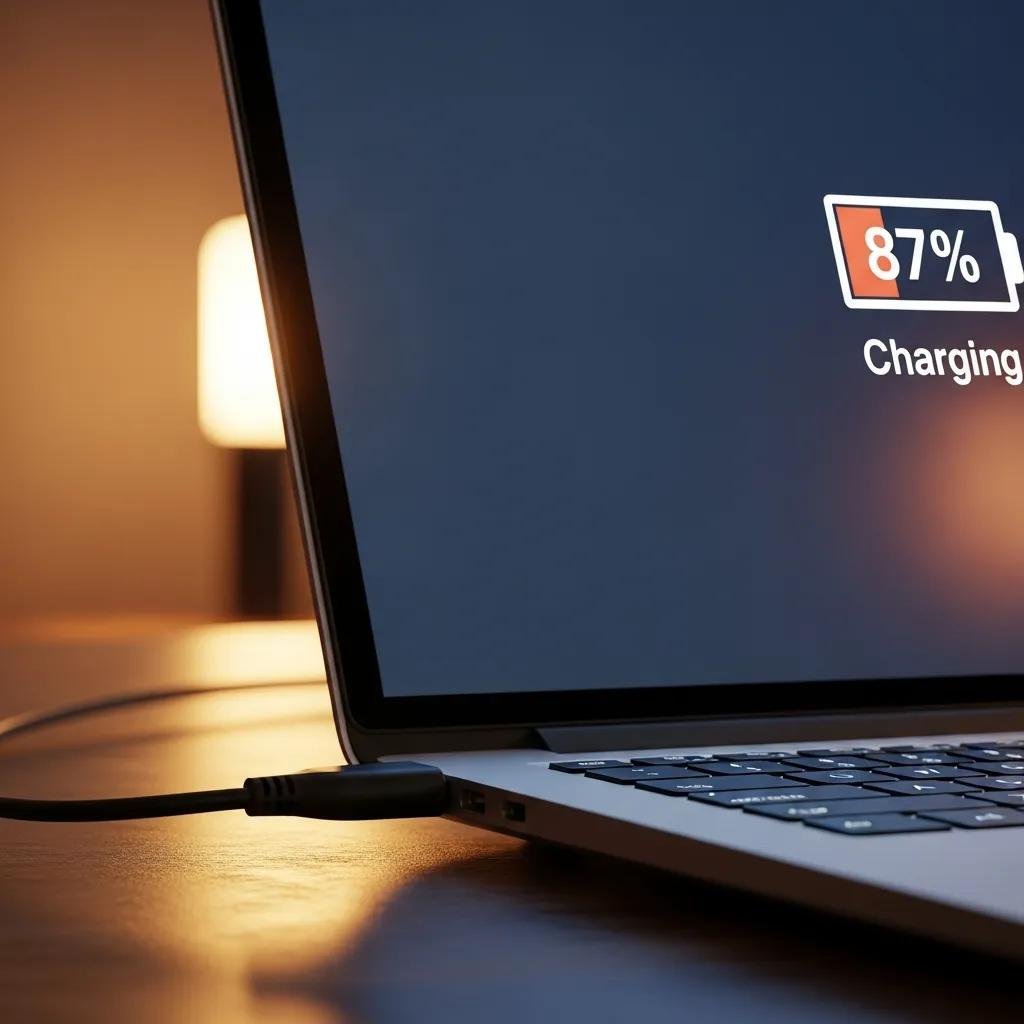
Optimizing charging habits means managing how much and how often you charge so the lithium-ion chemistry experiences less stress, which directly slows capacity loss and increases usable lifespan. Partial charging and avoiding deep discharges reduce the accumulation of full charge cycles, while avoiding sustained 100% or 0% states limits oxidative stress at cell electrodes. Practicing moderate top-ups and using firmware battery limits where available yields measurable benefits for laptop battery health and helps maximize battery lifespan. Below are concise, actionable best practices that implement these principles and provide quick rationale for each tip.
- Keep the battery between about 20% and 80% for routine use to minimize stress and slow aging.
- Avoid letting the battery drop to 0% regularly; shallow discharges add up more gently than full cycles.
- Limit overnight charging to occasions when you need full runtime; use vendor charging limits if available.
- Store long periods without use at roughly 40–60% charge to reduce capacity loss during idle time.
These core behaviors set up the next step: a concrete daily charging routine you can adopt.
What Is the Best Way to Charge Your Laptop Battery?
The best practical routine balances readiness and longevity: top up during short idle breaks, avoid forced full discharges, and use manufacturer charge thresholds when present. Start the day with a moderate top-up if the battery is below 50%, keep the device plugged during heavy workloads where heat is controlled, and unplug once the device is near the mid-to-high range rather than forcing a 100% charge every cycle. Exceptions include long travel or intensive offline work where maximum runtime is necessary; in those cases, accept a full charge but return to partial charging afterward. Following this routine supports charge cycle tips and lets you optimize charging laptop behavior while preserving battery health.
How Do Charging Cycles Affect Battery Health?
A charge cycle equals the equivalent of discharging 100% of battery capacity cumulatively (for example, two separate 50% discharges count as one cycle), and each full cycle slightly reduces total capacity. Manufacturers rate batteries by cycle life (typically 300–500 cycles before noticeable decline), but accelerated aging occurs with repeated full 0→100 cycles and high temperature during charging. Monitoring cycle counts through system diagnostics helps you correlate runtime loss with cycle accumulation, and adopting partial charging reduces the effective rate of cycle consumption. Understanding cycle math clarifies why small top-ups and avoiding deep drains are central to long-term laptop battery care.
Different charging approaches produce distinct effects; the table below compares common practices and their direct outcomes for lifespan.
| Charging Practice | Mechanism | Effect on Battery Life |
|---|---|---|
| Partial top-ups (20–80%) | Reduces depth of discharge and cycle equivalence | Slows capacity fade, extends usable cycles |
| Full 0→100 cycles | Repeated full state swings and high electrode stress | Accelerates chemical degradation |
| Trickle/overnight topping without limit | Sustained 100% voltage with heat | Increases long-term wear and reduces lifespan |
| Store at ~50% during long idle | Low state reduces stress and self-discharge impacts | Preserves capacity during storage |
This comparison makes it clear why optimized charging habits are one of the most effective ways to maximize battery lifespan and conserve battery health.
Which Laptop Power Saving Settings Help Maximize Battery Lifespan?
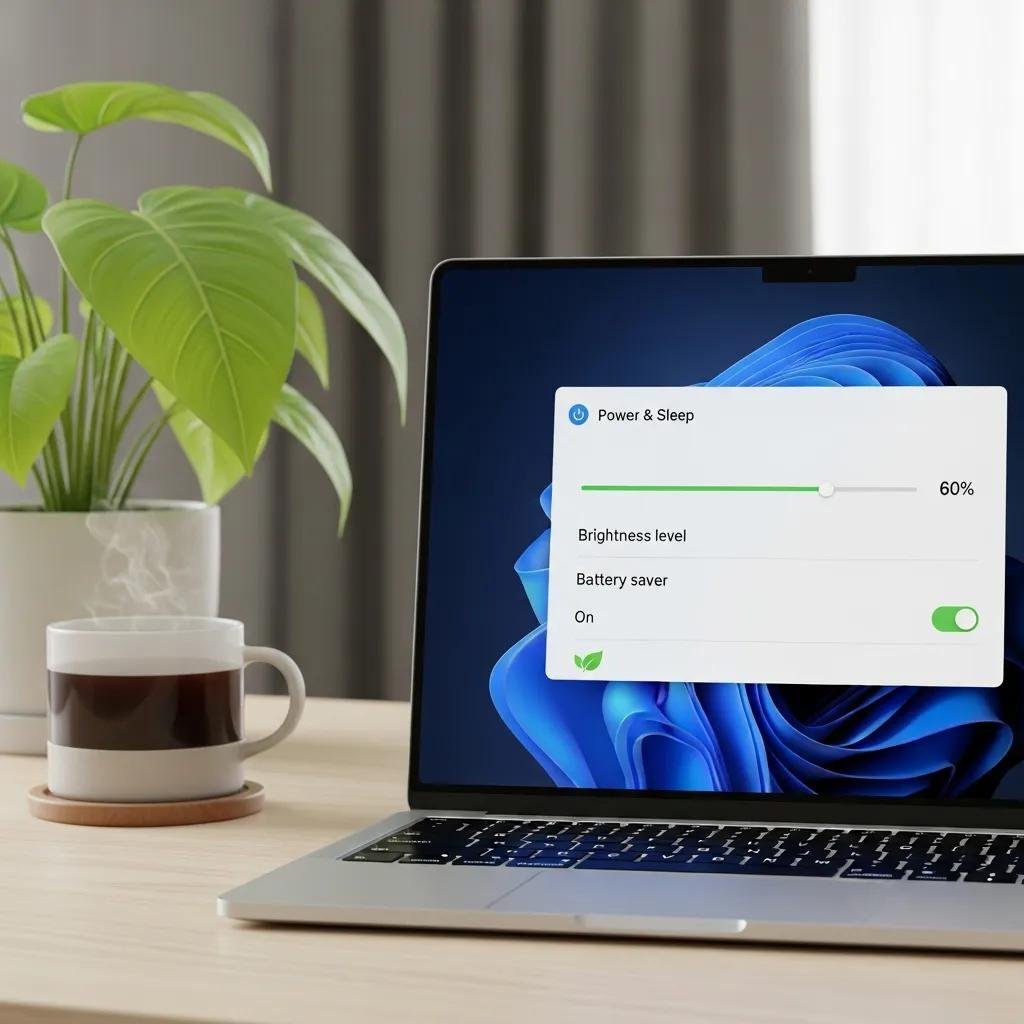
Power saving settings reduce energy draw and thermal output, both of which protect internal cells and preserve capacity over time by lowering cyclical stress and heat exposure. Key levers include screen brightness, sleep/hibernate timing, CPU power limits, and peripheral power management; each setting directly reduces average power draw and the likelihood of heat-related degradation. Adjusting these settings provides immediate runtime improvement and longer-term battery preservation. The next paragraphs explain practical steps and list concrete settings to change across common operating systems.
- Reduce screen brightness to a comfortable lower level to cut a major portion of display-related drain.
- Set short sleep and display-off timers for inactivity to prevent unnecessary cycles.
- Enable battery saver or low power profiles during routine, non-intensive tasks to limit CPU turbo and background activity.
- Turn off unused radios (Bluetooth, Wi-Fi) and peripherals when not needed to avoid constant power draw.
These changes lower thermal and electrical stress and lead into platform-specific quick how-to steps.
| Setting | What it changes | Practical benefit |
|---|---|---|
| Screen brightness | Reduces display power draw | Extends runtime, reduces heat |
| Sleep/hibernate timers | Cuts idle power usage | Prevents wasted cycles and heat |
| CPU/power profiles | Limits peak CPU voltage/frequency | Lowers thermal spikes and battery stress |
| Battery saver mode | Restricts background tasks and syncing | Extends runtime and reduces wear |
Applying these settings reduces load and supports long-term laptop battery health while enabling you to customize performance needs.
How to Adjust Screen Brightness and Sleep Settings for Battery Health?
Lowering brightness and shortening idle timers are simple, high-impact changes to reduce power draw and heat, which preserves capacity and runtime. On most laptops, use the keyboard brightness keys, quick settings menu, or display control panel to set brightness to the lowest comfortable level and enable adaptive brightness where available; set screen off after 1–5 minutes of inactivity and put the device to sleep after 5–15 minutes. These adjustments immediately cut display and system energy consumption and reduce thermal accumulation during light use. Implementing short timers complements deeper power profile adjustments, which are discussed next.
What Are Effective Power Plans and Battery Saver Modes?
Effective power plans balance performance needs against thermal and electrical stress — choose balanced or battery saver profiles for daily longevity and switch to high-performance only when necessary. Power saver profiles throttle CPU/GPU peaks, reduce screen refresh demand, and disable aggressive background tasks, thereby lowering heat and preserving battery health. Customize a balanced plan by capping maximum processor state to 80–90% and reducing display timeout to further optimize charging and discharge patterns. Using these profiles consistently supports charge cycle tips and helps maximize battery lifespan.
What Daily Practices Support Long-Term Laptop Battery Health?
Daily practices focus on limiting heat exposure, applying software updates that improve power management, and storing devices correctly to prevent accelerated degradation. Avoiding soft surfaces that block vents, removing dust from fans, and using cooling pads when performing heavy tasks reduce sustained high temperatures that accelerate chemical wear. Regularly installing firmware and power management updates ensures the battery management system (BMS) can optimize charging curves and reporting accuracy. These habits set the stage for calibration routines and storage guidance explained next.
- Keep vents clear and use the laptop on hard flat surfaces to maintain airflow and reduce operating temperature.
- Apply system and firmware updates that include battery or thermal management improvements.
- Use a cooling pad or external fans for prolonged heavy workloads to limit sustained high heat.
- For extended storage, charge to about 40–60% and power off to minimize long-term capacity loss.
These daily steps lower thermal stress and prepare users to perform calibration when needed for accurate reporting.
How Does Temperature Impact Laptop Battery Performance?
Temperature directly affects lithium-ion chemistry: heat accelerates irreversible chemical reactions that reduce capacity, while cold temporarily lowers immediate usable capacity but is less damaging over time. Sustained temperatures above roughly 35–40°C (95–104°F) speed degradation, whereas brief exposure to mild heat has less effect. Practical mitigation includes avoiding direct sunlight, ensuring unobstructed vents, using cooling accessories, and avoiding charging when the device is very hot. Controlling thermal conditions prevents rapid capacity decline and supports the other battery care measures discussed earlier.
Why Is Regular Battery Calibration Important?
Battery calibration aligns the system’s state-of-charge reporting with the actual battery capacity so the operating system gives accurate runtime predictions and charging thresholds. A simple calibration procedure involves charging to near full, letting the battery discharge to a low level, and then fully charging again while allowing the system to sleep and wake normally; perform this infrequently — about every few months — or only when the reported percentage clearly diverges from real runtime. Modern systems sometimes handle calibration automatically through firmware, so check diagnostics before manual procedures. Accurate gauge reporting helps you apply charge cycle tips with confidence and recognize true battery replacement signs.
When Should You Replace Your Laptop Battery to Maintain Optimal Performance?
Replace a laptop battery when observable symptoms and diagnostics indicate significant capacity loss, swelling, or safety risks; timely replacement restores runtime and prevents device instability. Typical replacement triggers include much shorter runtime at normal settings, frequent unexpected shutdowns, grossly inaccurate charge reporting, and physical swelling. Checking battery health with built-in OS diagnostics or simple runtime tests helps confirm replacement needs. The list and table below provide threshold indicators and recommended actions to help decide when replacement becomes necessary.
- Reduced runtime: runtime falls below a meaningful portion of original (for example, less than 50% of the expected duration).
- Unexpected shutdowns: device powers off at mid-range charge without warning.
- Physical changes: battery swelling, heat during light use, or odor warrant immediate action.
- Diagnostic thresholds: high cycle count and low reported health percentage in system reports suggest replacement.
| Indicator | How to check | Recommended action |
|---|---|---|
| Significantly reduced runtime | Run a battery report or compare usage tests | Consider replacement when runtime is substantially lower than design |
| Unexpected shutdowns | Observe shutdown behavior at non-critical charge levels | Replace battery to prevent data loss and instability |
| Swelling or physical damage | Visual inspection for case bulge or warped chassis | Stop use, isolate device, and seek professional safe disposal |
| High cycle count with low health | System battery diagnostic or manufacturer report | Plan replacement and backup data before swapping cells |
This guidance clarifies safe timing for battery replacement and how to act promptly when risks appear.
What Are Signs of Battery Wear and Reduced Capacity?
Signs of wear include a steady, measurable drop in runtime for identical workloads, increasingly short run times per charge, unexpected shutdowns before reaching zero percent, and system reports indicating declining health or elevated cycle counts. Simple checks include running a standardized battery benchmark or using built-in battery reports to compare design capacity versus current capacity. When these diagnostics show substantial decline or when physical signs like swelling appear, replacement is warranted to maintain performance and safety. Recognizing these signs early allows planned replacement before critical failures occur.
How to Safely Replace and Dispose of Old Laptop Batteries?
Safe replacement begins by powering off the laptop, disconnecting mains power, and following manufacturer instructions or authorized service guidance to avoid puncturing cells. For disposal, use dedicated battery recycling programs or certified e-waste facilities; never put lithium-ion batteries in regular trash and never puncture or compress a swollen cell. If a battery is swollen or damaged, place it in a non-conductive, ventilated container and contact a professional handler. Following safe replacement and disposal practices protects both users and the environment while restoring optimal device performance.





