

Master Mac Spaces & Mission Control: Essential Guide to macOS Multitasking
Mission Control and Spaces are macOS features that present and organize open windows into an overview and separate virtual desktops, enabling faster context-switching and a less cluttered workspace. This guide teaches practical activation methods, how Spaces function as virtual desktops, advanced multitasking combos (Hot Corners, Split View, Stage Manager), and troubleshooting tips to keep macOS responsive while you work. Many users lose time hunting windows or suffer slow context switches; understanding Mission Control and Spaces solves those pain points by grouping tasks and exposing windows visually. Below you’ll find step-by-step activation methods, workflow patterns for assigning apps and moving windows, keyboard and gesture shortcuts to speed navigation, and a troubleshooting checklist for common Mission Control/Spaces issues. Throughout, keywords like mission control guide, mac multitasking, macOS Spaces, and Mission Control macOS are integrated to help you find the right controls and shortcuts quickly.
What is Mission Control and How Does It Enhance Mac Multitasking?
Mission Control is macOS’s window-management overview that reveals all open windows and the Spaces bar so you can see context and switch instantly. It works by aggregating every application window into a single grid and showing virtual desktops (Spaces), which reduces visual clutter and shortens the time needed to find the right window. The benefit is faster task switching and clearer task separation so you can keep a focussed workflow across research, communication, and creation. Understanding activation methods and what each display mode shows makes it simple to incorporate Mission Control into daily productivity routines.
Mission Control activation methods at a glance:
| Activation Method | Trigger | What It Displays |
|---|---|---|
| Keyboard shortcut | Control + Up Arrow (or F3) | Overview grid of all open windows + Spaces bar |
| Trackpad gesture | Swipe up with three/four fingers | Same overview; gesture is faster for touch users |
| Dock/Menu icon | Click Mission Control icon | Opens overview; useful if you prefer click controls |
This table helps you pick the activation method that fits your hardware and workflow; gesture users tend to move faster, while keyboard fans keep hands on the keys to maintain flow.
How to Activate Mission Control on macOS for Efficient Window Management
Mission Control activates via multiple inputs so you can pick the fastest for your setup. Use Control + Up Arrow or the F3 key to show all windows and the Spaces bar instantly; this keyboard method is reliable across macOS versions including macOS 13 Ventura. Trackpad users can swipe up with three or four fingers (configurable in System Settings) to reveal the same grid without leaving the keyboard. You can also assign a Hot Corner to start Mission Control or add the app icon to your Dock for a single-click option.
To switch smoothly between activation methods, try this routine: learn the keyboard shortcut first, add a trackpad gesture next, then set one Hot Corner for emergency access; this layered approach ensures Mission Control is available in any input context.
What Are the Key Features and Customization Options of Mission Control?
Mission Control offers an overview grid, a Spaces bar for virtual desktops, and preferences to group windows by application or show separate Spaces for full-screen apps. In System Settings you can toggle grouping by app and adjust trackpad gestures and Hot Corners; these preference toggles shape how cluttered or segregated your view becomes. Full-screen apps automatically create their own Space, which is convenient for focused work but can increase the number of Spaces you manage. Customization is limited to preference toggles, so combine settings with a consistent workspace habit for best results.
Common Mission Control preferences include grouping by application and enabling trackpad gestures; toggling these changes how windows are presented and impacts your navigation speed. If you prefer visual separation, disable grouping; if you want fewer tiles, enable it to cluster windows from the same app.
How Do Mac Spaces Work to Organize Your Virtual Desktops?
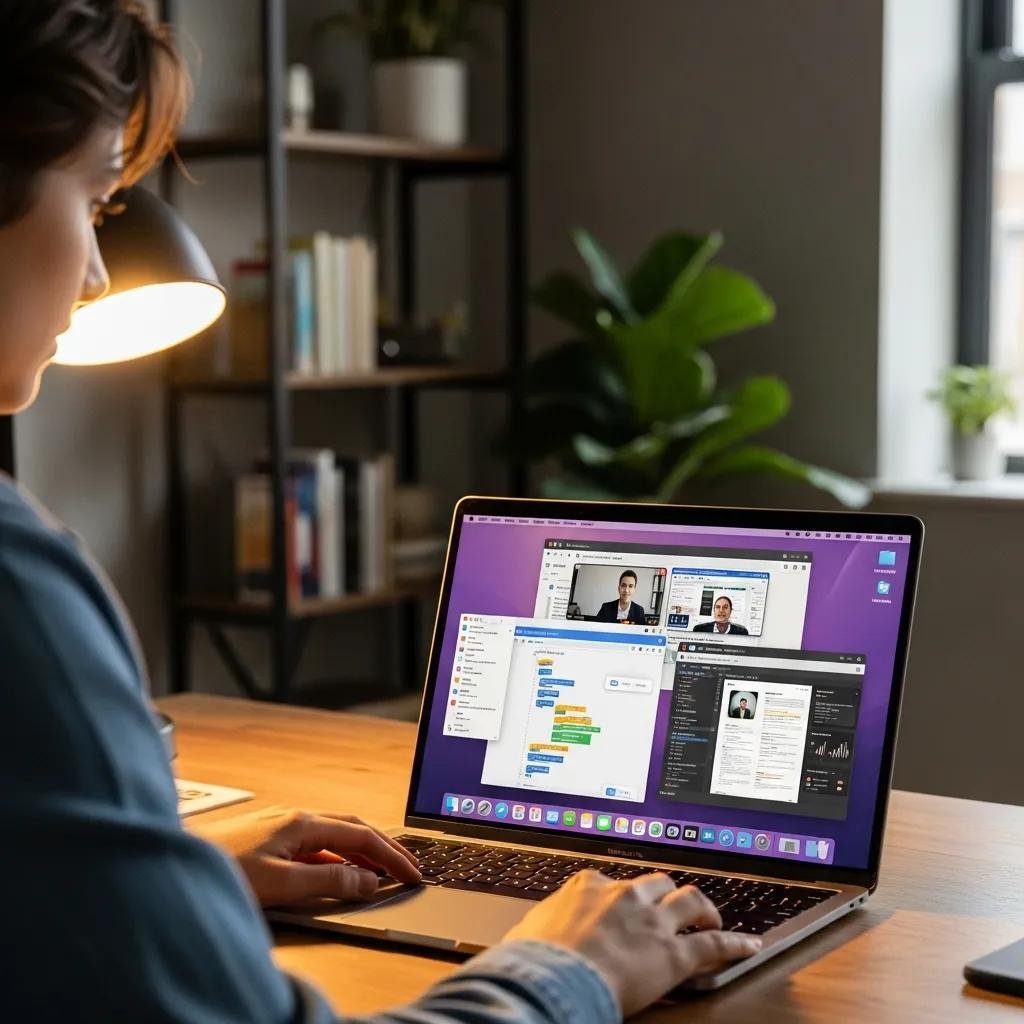
Spaces are macOS virtual desktops that behave like separate work areas where you can keep task-specific app windows and full-screen apps. Each Space contains its own window set and switching between Spaces provides contextual focus: one Space can hold email and chat, another browser and research tabs, and another a coding environment. Creating, reordering, and closing Spaces is done from Mission Control and helps prevent one desktop from turning into an unmanageable pile of windows. Knowing how Spaces interact with full-screen apps and assigned apps reduces notification and workflow surprises.
Quick reference for Spaces behaviors:
| Action | How to Do It | App Assignment Behavior |
|---|---|---|
| Create Space | Open Mission Control → click “+” on Spaces bar | New empty desktop, apps not auto-moved |
| Reorder Spaces | Drag a Space left/right in the Spaces bar | Window positions follow the Space order |
| Full-screen app | Click green full-screen button | App becomes its own Space automatically |
How to Create and Manage Multiple Spaces on Your Mac
Creating and managing Spaces is straightforward when you follow Mission Control steps. Open Mission Control, then click the plus (+) to add a new Space, drag Spaces left or right to reorder them, and hover over a Space and click the X to close it when you’re done. Use a naming mental model (e.g., Research, Communicate, Create) so you remember what each Space is for, even though macOS doesn’t support custom labels visually. Reordering Spaces keeps adjacent tasks near each other and reduces the number of swipes or Control + Left/Right presses you need.
Organize by task category, limit the number of active Spaces to avoid memory overhead, and close unused Spaces at the end of the day to reset your desktop for the next session.
How to Move Windows and Assign Apps to Specific Spaces for Better Workflow
Drag windows between Spaces by activating Mission Control, then click and drag a window thumbnail into the target Space at the top; this moves the window and maintains its state. To permanently assign an app to a Space, right-click the app icon in the Dock, choose Options → Assign To, and select the desired Space or “All Desktops” for global availability. Note that assigning apps can affect notifications and background behavior, so assign only apps that benefit from fixed contexts (e.g., mail in a communication Space).
A common workflow is to keep reference material and browsers in one Space and code editors in another, assigning communication apps to a dedicated Space to reduce interruptions during deep work.
What Advanced Multitasking Techniques Can Boost Your Mac Productivity?
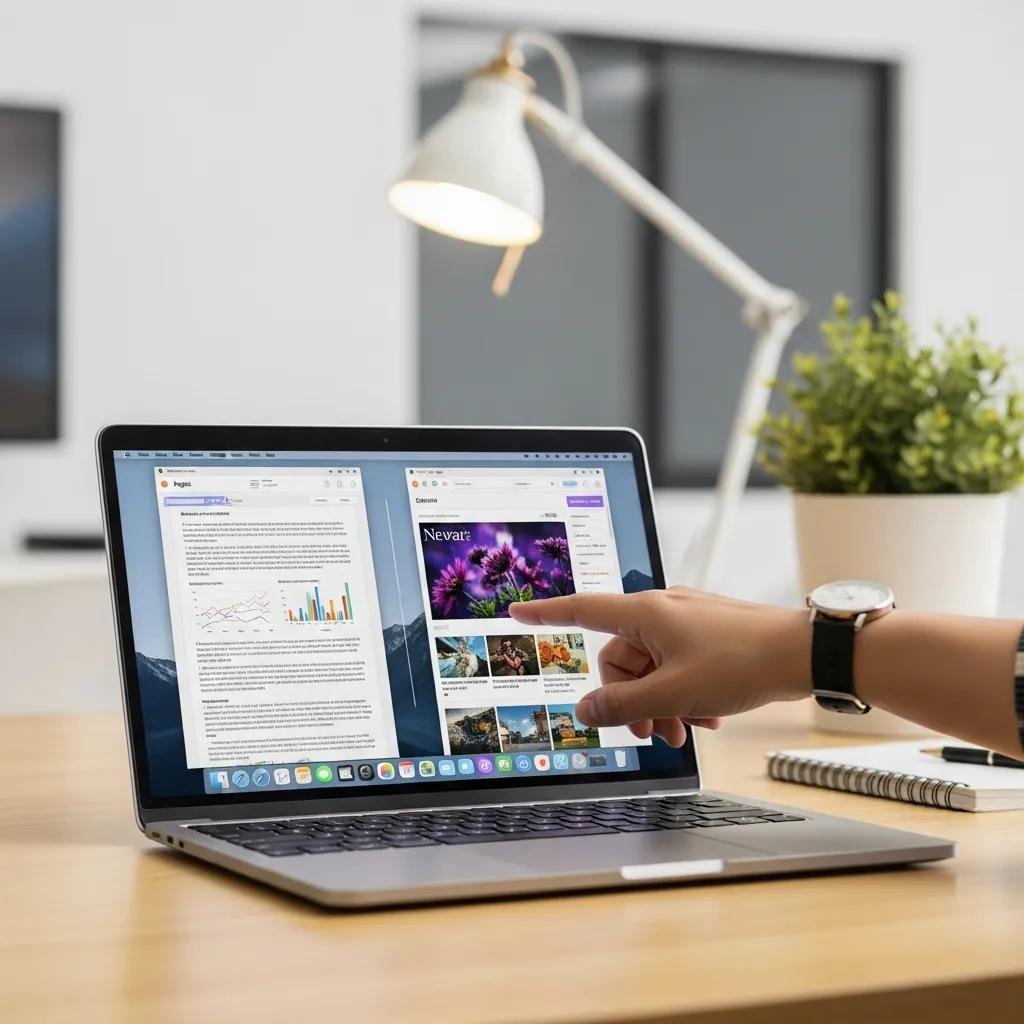
Combining Mission Control, Spaces, Hot Corners, Split View, and Stage Manager creates layered workflows that minimize friction when switching tasks. Hot Corners can trigger Mission Control or show the desktop instantly, while keyboard shortcuts move you between Spaces or reveal all windows. Split View lets two apps share a screen for side-by-side work, and Stage Manager (where available) groups windows by task in a focused layout. Using these tools together—Hot Corners to reveal, Control + arrows to switch, Split View to pair apps—yields a fast multitasking rhythm.
Compare advanced techniques quickly:
| Technique | Trigger | Best Use Case |
|---|---|---|
| Hot Corners | Move pointer to configured corner | Instant Mission Control or show Desktop |
| Split View | Hold green window button | Two apps for focused pairing (editor + preview) |
| Stage Manager | Enable in Control Center | Grouped task windows with one active focus |
How to Use Hot Corners and Keyboard Shortcuts with Mission Control and Spaces
Hot Corners and keyboard shortcuts let you operate a Mac without visual hunting, speeding navigation dramatically. Configure Hot Corners in System Settings to start Mission Control, show Desktop, or open Launchpad, and combine them with Control + Left/Right Arrow to jump between Spaces without opening the overview. Essential shortcuts include Control + Up (Mission Control), Control + Left/Right (switch Spaces), and F3 to reveal all windows. Practice a small set of shortcuts daily to build muscle memory and cut seconds from repeated tasks.
Top recommended shortcuts and Hot Corner uses:
- Control + Up Arrow: Show Mission Control quickly.
- Control + Left/Right Arrow: Move between adjacent Spaces.
- F3: Alternate overview key for keyboards without function remapping.
- Hot Corner → Mission Control: Immediate overview when pointer reaches a corner.
These shortcuts form a compact toolkit that reduces context-switch friction and pairs well with gesture users.
How to Master Split View and Integrate Stage Manager for Seamless Multitasking
Enter Split View by holding the green window button and choosing “Tile Window to Left/Right of Screen,” then pick a second app for the other side; exit by dragging the divider or pressing the Esc key. Stage Manager offers an alternative that groups windows into task stacks while keeping one main app prominent, which can be easier for rapid switching across many apps. Prefer Split View when you need simultaneous visible work areas and Stage Manager when you want one primary focus with quick access to related apps. Hybrid workflows use Spaces for broad task separation, Split View for paired focus, and Stage Manager for grouped multitasking on the fly.
Use a hybrid rule of thumb: Spaces for macro organization, Split View for intense side-by-side work, and Stage Manager to manage many small tasks dynamically.
How Can You Troubleshoot and Optimize Mac Multitasking Features?
When Mission Control or Spaces misbehave, simple OS and preference resets often restore expected behavior and performance. Common causes include corrupted Dock preferences, outdated macOS, or conflicting gesture settings; fixes range from toggling preferences to restarting the Dock process. Performance improvements come from limiting the number of open windows and login items, closing unused apps, and applying macOS updates that contain bug fixes. Keeping a tidy desktop and a small number of active Spaces reduces memory pressure and keeps window animations smooth.
Common fixes you can try immediately:
- Restart the Dock with the command killall Dock in Terminal to refresh Mission Control and Spaces.
- Toggle Mission Control preferences off and on in System Settings to clear UI glitches.
- Check for macOS updates and install them to address known bugs or regression fixes.
- Reduce login items and background apps to lower memory usage and improve responsiveness.
If these steps don’t resolve persistent problems, consider contacting remote Mac technical support for hands-on diagnostics and optimization assistance.
mcHelper.com offers remote computer tech support and optimization services for Mac users who need expert help resolving persistent Mission Control or performance issues. Their certified technicians provide fast, secure remote assistance and a “no fix – no fee” guarantee for support that escalates beyond basic troubleshooting.
What Are Common Issues with Mission Control and Spaces and How to Fix Them?
Mission Control may stop responding, gestures may fail, or Spaces might not switch predictably; these symptoms often trace to preference corruption or background processes. A structured fix sequence is: toggle mission control gestures in System Settings, restart the Dock via , and sign out or reboot to reset user session state. If gestures fail on a trackpad, inspect Accessibility and Trackpad settings for conflicts, and check for third-party window managers that might intercept shortcuts. Escalate to technician support when Dock restarts and preference toggles have no effect or when hardware issues are suspected.
Follow this checklist to triage problems quickly:
- Toggle Mission Control gestures and preferences in System Settings.
- Run killall Dock in Terminal and observe if Mission Control returns.
- Reboot macOS and test in a fresh user session.
- Disable third-party window managers temporarily to rule out conflicts.
This ordered approach narrows down causes and points to the right escalation path if necessary.
What Tips Help Maintain a Clutter-Free Desktop and Improve Performance?
Maintaining a tidy desktop and managing open apps preserves system resources and keeps Spaces effective for focused work. Create routines that close unused windows at the end of focused sessions, limit active Spaces to the ones you actually use, and remove unnecessary login items to reduce background activity. Use third-party window managers selectively—they can improve tiling and alignment but may intercept shortcuts or increase complexity. Regularly review Activity Monitor to spot memory-heavy apps and restart or replace them as needed to maintain smooth animations and fast context switching.
Practical desktop hygiene practices include:
- Close or minimize unused windows before switching Spaces.
- Limit active Spaces to three to five to balance context separation with resource usage.
- Manage login items to prevent background apps from consuming memory.
- Use a single third-party window manager if you need advanced tiling; disable it for troubleshooting.
mcHelper.com provides remote “Computer Tech Support” and “Speed-Up and Optimize your Computer” services for users who prefer remote assistance with these optimization steps.





