

Boost Productivity with Multiple Desktops in Windows 10/11: Your Essential Virtual Desktop Guide
Virtual desktops let you create separate workspaces on the same computer, isolating tasks, apps, and windows into purpose-specific screens to reduce visual clutter and speed task switching. This guide explains what virtual desktops are, how Windows 10 and Windows 11 implement them through Task View and keyboard shortcuts, practical setup steps, customization tips, and common troubleshooting techniques to keep multitasking smooth. Many professionals and students find that separating work, meetings, and personal apps into distinct desktops improves focus, lowers cognitive switching costs, and simplifies presentations. Read on to learn step-by-step how to create, switch, and personalize multiple desktops, the essential keyboard shortcuts for fast navigation, and when to escalate an issue to expert remote support. The article covers what virtual desktops do, hands-on setup and management, workspace organization and customization, and common problems with clear fixes and a compact troubleshooting table.
What Are Virtual Desktops and How Do They Enhance Productivity?
A virtual desktop is an operating system feature that creates isolated screens where different groups of apps and windows run independently, helping users reduce clutter and maintain context for specific tasks. By separating projects, meetings, and personal browsing into distinct workspaces, virtual desktops reduce distractions and speed context switching, which enhances sustained attention and lowers task-resumption time. In Windows 10 and Windows 11 the feature is accessed via Task View; Windows 11 adds smoother UX and tighter integration with Snap Layouts for arranging apps across desktops. Below are the primary productivity benefits of using virtual desktops and how they map to common workflows.
Virtual desktops offer clear, actionable advantages:
- Clutter Reduction: Keep unrelated windows off-screen to maintain a focused workspace.
- Context Separation: Dedicate one desktop per project, meeting, or persona to avoid task overlap.
- Presentation Safety: Move personal apps to a separate desktop when sharing your screen.
- Faster Recovery: Resume specialized workflows quickly without rearranging windows.
These benefits make virtual desktops especially useful for remote workers and students who juggle multiple projects; next we’ll define how the feature appears and differs between Windows 10 and Windows 11.
What is a Virtual Desktop in Windows 10 and 11?
A virtual desktop in Windows is implemented through Task View, which visualizes open desktops and lets you create, rename, and delete them while moving windows by drag-and-drop. In Windows 10 Task View provides the basic desktop grid, thumbnail previews, and per-desktop grouping of apps, while Windows 11 improves the visual flow, adds simpler renaming UX, and integrates with Snap Layouts for quicker app placement. The mechanism works by keeping window states separate per desktop without duplicating system resources, so performance impact is minimal unless many heavy apps run concurrently. Understanding these platform differences helps you choose whether to rely on built-in tools or combine them with Snap features for faster workspace setup.
How Do Multiple Desktops Improve Organization and Focus?
Multiple desktops improve organization by assigning coherent tasks to distinct screens—one for email and communication, one for coding or drafting, and one for research or reference materials—so visual noise is reduced and mental context is preserved. This separation lowers the cost of task switching because you no longer need to search through overlapping windows, and it supports digital well-being by making it easier to pause notifications on a focused desktop.
For example, remote workers can keep meeting apps confined to a single desktop so incoming messages do not interrupt deep work, while students can separate lecture notes, reading PDF resources, and chat apps into dedicated spaces.
Organizing workspaces effectively requires knowing how to create and move between desktops quickly, which the next section explains with step-by-step guidance and a compact reference table.
How to Set Up and Manage Multiple Desktops in Windows 10 and 11
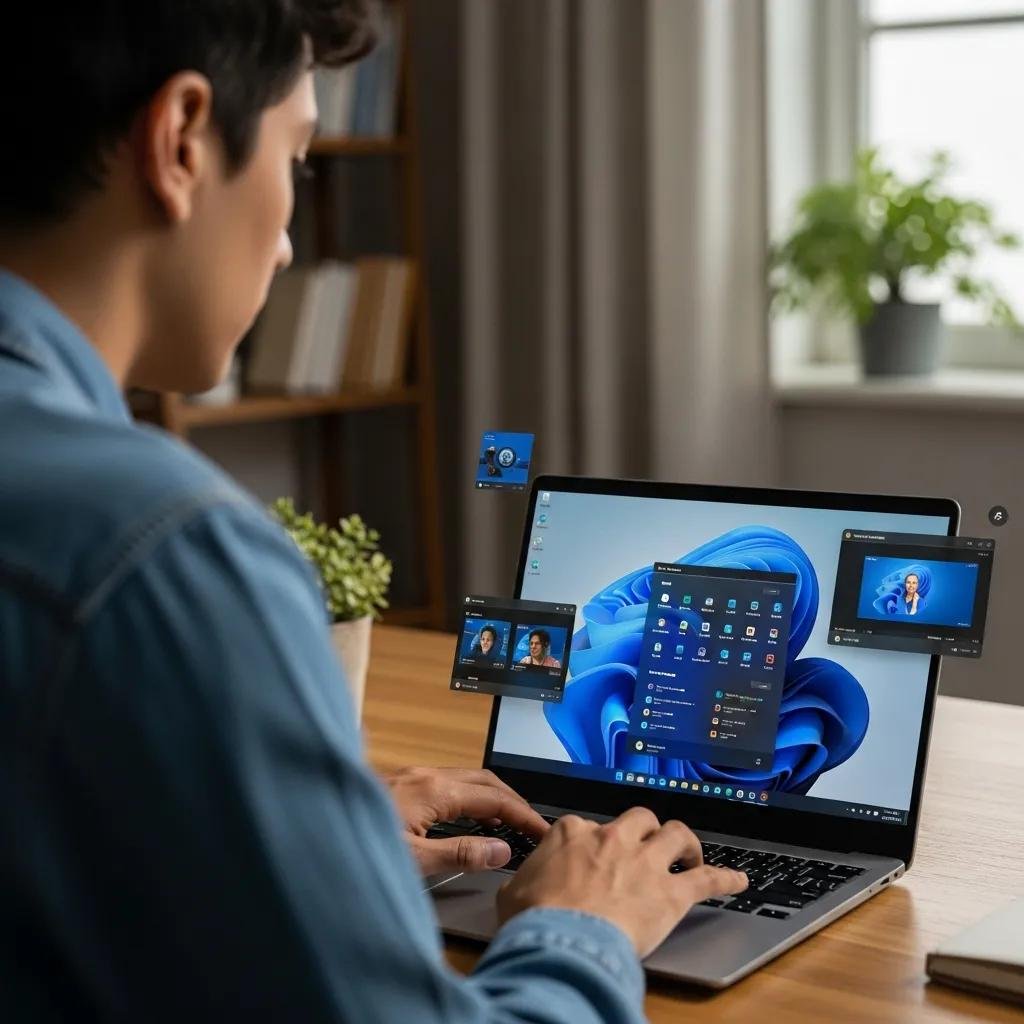
Creating and managing virtual desktops is straightforward using Task View and keyboard shortcuts; the table below summarizes the core UI steps and expected outcomes for Windows 10 versus Windows 11. Follow this quick reference when setting up a new workspace and move on to the step-by-step actions in the following subsections for practical tips.
| Action | Windows 10 | Windows 11 |
|---|---|---|
| Create new desktop | Task View → New desktop button; thumbnail appears | Task View → New desktop; renaming is simpler |
| Switch desktops | Task View or Win + Ctrl + Left/Right | Task View or Win + Ctrl + Left/Right (smoother animation) |
| Move a window between desktops | Task View drag-and-drop or right-click menu | Task View drag-and-drop; Snap Layouts assist placement |
| Rename/close desktop | Right-click thumbnail → Rename / Close | Click thumbnail title to rename; Close via X |
This table clarifies basic expectations and helps you match actions to outcomes; the numbered setup below gives precise steps to follow.
What Are the Steps to Create and Switch Between Virtual Desktops?
Follow these numbered steps to create, switch, move, and close desktops in Task View for reliable workspace management. Open Task View with the dedicated Task View button or to see an overview of all desktops and pinned windows. Create a new desktop by clicking “New desktop” (Windows 10/11) and drag windows into thumbnails to move them, or use the context menu to send a specific app to another desktop. Switch quickly with or use Task View to pick the target desktop, and close desktops via the thumbnail —open windows migrate to the previous desktop when you close one.
These steps make the feature usable for daily workflows and naturally lead into the keyboard shortcuts that speed navigation further.
Which Keyboard Shortcuts Help Navigate Virtual Desktops Efficiently?
Keyboard shortcuts are the fastest way to navigate multiple desktops and keep flow intact during focused work. The essential navigation shortcuts are to open Task View, to jump between desktops, and to create a new desktop or to close the current one. still cycles through windows across desktops by default, but you can adjust Task View and Alt+Tab behavior in Settings to limit switching to apps on the current desktop for stricter context separation. Mastering these shortcuts reduces friction, and the next section explains how to personalize desktops for even greater efficiency.
How to Customize and Organize Your Workspaces for Maximum Efficiency
Customizing desktop backgrounds, naming desktops, and integrating Snap Layouts helps you visually distinguish workspaces and accelerates app placement, improving workflow clarity and speed. In Windows 11 you can assign different backgrounds per desktop directly in Settings; in Windows 10 you may use workarounds like virtual-desktop-aware background tools. The table below lists customization options, their attributes, and recommended use-cases so you can choose the combination that fits your workflows.
| Customization | Attribute | Recommended Use-Case |
|---|---|---|
| Per-desktop backgrounds | Visual cue per workspace | Use distinct images/colors per project to reduce context errors |
| Desktop naming | Text labels for thumbnails | Short project names (e.g., “Design”, “Meetings”) for quick identification |
| Snap Layouts integration | Rapid app placement | Arrange dev tools, browser, and notes in one layout per desktop |
| Taskbar settings | Show windows only on active desktop | Reduce distraction by limiting taskbar clutter |
This comparison helps prioritize visual cues and layout strategies; practical personalization steps follow.
How Can You Personalize Virtual Desktop Backgrounds and Settings?
On Windows 11 change each desktop’s background from , then assign images or solid colors to create instant visual separation between workspaces. For Windows 10, use a consistent color scheme per desktop or consider third-party utilities that simulate per-desktop backgrounds while keeping security and stability in mind. When capturing screenshots for guidance, include descriptive ALT text like “Task View showing three desktops named Work, Meetings, and Personal” to improve accessibility.
These personalization methods support a simple rule of organization: consistent visual signals decrease error rates and speed reorientation, which leads to the concrete best-practices below.
What Are Best Practices to Organize Workspaces in Windows 11?
Adopt a set of consistent rules to keep desktops predictable and efficient: use one desktop per primary activity, keep reference and research apps on a single dedicated desktop, and apply simple naming plus unique backgrounds to minimize confusion. Create templates—for example, “Focus” with just a code editor and timer, “Meetings” with calendar and conferencing apps, and “Research” with browser and PDFs—to speed setup for recurring workflows. Regularly prune unused desktops and close redundant windows to free resources and prevent slowdowns.
These habits make virtual desktops scalable across days and projects and prepare you to troubleshoot issues when they occur.
What Are Common Virtual Desktop Issues and When Should You Seek Expert Help?
Virtual desktops are stable for most users, but common issues include Task View missing, windows not moving between desktops, shortcuts failing, or performance slowdowns when many apps run across desktops. Quick diagnostic steps include restarting Windows Explorer, checking Windows updates, and verifying multi-monitor settings, which often resolve transient UI or shortcut failures.
The table below summarizes typical problems, likely causes, quick fixes, and clear escalation criteria so you can decide whether to attempt DIY repair or contact remote support.
| Issue | Likely Cause | Quick Fix | When to Call Support |
|---|---|---|---|
| Task View missing | Explorer glitch or disabled setting | Restart Explorer; enable Task View in Settings | If restart fails or setting absent repeatedly |
| Windows won’t move | Drag/drop bug or app-specific behavior | Use context menu or Alt+Tab to relocate app | If app persists on wrong desktop after updates |
| Shortcuts not working | Keyboard layout or system hotkey conflict | Check keyboard settings; update drivers | If multiple inputs fail across reboots |
| Sluggish performance | Many heavy apps across desktops | Close unused apps; check Task Manager | If resource usage remains high after cleanup |
Use this checklist to triage issues; attempt quick fixes first and collect system info before escalating.
Which Problems Commonly Affect Virtual Desktop Usage and How to Fix Them?
Users most often encounter UI glitches, shortcut conflicts, and behavior differences across monitors or when third-party window managers are installed. Basic remediation steps are to update Windows, restart Explorer or the system, confirm keyboard and language settings, and test with only built-in Task View active to isolate third-party interference.
If multi-monitor setups behave differently, check display scaling and alignment in Settings since inconsistent scaling can prevent drag-and-drop between displays.
Follow these diagnostics in order and note which steps you tried; this record speeds expert troubleshooting if you escalate the issue.
If problems persist or indicate deeper system issues, remote assistance can help diagnose drivers, performance bottlenecks, or corrupted settings efficiently.
How Can mcHelper.com’s Remote Support Optimize Your Windows Productivity?
mcHelper.com provides remote computer repair and tech support focused on Windows and Mac systems, offering services such as performance optimization, troubleshooting, and virus removal through its annual subscription support package. For virtual desktop issues that resist quick fixes—persistent Task View failures, driver conflicts, or system instability—mcHelper.com’s team can remotely diagnose system logs, update drivers, and apply configuration changes to restore reliable multitasking behavior. Their approach emphasizes secure remote assistance and a “no fix – no fee” guarantee, making it a practical escalation path when local troubleshooting stalls. Contact mcHelper.com if you need expert remote setup, optimization, or advanced troubleshooting beyond standard DIY steps.





