


Internet Connectivity: Understanding Your Connection for Reliable Online Access
Internet connectivity refers to the end-to-end link that delivers online services to your devices, combining physical links, local networking equipment, and service provider infrastructure to enable web access, streaming, gaming, and cloud work. Reliable connectivity matters because slow speeds, high latency, or security gaps directly disrupt remote work, video calls, smart-home devices, and data transfers; this guide explains what types of internet service exist, how the connection actually works, common connectivity failures with practical troubleshooting, and steps to optimize speed and secure a home network. You will learn the distinguishing features of fiber, cable, DSL, satellite, and 5G home internet, see how modems and routers handle packets and DNS resolution, and get prioritized checks for “Wi-Fi connected but no internet” or intermittent drops. The article also includes compact comparison tables for quick scanning, actionable lists for troubleshooting and optimization, and pointers for when to escalate to professional remote network support. Read on to gain a clearer mental model of bandwidth, latency, and device roles so you can diagnose problems and improve performance with confidence.
What Are the Main Types of Internet Connections Available Today?
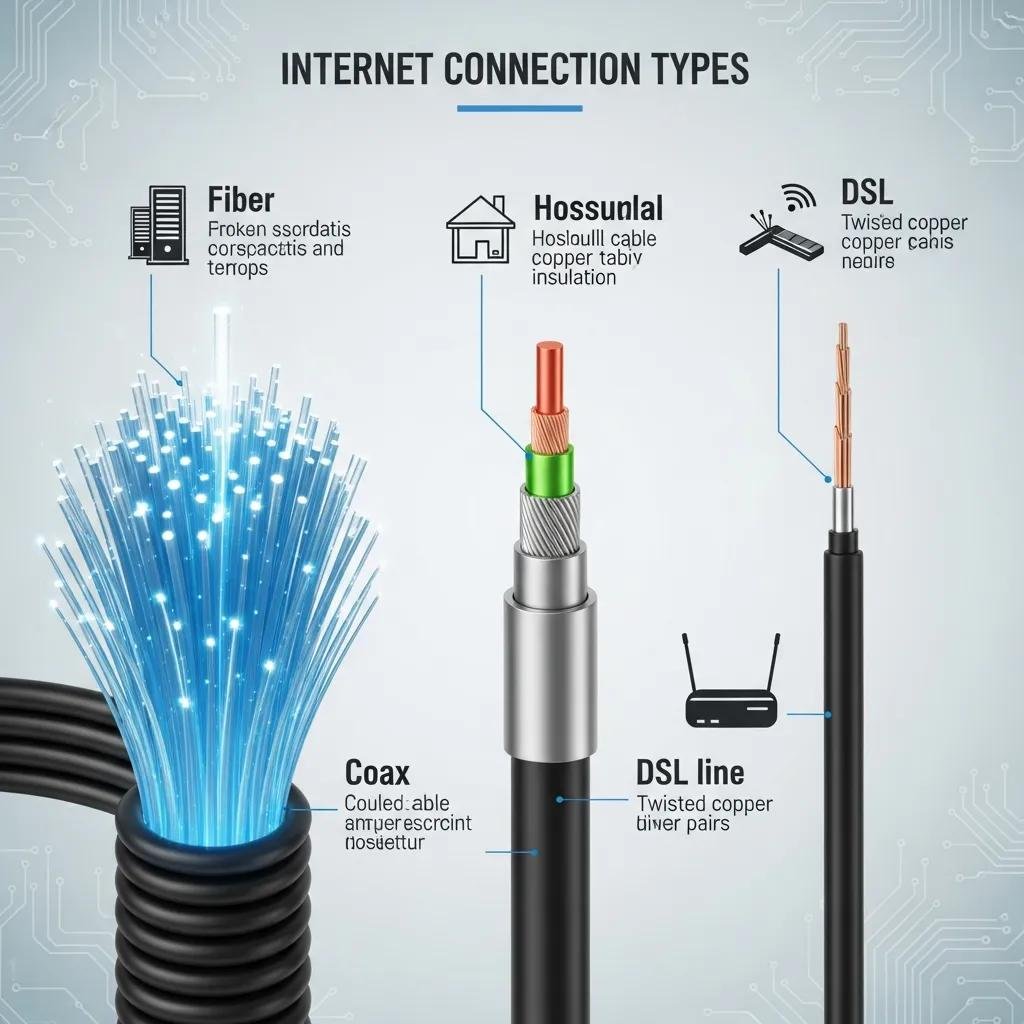
Internet connection types differ by transmission medium, typical speed and latency, and how they scale with distance or contention; choosing one depends on household needs like streaming, gaming, remote work, or rural access. The following comparison summarizes primary options and their ideal use cases to help match service to need, with emphasis on real-world speed expectations and latency characteristics. Understanding these distinctions makes it easier to evaluate broadband internet offers and prioritize upgrades when throughput or responsiveness is limiting productivity or entertainment.
Introductory comparison of common connection types:
| Connection Type | Typical Speed / Latency | Ideal Use |
|---|---|---|
| Fiber optic internet | 100 Mbps – 10 Gbps / Low latency (single-digit ms) | High-definition streaming, cloud work, low-latency gaming |
| Cable internet | 50 Mbps – 1 Gbps / Moderate latency (10–30 ms) | Homes with multiple users; good for streaming but can congest |
| DSL internet | 5–100 Mbps / Higher latency, distance-sensitive | Budget-conscious users or areas lacking fiber/cable |
| Satellite internet | 10–100 Mbps / High latency (500+ ms) | Rural locations without wired options |
| 5G home internet | 50 Mbps – 1+ Gbps / Variable latency (often low to moderate) | Flexible installs or areas with strong mobile coverage |
This table clarifies why fiber leads for speed and low latency while satellite serves remote coverage; the next subsections explain how fiber achieves its performance and how cable and DSL differ in practical terms.
How Does Fiber Optic Internet Provide High-Speed Connectivity?
Fiber optic internet transmits data as pulses of light through glass fibers, which minimizes signal loss and supports extremely high bandwidth and low latency. The physical mechanism — light in a glass medium — produces low attenuation and high capacity, which translates to symmetric upload/download tiers and consistent performance under load. For users, that means faster large-file transfers, smoother 4K streaming, and responsiveness that benefits real-time applications like online gaming or video conferencing. Availability and installation cost vary by region, so while fiber is the technical gold standard, real-world adoption depends on local ISP build-out and whether a home can be physically connected.
What Are the Advantages and Limitations of Cable and DSL Internet?
Cable systems send data over coaxial lines shared among neighbors, delivering higher peak speeds than DSL but exposing users to peak-time slowdowns from contention. DSL runs over existing copper telephone wiring and suffers from signal degradation with distance to the provider’s central office, yielding lower maximum speeds but broad availability where newer infrastructure is lacking. Cable is often the better choice for multi-user households prioritizing throughput, while DSL can serve basic browsing and email needs affordably in many areas. Both technologies are typically less future-proof than fiber and may prompt equipment or plan upgrades as household demand grows.
How Does Your Internet Connection Work: Key Components Explained
An internet connection combines devices and services that convert, route, and manage packets between your local network and the wider internet; key components include the modem, router, ISP infrastructure, and local wiring. Understanding the roles of each component clarifies where faults originate and which party is responsible for fixes, enabling faster troubleshooting and better configuration choices. The table below summarizes device roles and practical notes to reduce confusion when diagnosing access problems.
Core device roles and functions:
| Device / Component | Function | Notes / Example |
|---|---|---|
| Modem | Converts ISP signal (fiber/coax/DSL) to IP packets | May be ISP-provisioned or customer-owned |
| Router | Creates local network, assigns local IPs, manages Wi-Fi | Handles NAT, DHCP, and local traffic routing |
| ISP | Provides upstream connectivity, public IP, DNS | Responsible for backbone routing and outages |
| Ethernet cables / Wi-Fi APs | Carry local traffic | Use wired Ethernet for best stability and speed |
Knowing these roles helps you interpret LED indicators, speed test results, and whether to update firmware or check upstream service status; the next subsections detail modem vs router responsibilities and what ISPs typically manage.
What Roles Do Modems and Routers Play in Internet Access?
A modem converts the physical signal from your ISP into IP packets your network can use, while a router takes those packets and routes them among your devices via wired Ethernet or Wi-Fi. Many consumer gateways combine both functions into a single box, which simplifies setup but can obscure which component is causing problems; separating modem and router often improves flexibility and troubleshooting. Firmware updates on either device resolve stability and security issues, and correct placement of the router improves wireless coverage and reduces interference. Understanding this separation informs choices like upgrading to a mesh system or replacing an aging modem to match a new plan.
How Do Internet Service Providers Facilitate Your Connection?
Internet service providers provision access, advertise speed tiers, assign public IP addresses and DNS, and maintain backbone connectivity; they also perform outage detection and customer support for service-level problems. ISPs may impose data caps or shape traffic under certain plans, so reviewing the service terms can explain unexpected throttling or speed mismatches. When diagnostics point to an upstream outage (multiple devices wired and wireless fail), contacting your ISP is appropriate, whereas local device or Wi-Fi issues are usually resolved by in-home troubleshooting or technician support. Recognizing ISP responsibilities speeds escalation and avoids unnecessary hardware replacements.
What Are Common Wi-Fi and Internet Connectivity Issues and How Can You Troubleshoot Them?
Connectivity problems typically fall into power/cable faults, local network misconfiguration, or upstream service outages; a prioritized diagnostic sequence finds the root cause quickly and reduces downtime. Start with quick wins — power cycles and cable checks — then run controlled tests (wired speed test, router logs, ISP outage map) to determine whether issues are local, wireless, or external. The diagnostic table below pairs symptoms with likely causes and concise next steps so you can act methodically rather than guessing.
Quick diagnostic reference:
| Symptom | Common Cause | Quick Fix / Next Step |
|---|---|---|
| No internet on all devices | ISP outage or modem failure | Power cycle modem; check ISP status |
| Wi-Fi connected but no web | DNS or gateway issue | Test wired device; change DNS to public resolver |
| Slow speeds only on Wi-Fi | Interference or channel congestion | Move router, change channel, test 5 GHz band |
After these checks, escalate based on the results: if wired tests are fine but Wi-Fi fails, focus on router settings; if wired and wireless both fail, the ISP or modem hardware is suspect. For persistent or complex failures that resist standard troubleshooting, professional escalation is the next step and can save time.
For unresolved or complex network issues, consider remote network support as the next escalation step; remote technicians can run deeper diagnostics and apply fixes without an on-site visit, which is efficient for many households.
Why Is My Wi-Fi Connected but No Internet Access?
When a device shows a Wi-Fi connection but no internet, the local link to the router exists but external routing or DNS resolution is failing, commonly due to ISP outages, a modem fault, DNS misconfiguration, or IP conflicts. Quick checks include testing a wired connection to isolate Wi-Fi from upstream access, power cycling modem and router to refresh IP assignments, and using an alternative DNS to determine if name resolution is the issue. If a wired device can reach the internet, focus on wireless channel, SSID isolation, or router firmware; if no device reaches the web, the modem or ISP should be investigated next. These prioritized tests let you identify whether to adjust router settings or contact your provider for upstream restoration.
How Can You Fix Slow or Dropped Internet Connections?
Slow or intermittent connections often stem from device saturation, wireless interference, outdated firmware, or physical cabling problems; start with controlled measurements and progress to configuration changes. First, reboot modem and router and run a wired speed test to compare against your plan; then check for background downloads or many devices saturating bandwidth. If wireless performance lags, change Wi-Fi channel, prefer 5 GHz for short-range high throughput, update router firmware, and consider wired Ethernet for high-bandwidth devices. If problems persist after these steps, check cabling integrity and contact your ISP to rule out line faults or provisioning mismatches.
Numbered quick fixes for slow or dropped connections:
- Reboot equipment: Power-cycle modem and router, then retest speeds.
- Isolate wired vs wireless: Run a wired speed test to identify Wi-Fi-only issues.
- Update firmware and check cables: Apply router firmware updates and inspect Ethernet/coax.
Completing these steps typically resolves most performance issues and indicates whether professional remote support or ISP escalation is required.
How Can You Optimize Your Internet Speed and Secure Your Home Network?
Optimizing speed and hardening security are complementary: better configuration improves throughput while basic protections prevent unauthorized use that can degrade performance. Focus first on router placement, band strategy (2.4 GHz vs 5 GHz), and firmware updates to gain measurable speed and stability improvements, then apply security basics like WPA2/WPA3, unique passphrases, and guest networks to isolate visitor traffic. The following lists provide prioritized performance tips and a compact security checklist you can apply immediately.
Practical Wi-Fi performance improvements:
- Optimize placement: Position the router centrally and elevated to reduce obstructions.
- Use correct band: Use 5 GHz for short-range high throughput and 2.4 GHz for wider coverage.
- Prefer wired for heavy devices: Connect gaming consoles or streaming boxes via Ethernet when possible.
These targeted actions typically yield noticeable improvements within minutes and lead into broader hardware upgrades like mesh systems when coverage gaps remain.
Security checklist to protect your home network:
- Use strong, unique Wi-Fi passwords and enable WPA2 or WPA3 encryption.
- Separate guest networks to isolate visitor devices from local resources.
- Keep router firmware and device OS updated to address vulnerabilities.
Applying this checklist reduces unauthorized access and preserves bandwidth for intended devices, and if you need deeper configuration or security hardening, certified technicians can perform specialized remote configuration and security services when DIY changes are insufficient.
What Are Effective Tips for Improving Wi-Fi Performance?

Improving Wi-Fi performance requires a mix of placement, configuration, and hardware choices that together reduce interference and increase usable throughput. Begin by placing the router away from metal obstructions and competing electronics, then set the appropriate channel and band for your environment and enable band steering where available to balance devices. For larger homes, consider a mesh Wi-Fi system or wired backhaul between nodes to eliminate dead zones; upgrading to a modern router with contemporary Wi-Fi standards can produce immediate gains for multiple concurrent users. These steps progressively reduce latency and packet loss while improving measured Mbps for streaming and remote work.
How Do You Protect Your Internet Connection from Security Threats?
Protecting your connection combines encryption, patched firmware, access control, and basic network hygiene to prevent unauthorized use and data interception. Enable WPA2/WPA3 with a unique passphrase, disable WPS if unused, change default admin credentials, and enable a guest network for visitors to isolate traffic. Routinely update router firmware and device operating systems, use built-in firewall features, and consider a VPN for sensitive traffic when on untrusted networks. If you detect suspicious activity or a potential breach, disconnect affected devices and seek professional assistance to contain and remediate the issue.
For persistent performance or security problems that demand specialized configuration, remote support from certified technicians is an efficient option; they can apply advanced QoS, VLAN segmentation, or security hardening without requiring an on-site visit.
mcHelper.com offers remote technical support and remote network support delivered by certified technicians, provides 24/7 availability, and operates under a “no fix – no fee” guarantee for qualifying remote fixes. Their services are a practical escalation when diagnostics and DIY steps do not resolve complex network or security issues.
For ongoing problems or if you prefer hands-off remediation, professional remote assistance can quickly identify routing, DNS, or configuration faults and implement stable, secure settings so your connection remains reliable.





