


Understanding Internet Speed: Mbps Explained, Latency Definition, and Bandwidth Insights for Better Connectivity
Internet speed, latency, and bandwidth are three linked network metrics that determine how smoothly online activities run, from streaming to gaming and video calling. This article explains what Mbps measures, how latency (ping) affects responsiveness, and why bandwidth is the capacity that supports simultaneous traffic, giving you the insight to interpret speed tests and prioritize fixes. Readers will learn unit conversions, practical thresholds for streaming and gaming, and a troubleshooting checklist that maps common causes to straightforward remedies. The guide also includes concise comparison tables and actionable lists so you can quickly diagnose slow connections and apply fixes at home. Finally, where simple steps aren’t enough, the article highlights when professional support—such as speed-up, optimization, or home wireless network setup—can help restore reliable connectivity.
What is Mbps and How Does It Measure Internet Speed?
Mbps (megabits per second) is the unit ISPs use to express data transfer rate; it measures how many megabits are transmitted each second, which directly affects how fast files download and streams buffer. The mechanism is straightforward: higher Mbps increases potential throughput so larger data objects transfer faster, reducing wait times for web pages, video streams, and cloud files. Understanding Mbps helps you translate plan tiers into expected performance for common tasks, making it easier to choose a suitable broadband tier. Below is a compact conversion reference and a short example to make Mbps tangible for everyday use.
| Unit | Description | Conversion | Typical Use |
|---|---|---|---|
| Kbps | Kilobits per second | 1,000 bps | Low-bandwidth IoT devices |
| Mbps | Megabits per second | 1 Mbps = 1,000 Kbps | Home broadband speeds, streaming |
| MB/s | Megabytes per second | 1 MB/s = 8 Mbps | File downloads in applications |
| Gbps | Gigabits per second | 1 Gbps = 1,000 Mbps | Fiber backbones, high-end home plans |
This table clarifies that advertised Mbps must be divided by 8 to approximate raw MB/s file transfer rates, which helps set expectations for download times.
Defining Megabits per Second and Its Role in Data Transfer
A megabit is 1,000,000 bits and Mbps quantifies how many of those bits travel per second, so Mbps indicates the maximum theoretical data rate for a connection. ISPs report Mbps because networks route data in bits, while many files are measured in bytes, so remembering 8 bits = 1 byte helps convert speeds to download times. For example, a 100 MB file on a 50 Mbps connection has a theoretical best-case download time of about 16 seconds (100 MB ≈ 800 Mb ÷ 50 Mbps ≈ 16 s), though real tests often show lower throughput due to overhead and network conditions. Understanding that distinction makes advertised speeds easier to interpret when planning for streaming, large downloads, or backups.
How Internet Speed is Quantified Using Mbps Units
Speed tests report Mbps by measuring sustained throughput between your device and a test server, typically in separate download and upload phases, and real-world numbers vary with server selection, congestion, and local hardware. Important test factors include server proximity, simultaneous network use, and whether the device is on Wi-Fi or Ethernet; these variables explain why your observed Mbps can differ from advertised plan rates. Practical advice: test on a wired connection, pick a nearby test server, and run multiple tests at different times to capture variance. Popular tools report both download/upload Mbps and latency, giving a fuller picture of performance beyond a single Mbps number.
- This list explains common variables that affect speed test results and how to control them.
- Select a nearby test server to minimize distance-induced slowdown.
- Test on a wired connection to isolate Wi-Fi variables and get truer Mbps measurements.
- Run tests at different times to observe peak-hour congestion and variability.
The list above helps you interpret tests reliably; next we look at latency and why milliseconds matter for responsiveness.
What is Latency and Why Does It Matter for Your Online Experience?

Latency is the round-trip delay measured in milliseconds (ms) between sending a request and receiving a response, and low latency yields more responsive interactions in real time. Mechanically, latency increases with distance, routing complexity, and overloaded network hops; the benefit of lower latency is snappier gaming, faster remote desktop control, and smoother video conversations. Measuring latency with ping tools reports an average ms and can reveal jitter and packet loss as additional impairments that disrupt perceived quality. Understanding ms thresholds for different activities helps you prioritize fixes differently than when you only consider Mbps.
Understanding Latency and Ping: The Delay in Data Transmission
Ping measures the time for a small test packet to make a round trip to a server and back, encapsulating propagation delay, queuing at routers, and processing time—factors that together create latency. Long physical distances (e.g., transcontinental routes) and many routing hops add propagation and queuing delay, while jitter measures variability between pings and packet loss indicates dropped packets that trigger retransmits and more delay. To measure latency, run a ping to a nearby reliable server and observe average ms, jitter, and loss; this diagnostic isolates whether latency or bandwidth is the dominant performance limiter. Accurate latency readings guide decisions like selecting closer servers for gaming or enabling QoS to prioritize interactive traffic.
How Latency Affects Real-Time Activities Like Gaming and Video Calls
Different activities tolerate different latency ranges; gaming and VoIP need low ms for acceptable interactivity, while streaming video is more tolerant because buffering smooths delivery. Recommended targets are activity-specific: under 50 ms is ideal for competitive gaming, 50–100 ms is usable for most video calls, and 100–200 ms can cause noticeable lag for interactive apps but is often fine for streaming. Jitter and packet loss amplify latency issues by creating inconsistent delivery, so addressing both is crucial when users report stutter or audio dropouts. Mitigation techniques include switching to wired Ethernet, choosing closer servers, and configuring router QoS for latency-sensitive traffic.
- Competitive Gaming: Aim for <50 ms for minimal input lag.
- Video Conferencing: 50–100 ms typically provides stable interaction.
- Remote Desktop: Lower latency improves responsiveness; under 100 ms is preferable.
These targets help prioritize fixes; next we examine bandwidth and how it differs from speed.
How Does Bandwidth Differ from Internet Speed?
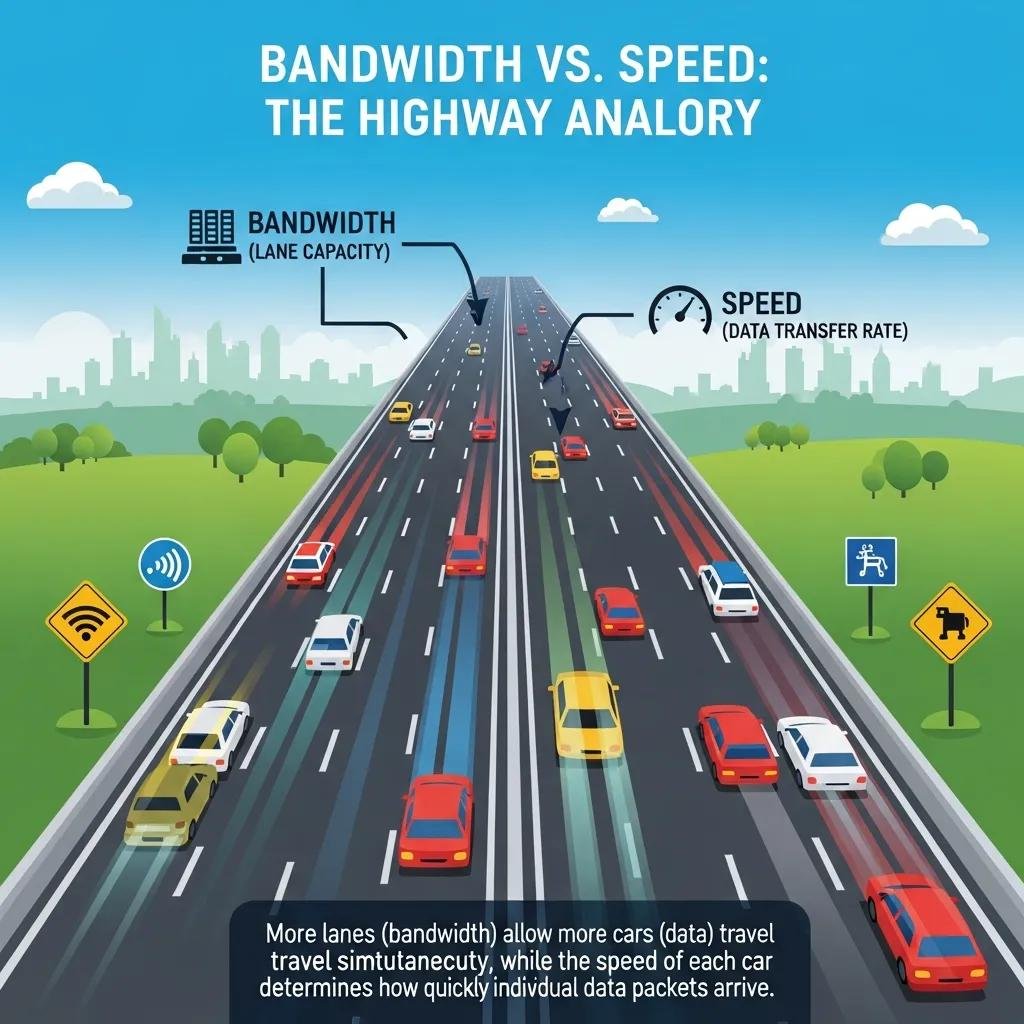
Bandwidth is the maximum capacity of a network link (the number of simultaneous data lanes), whereas speed (Mbps) is the rate at which data actually flows on that link at any moment. The highway analogy is useful: bandwidth equals the number of lanes available, and speed is how fast cars move; high bandwidth supports many simultaneous streams even if individual speeds vary. Throughput is the real-world usable speed you experience, which depends on bandwidth, congestion, and latency; recognizing this distinction explains why adding devices can degrade experience even if single-device speed tests look fine. Note: local network hardware and Wi-Fi configuration can limit effective bandwidth, and professionals can help diagnose and fix those local constraints.
Explaining Bandwidth as Data Capacity Versus Speed as Data Rate
Bandwidth sets the ceiling for concurrent data flows—multiple users streaming 4K each consume more aggregate bandwidth than a single device downloading a file—while speed measures how quickly a particular transfer proceeds within that ceiling. In households, a limited bandwidth tier will throttle total simultaneous usage, so one heavy download can reduce streaming quality on another device even if that device’s per-stream bitrate is modest. Understanding both concepts helps you choose plans and shape traffic (e.g., scheduling large backups off-peak) to match household patterns. Practical examples show whether you need a higher bandwidth tier or lower-latency routing to meet your needs.
| Concept | What it Represents | Practical Implication |
|---|---|---|
| Bandwidth | Aggregate capacity (lanes) | Determines how many streams can run at once |
| Speed (Mbps) | Data rate for a flow (car speed) | Affects single-download times and responsiveness |
| Throughput | Real-world usable rate | What users actually experience under load |
Why Both Bandwidth and Speed Are Important for Network Performance
Both high bandwidth and adequate per-flow speed are necessary for a smooth multi-user home; bandwidth prevents contention while speed ensures individual tasks complete quickly. In many cases, slow performance results from bandwidth saturation (too many active streams) rather than a low advertised Mbps for a single device, whereas high latency can make even a high-bandwidth connection feel sluggish for interactive tasks. ISPs advertise bandwidth tiers because they signal the maximum aggregate capacity customers can expect, but real-world throughput depends on routing, congestion, and local hardware. Balancing bandwidth upgrades, latency improvements, and network configuration yields the best perceived performance.
- Multiple simultaneous 4K streams consume significant bandwidth.
- Single large downloads benefit more from higher per-flow Mbps.
- Latency-sensitive tasks require low ms regardless of bandwidth.
What Are the Key Factors Affecting Your Internet Speed?
Several root causes commonly explain slow or erratic network performance, and diagnosing them systematically lets you target the right remedy quickly. Hardware issues like aging routers, Wi-Fi interference, and poor cabling limit throughput and increase jitter; ISP-side congestion and plan caps create external bottlenecks; device-level issues such as background updates or malware reduce available local bandwidth. This section maps those causes to practical fixes so you can prioritize steps that deliver the largest improvements for your situation.
Common Causes of Slow Internet: Router, Network Congestion, and ISP Issues
Common causes include outdated router hardware or firmware, wireless interference from neighboring networks or appliances, and ISP congestion during peak hours, each with simple diagnostics to isolate them. A quick check is to connect a device via Ethernet and rerun speed tests; if wired speeds are much higher, the problem is likely Wi-Fi related. Checking router firmware versions and rebooting devices can eliminate transient faults, while observing time-of-day patterns helps identify external congestion. If packet loss appears in ping tests, that may indicate ISP or routing issues requiring provider intervention.
- Router firmware outdated: check settings and update to latest stable firmware.
- Wireless interference: change channels, relocate router, or use 5 GHz band.
- ISP congestion: test at different times to see peak-hour slowdowns.
How to Improve and Optimize Your Internet Speed at Home
Start with basic troubleshooting steps—reboot modem/router, update firmware, and test with a wired connection—to quickly eliminate common faults before more complex changes. Next, optimize Wi-Fi placement, switch to less-crowded channels, and consider band steering or a mesh system for larger homes; for persistent latency-sensitive issues, enable QoS to prioritize gaming or video traffic. Advanced steps include checking ethernet cabling for Cat5e/Cat6 quality and disabling unnecessary background sync on devices. If these adjustments don’t resolve problems or you prefer professional help, mcHelper.com provides remote tech support, speed-up and optimization services, and home wireless network setup to diagnose and remediate local network constraints efficiently.
- Restart and update: Reboot router/modem and apply firmware updates.
- Isolate Wi-Fi: Test wired vs wireless to identify Wi-Fi issues.
- Optimize placement and channels: Reduce interference and improve coverage.
- Use QoS and cable checks: Prioritize traffic and ensure quality cabling.
Following these steps often restores expected performance; if not, consider expert assistance as noted above from mcHelper.com which can provide targeted remediation.
For professional troubleshooting or hands-on optimization, mcHelper.com’s certified technicians offer 24/7 remote support for speed-up and optimization and home wireless network setup, giving an option for users who prefer expert help to resolve persistent performance issues.





