

Fixing Keyboard & Mouse Problems: Wireless and Wired Troubleshooting Guide
Hardware and connectivity issues with keyboards and mice interrupt workflows and create frustrating delays, whether you use wireless Bluetooth devices or traditional wired USB peripherals. This guide helps you diagnose and resolve common input device problems step by step, so you can restore a responsive keyboard or mouse, reduce downtime, and know when to escalate to remote help. You will learn initial wireless checks for battery, pairing, and interference; wired troubleshooting for USB ports and cable damage; driver and operating system fixes; and clear criteria for seeking professional assistance. Throughout, we use practical tests you can run quickly, explain why each step isolates the root cause, and point out which logs and diagnostics to collect if you need further support. Keywords covered include usb input device fix, mouse unresponsive, keyboard not working, bluetooth keyboard not pairing windows 11, and usb port not recognizing device to make this a focused troubleshooting reference you can follow immediately.
How do I fix common wireless keyboard and mouse connectivity problems?
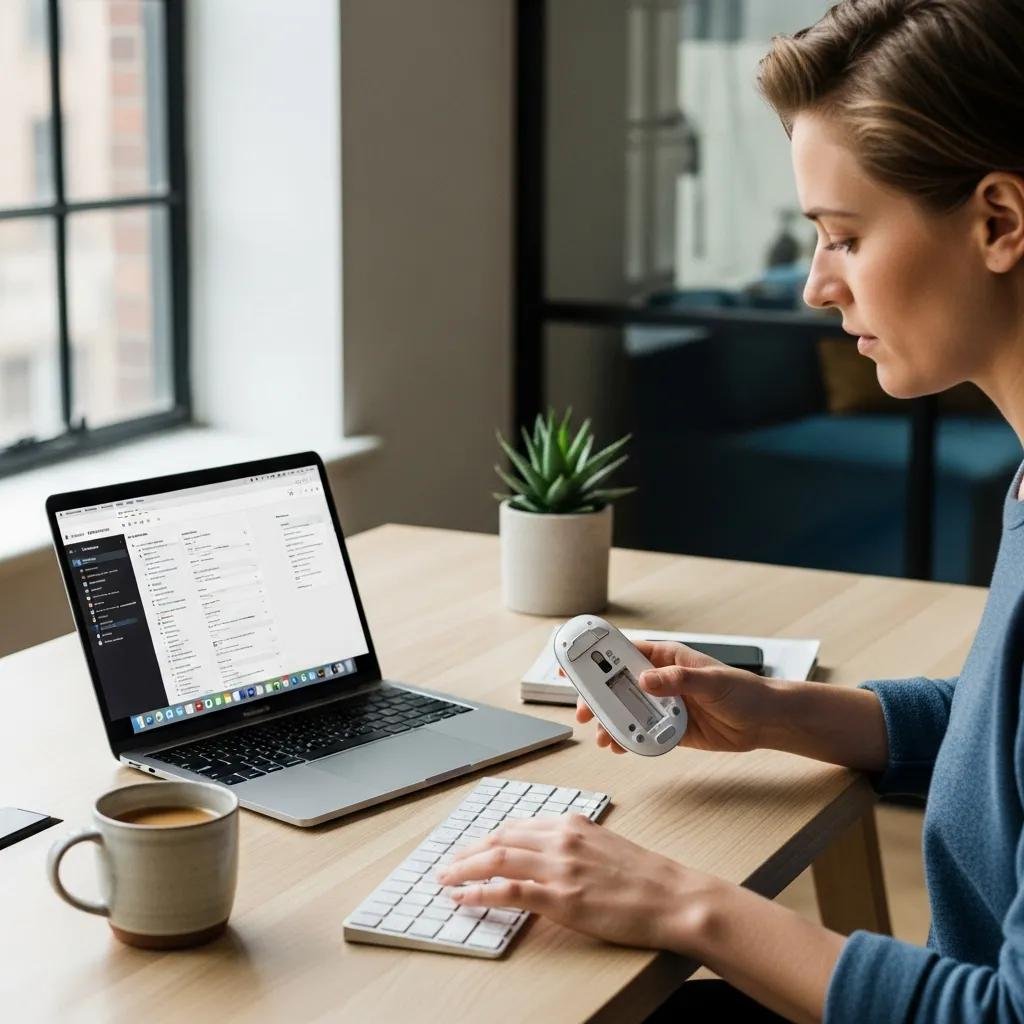
Wireless input device failures usually stem from one of four causes: power (batteries or charge), pairing state (Bluetooth or RF link), radio interference, or driver/firmware problems. Identifying which category the issue belongs to narrows the fix and shortens resolution time by isolating hardware from software causes. Start with quick isolation tests that confirm whether the issue is the peripheral, the host computer, or the environment. These checks are designed to target featured-snippet queries like bluetooth keyboard not pairing windows 11 and wireless dongle not detected by giving concise actions you can take immediately.
- Check power: Replace or recharge batteries and verify any power switches are on.
- Reseat receiver / re-pair: Unplug and reinsert RF dongle or remove and re-add Bluetooth device.
- Distance and line-of-sight: Move the device closer and remove obstacles between device and receiver.
- Test another host: Pair or plug the device into a different computer to determine if the device itself works.
These quick checks isolate common failure modes and indicate whether you should dig into pairing, interference, or driver updates next. If those steps show the device works on another machine, the problem is most likely software or host-side hardware, which leads into Bluetooth and dongle-specific troubleshooting below.
What steps resolve Bluetooth pairing issues for wireless keyboards and mice?
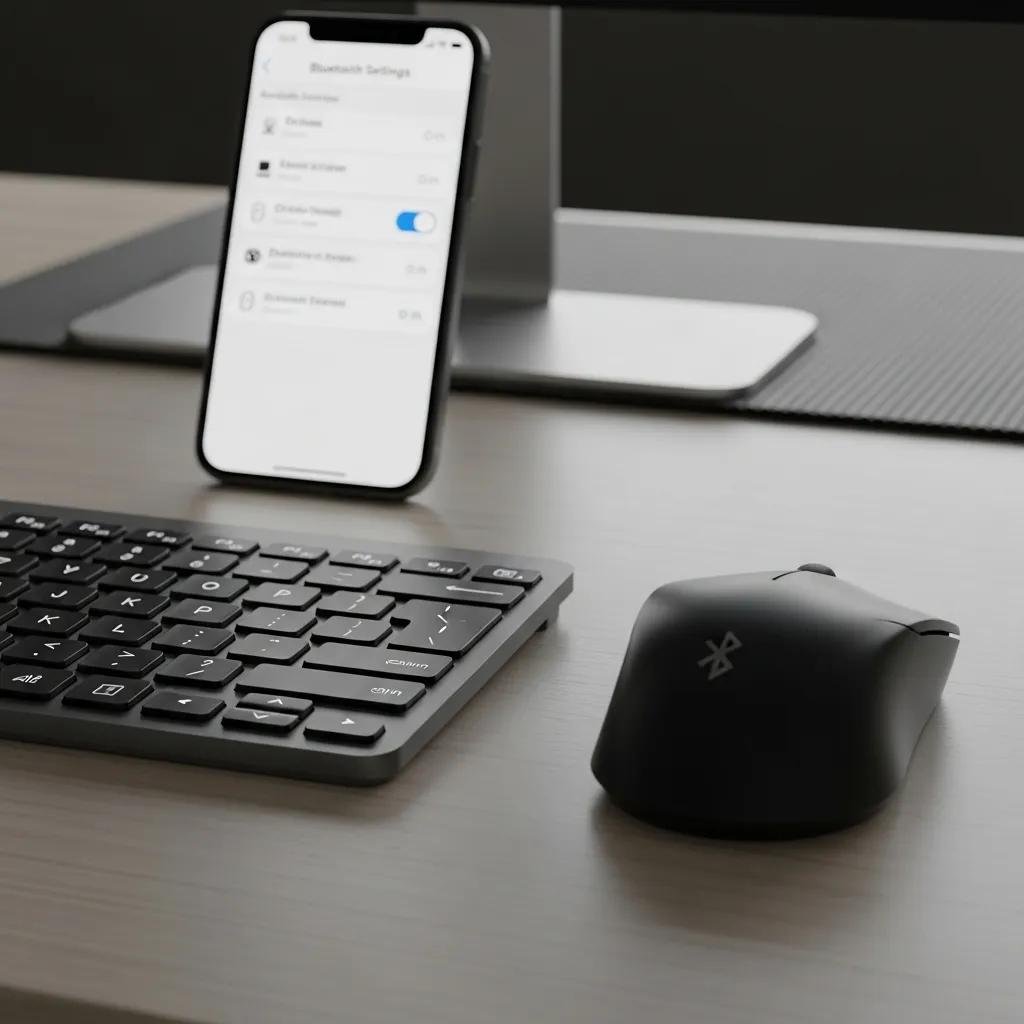
Bluetooth pairing failures often result from corrupt pairing records, disabled radio services, or OS-level settings preventing discovery. Begin by toggling the device’s power and using your operating system’s Bluetooth settings to “Forget” or “Remove” the device, then restart the Bluetooth service or the computer before re-pairing; removing the old pairing clears corrupted credentials and forces a fresh handshake. On Windows 11, open Settings > Bluetooth & devices, remove the device, then pair again; on macOS, use System Settings > Bluetooth and delete before re-adding. If pairing still fails, verify the host’s Bluetooth adapter appears in Device Manager (Windows) or System Information (macOS) and update its driver or firmware when available. Collecting device error codes and Bluetooth adapter logs speeds further diagnosis and is useful if remote support is required.
How can I troubleshoot wireless dongle and interference problems effectively?
RF dongles and USB receivers are sensitive to nearby radio noise and USB 3.0 interference that can cause packet loss, lagging, or intermittent disconnects. Physically reseat the dongle, try different USB ports — preferably rear ports on desktops— and use a short USB extension cable to move the receiver away from the host and other metal obstructions; relocating the receiver often restores a stable RF link. Disable or move nearby 2.4 GHz sources (Wi-Fi routers, cordless phones) for a test period to see if performance improves, and check manufacturer firmware or receiver drivers for updates that address known interference issues.
If the receiver is detected inconsistently, test the dongle on another computer to confirm whether the receiver itself is failing or the host USB controller is the cause.
What are the best methods to troubleshoot wired keyboard and mouse hardware issues?
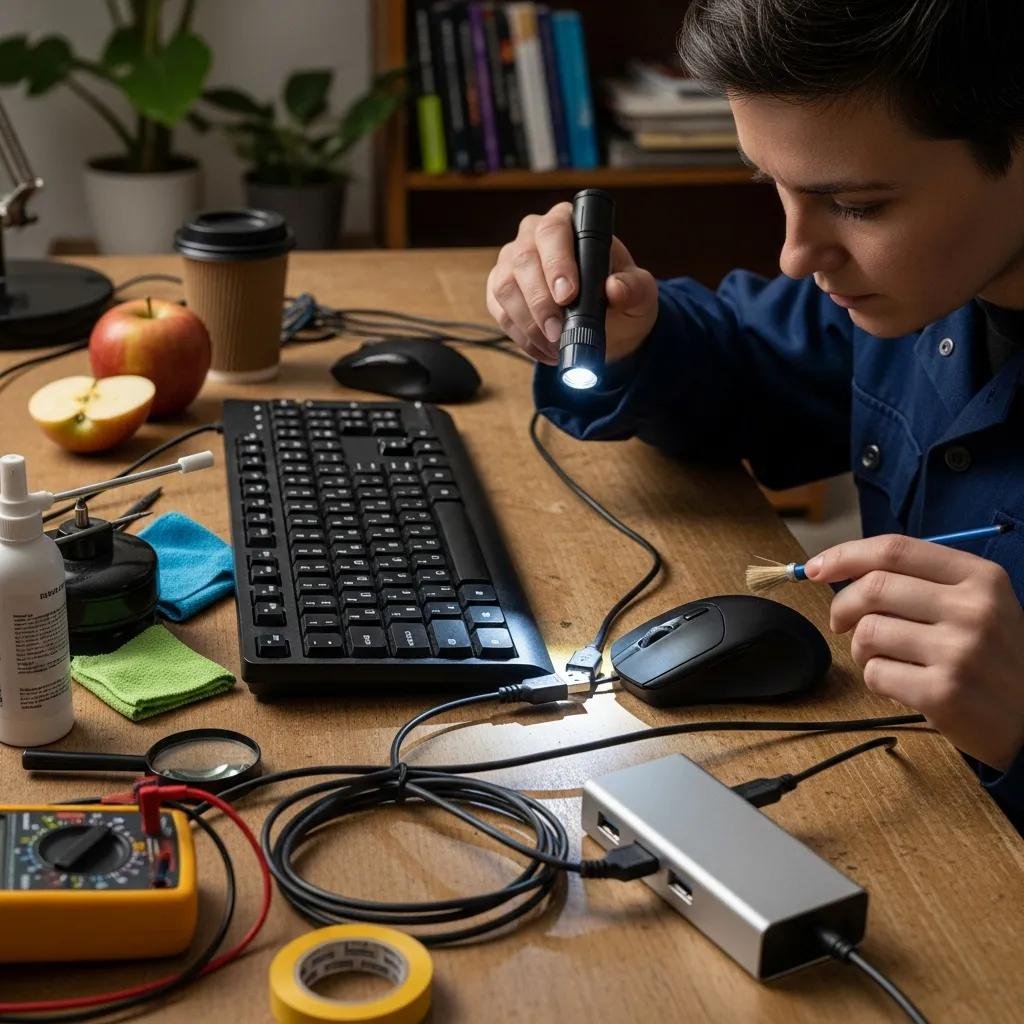
Wired input failures are typically caused by cable damage, faulty USB ports, debris in connectors, or internal sensor and controller faults within the peripheral. A sequential test strategy isolates the problem quickly: inspect the cable and connector for visible wear, try another known-good USB port, test the device on a different computer, and verify host USB controller status in Device Manager or System Information. These steps determine whether the issue is the peripheral, the cable, the port, or the operating system’s USB stack, providing a clear decision path towards repair or replacement.
Start with this ordered checklist to isolate hardware faults:
- Try a different USB port: Swap to a rear port or another hub to rule out power or port failure.
- Test on another machine: Confirms whether the peripheral hardware itself is defective.
- Inspect and clean: Look for debris, bent pins, or corrosion and clean contacts carefully.
Below is a compact EAV table that compares common wired peripheral symptoms with immediate recommended actions to help you prioritize repairs.
| Component | Symptom | Recommended Action |
|---|---|---|
| USB port | Not recognized or intermittent | Try known-good port, reboot, check Device Manager, update USB controller driver |
| Keyboard cable | Intermittent input, frayed insulation | Inspect for visible wear, avoid twisting, replace cable or device connector |
| Mouse sensor/cable | Jumping cursor or disconnects | Clean sensor lens, test different surface, replace or reterminate cable if damaged |
This comparison clarifies which immediate action usually resolves each symptom and points toward replacement or professional repair when safe fixes fail. If these steps identify physical damage beyond cosmetic fraying, consider repair by a qualified technician or replace the peripheral to avoid electrical hazards.
How do I identify and fix USB port malfunctions affecting wired peripherals?
A malfunctioning USB port can present as devices not recognized, intermittent disconnects, or poor power delivery. Diagnose by testing a known-good device in the same port, inspecting the port for debris or bent pins, and checking the host’s Device Manager for unknown USB devices or driver errors. Power-cycle the computer and any USB hubs, and uninstall/reinstall the USB controller drivers so the OS re-enumerates ports; this often clears software-level port faults. Avoid relying on overloaded USB hubs; connect high-draw devices directly to host ports or powered hubs to see if stability returns.
What are the signs of cable damage and how can I repair or replace cables?
Cable damage manifests as intermittent input, exposed wiring, visible kinks, or failure after flexing; a spill history or sticky residue can indicate corrosion that will worsen over time.
For minor external wear, secure wires with heat-shrink tubing or electrical tape as a temporary measure, but prioritize replacing the cable or the peripheral for a durable fix. Re-terminating USB connectors requires soldering skills and is best done only by experienced technicians; otherwise, replacement is safer and usually more cost-effective.
If liquid ingress occurred, power down immediately, allow the device to dry, and consult a professional as permanent damage to internal circuits is common after spills.
How do I update and manage drivers to resolve keyboard and mouse software issues?
Driver and firmware mismatches commonly cause devices to stop responding or behave erratically; managing drivers involves checking system device status, updating from manufacturer sources, reinstalling faulty drivers, or rolling back changes after problematic updates. Proper driver management ensures that the input device, USB controller, and Bluetooth adapter all use compatible software versions, which restores expected behavior and reduces phantom movements or unrecognized devices. Always create a system restore point before making major driver changes on Windows to allow quick rollback if an update causes regressions.
Use these steps for safe driver updates and rollbacks:
- Check Device Manager (Windows): Identify the keyboard, mouse, or unknown USB device and review driver status.
- Update from vendor: Use manufacturer installers for firmware or drivers rather than generic packages when possible.
- Reinstall or rollback: Uninstall the device driver and restart to force re-detection, or rollback to a previous driver if issues began after an update.
To summarize driver action choices, the table below gives a quick-reference for common entities and when to update, reinstall, or rollback.
| Device/Entity | Action | When to Use |
|---|---|---|
| Keyboard/Mouse driver | Update | Device not recognized, new features needed, vendor release available |
| Keyboard/Mouse driver | Reinstall | Corrupted driver or persistent errors after update |
| USB controller | Rollback | Host USB problems started after recent OS or driver update |
This table helps decide which driver action matches the symptom and reduces risk by clarifying when rollback is preferable to updating. If operating system conflicts persist after these actions, further OS-level remediation may be required.
What are the steps to update, reinstall, or rollback keyboard and mouse drivers?
On Windows, open Device Manager, expand Human Interface Devices or Mice and other pointing devices, right-click the device, and choose Update driver or Uninstall device followed by a reboot; use Roll Back Driver when available if the problem began after a recent update. Create a System Restore point before making driver changes to preserve a recovery path in case of regressions or new conflicts.
On macOS, install vendor-supplied drivers or rely on System Settings > Software Update for firmware; ensure vendor extensions are permitted if the driver requires them.
Collect logs and device error codes for remote support to expedite diagnosis.
How do operating system conflicts affect peripheral functionality and how to fix them?
OS-level conflicts include power-management settings that suspend USB devices, driver signature enforcement that blocks third-party drivers, and recent system updates that introduce incompatibilities.
Disable USB selective suspend or change power settings to prevent aggressive power saving, test input devices in Safe Mode to rule out third-party software conflicts, and uninstall conflicting utilities such as custom macro or overlay software that can intercept input. If an OS update introduced the problem, use rollback options or system restore points to return to a stable build while seeking vendor fixes.
When should I seek professional help for keyboard and mouse problems?
You should escalate to professional support when hardware shows visible damage, there is a persistent smell or smoke, liquid spills have occurred, you cannot isolate the issue after systematic tests, or driver and OS changes still leave the device nonfunctional. Professional remote technicians can analyze logs, inspect driver and firmware states, and guide safe hardware tests that are difficult to perform without elevated knowledge. In situations where warranty service or physical repair is necessary, remote troubleshooting helps determine whether replacement is required and documents the fault for repair authorization.
Use this escalation checklist to decide quickly:
- Visible damage or burnt smell: Stop and seek professional help immediately.
- Liquid spill with ongoing failure: Repair or replacement likely required; consult technicians.
- Persistent driver errors after rolling back and reinstalling: Escalate for remote logs analysis.
Before contacting remote support, gather Event Viewer entries, device error codes, BIOS/UEFI USB settings, and screenshots of Device Manager or system logs to speed diagnostics. Skilled users can run advanced checks like uninstalling USB controllers, inspecting BIOS/UEFI USB power settings, or applying firmware updates, but if these steps are unfamiliar, remote assistance is recommended. mcHelper.com offers 24/7 remote troubleshooting for Mac and Windows users; their technicians can perform guided driver inspection, logs review, and remote-guided hardware tests under secure remote sessions, and they operate a ‘no fix – no fee’ policy to reassure users before starting paid work.
What advanced diagnostics can I perform before contacting remote support?
Advanced self-diagnostics include collecting Event Viewer or system logs, noting device error codes, uninstalling and reinstalling USB controllers to force a full re-enumeration, and checking BIOS/UEFI settings that control USB and Bluetooth power or legacy support. Use system tools to export relevant logs and test firmware update utilities from the device vendor in a controlled way; documenting each step and its result creates a reproducible trail for support. Gathering screenshots, serial numbers, and timing of failures accelerates remote diagnosis and helps technicians determine whether the issue is solvable remotely or requires physical repair. For cases beyond safe self-diagnostics, mcHelper.com’s technicians can remotely inspect drivers, analyze logs, and guide safe firmware or BIOS checks to reach a resolution efficiently.
How does mcHelper.com’s remote repair service assist with complex peripheral issues?
mcHelper.com provides remote diagnostic and repair workflows tailored to keyboard and mouse problems for both Mac and Windows systems, available around the clock. Their technicians perform driver and firmware checks, review system logs, guide users through hardware isolation tests, and advise on safe next steps; if an issue cannot be resolved remotely, they document findings for warranty or onsite repair referrals. The company’s ‘no fix – no fee’ promise reduces risk for users seeking professional help and ensures that paid support is focused on measurable outcomes. Prepare for a remote session by collecting device logs, noting recent changes, and ensuring administrative access so technicians can act efficiently during the troubleshooting window.

