

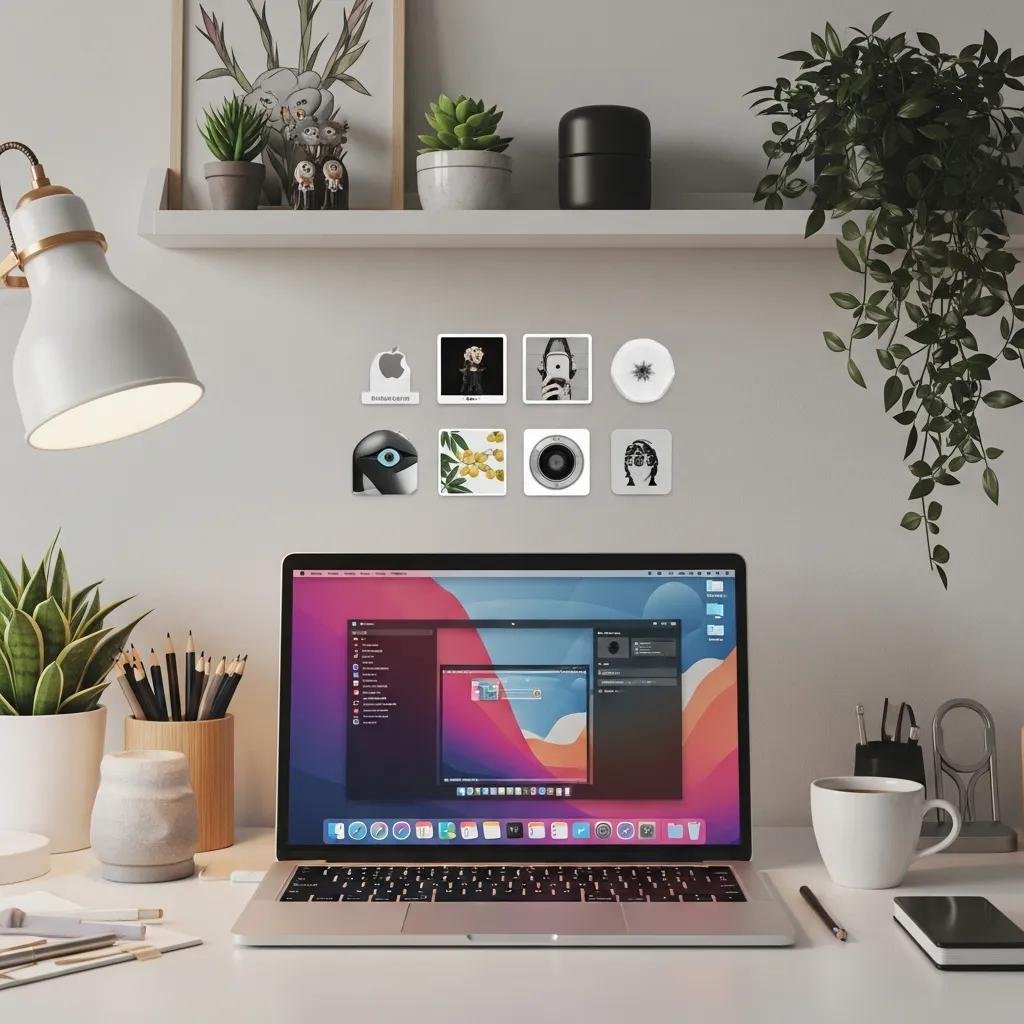
Customize Your Mac Desktop: Easy Guide to Wallpapers, Dock & Widgets
Personalizing your Mac desktop aligns aesthetics with productivity, letting the interface reflect your workflow while reducing visual friction. This guide shows practical, version-aware steps to change the macOS desktop background, tune mac dock settings for better focus, and add or manage widgets so your most-used data is visible at a glance. Many users face slow-downs or mismatched resolutions after personalization; these instructions highlight safe native methods, lightweight third-party options, and performance-aware choices to avoid battery or CPU impact. Read on for clear how-to steps, quick lists for featured snippets, comparison tables that clarify trade-offs, and concise troubleshooting actions to restore settings when things go wrong.
How Do You Change and Personalize Your Mac Wallpaper?

Mac desktop background customization is the process of selecting or creating images that macOS uses to fill the desktop, and it improves visual clarity and personal comfort while you work. System Settings (or System Preferences on older macOS versions) controls wallpaper selection, supporting static stills, dynamic wallpapers that shift with time, and live wallpapers that animate; each type balances visual impact against battery or CPU use. Below are quick high-level steps to change a wallpaper, followed by a compact comparison table to help you choose between static, dynamic, and live options. These steps use native macOS controls for reliability and compatibility with Stage Manager, multiple displays, and space switching.
- Open System Settings and choose Desktop & Wallpaper (or Desktop & Screen Saver on older macOS).
- Select an Apple-supplied still/dynamic option or click the + to add an image from Photos or Finder.
- Adjust fill, fit, or tile options and preview with multiple desktops or displays.
Different wallpaper types have trade-offs depending on resolution and performance.
| Wallpaper Type | Key Attribute | Best Use |
|---|---|---|
| Static (Still) | High-resolution, minimal CPU impact | General use, multiple displays, battery-sensitive users |
| Dynamic | Changes with time of day, moderate GPU use | Aesthetic refresh without heavy animation |
| Live (Animated) | Motion or video, higher CPU/GPU use | Short-term display or single-monitor setups |
This table clarifies that static wallpapers are the safest for battery and multi-monitor setups, dynamic wallpapers add ambience with modest cost, and live wallpapers are visually rich but may affect performance.
What Are the Steps to Change Mac Desktop Background Using System Settings?
Changing the desktop via System Settings is straightforward: open System Settings > Desktop & Wallpaper, then pick a preset or click the Add (+) button to use a folder or Photo. The picker shows Apple’s dynamic and still collections as well as your Photos library; choose Fill, Fit, or Center to match the image to your display resolution and orientation. For macOS Sonoma (version 14) and later, the Wallpaper pane groups options by ambient light and dynamic collections so previews reflect time-of-day changes, while older macOS organizes images under Desktop & Screen Saver. If the wallpaper fails to update, try logging out, restarting the Dock, or confirming file permissions for custom images.
How Can You Create and Use Custom and Dynamic Wallpapers on Mac?
Creating custom wallpapers starts with an image editor or a dynamic wallpaper tool that packages multiple stills into a time-shifted set; export high-resolution PNG or JPEG files sized for your display (e.g., 2560×1440 for 27″ displays). Add images to a dedicated folder, then use the plus button in System Settings > Desktop & Wallpaper to point macOS at that folder so images appear in the picker; for dynamic sets, tools like dynamic-wallpaper creators can wrap JPEG sequences into a single macOS-compatible package. Keep filenames descriptive and avoid extremely large file sizes to minimize disk and memory overhead. For best compatibility, test custom wallpapers across light and dark modes and on any additional monitors to ensure proper scaling.
What Are the Best Ways to Customize Mac Dock Settings for Productivity?
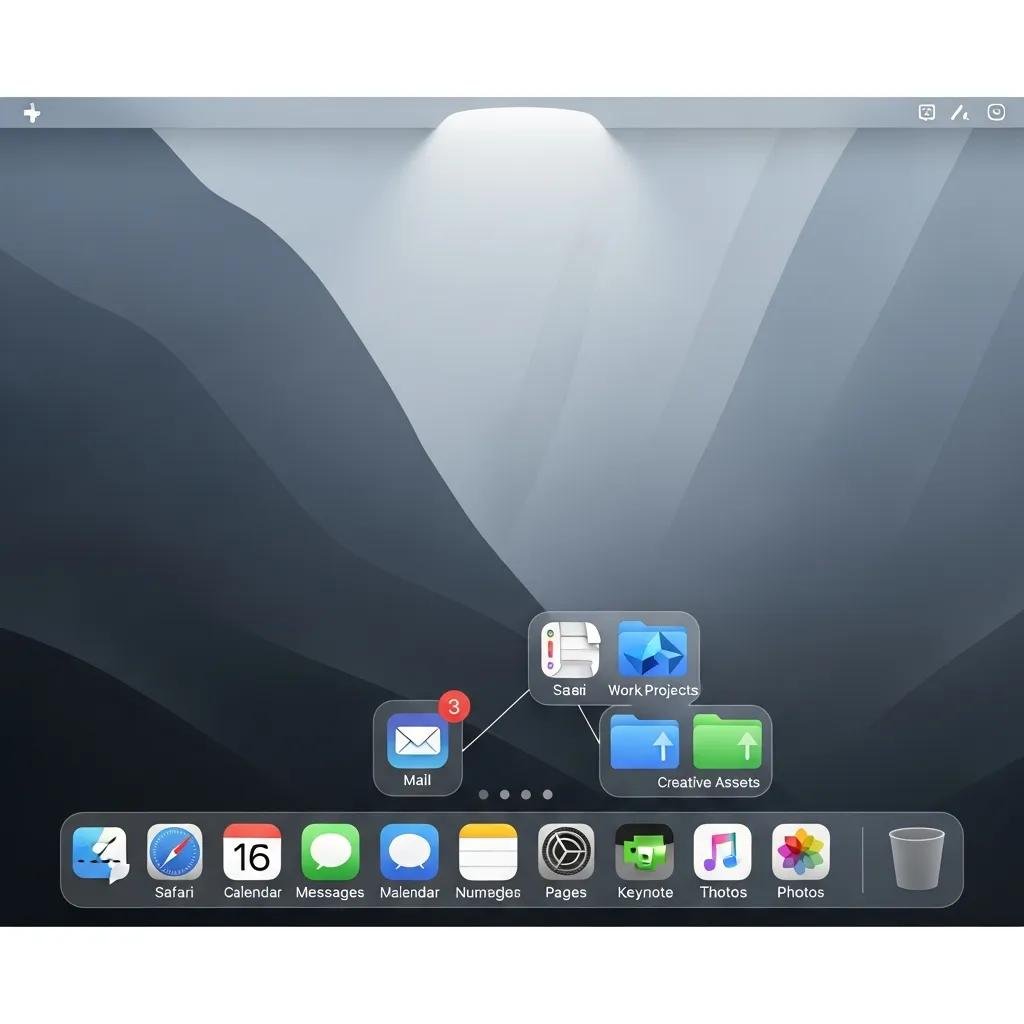
The Dock is macOS’s quick-launch and app-switching surface; tuning its size, position, and magnification reduces distraction and speeds task switching. System Settings (Desktop & Dock) exposes controls for dock size slider, screen position (bottom, left, right), and magnification intensity; changing these three settings tailors the Dock for laptop screens or large external displays.
- Limit visible icons to essential apps only to reduce search time and visual clutter.
- Use folders or stacks in the Dock for grouped workflows (development, creative, communications).
- Enable magnification with a moderate slider setting so icons expand predictably on hover.
These tips reduce cognitive load and help maintain focus during work sessions.
| Setting | Attribute | Recommended Range |
|---|---|---|
| Size | Visual footprint on screen | 36–64 px for laptops; 64–96 px for large monitors |
| Position | Dock placement relative to windows | Bottom for habitual use; left for vertical space |
| Magnification | Hover enlargement strength | Low-to-moderate slider (25–50%) for precision |
This comparison shows that smaller dock sizes suit portable screens, while controlled magnification preserves discoverability without excessive motion.
How Do You Adjust Mac Dock Size, Position, and Magnification?
Adjust Dock controls through System Settings > Desktop & Dock: drag the Size slider to scale icons, choose Left/Bottom/Right for position, and toggle Magnification then set the slider to taste. You can also resize by hovering near the Dock’s divider and dragging, or use Terminal commands for advanced tweaks like hiding delay or icon minimization effects. Recommended defaults for productivity include a modest size (so app icons remain identifiable), bottom placement for most workflows, and low magnification to avoid accidental enlargements. If the Dock disappears or behaves unexpectedly, restart it via Activity Monitor or the Terminal command that restarts the Dock process.
How Can You Organize and Manage Apps on Your Mac Dock?
Organizing the Dock uses drag-and-drop for adding or removing apps, right-click options to keep apps in Dock, and folders for grouping related utilities or project-specific tools. Create stacks or folders that contain project files or frequently used apps so you can access grouped resources from a single Dock icon; position system controls and frequently used communication tools near the left for faster reach. Dock spacers (created via Terminal or third-party utilities) let you visually separate groups and maintain consistent ordering for different workflows like development or design. For users needing deeper customization, third-party utilities can add behaviors or persistent spacers, but weigh these against maintenance and compatibility risks.
How Can You Add and Manage Widgets on Your Mac Desktop?
Widgets surface live information on your desktop or Notification Center, providing at-a-glance data that reduces context switching and supports focused work. macOS widgets vary by size and function, pulling from built-in apps and compatible third-party apps; placing key widgets where they’re visible without obscuring windows helps maintain a productive layout.
- Control-click the desktop and choose Edit Widgets or open Notification Center and click Edit Widgets.
- Browse widgets by app or category, drag a chosen widget onto the desktop or into a widget stack in Notification Center.
- Resize widgets where options are available, configure data sources (calendars, task apps) and test refresh rates.
These steps make widget setup quick while keeping resource use predictable.
| Widget | Primary Function | Productivity / Aesthetic |
|---|---|---|
| Calendar | Shows upcoming events | Productivity |
| Reminders / To-Do | Task quick view | Productivity |
| Weather | Local conditions and forecast | Aesthetic/Productivity |
| Clock / World Clock | Time zones and timers | Productivity |
The table highlights that a compact set of calendar, task, and clock widgets often delivers the most practical gains while weather and aesthetic widgets enhance the visual feel.
What Are the Steps to Add and Customize macOS Widgets?
To add widgets, open Notification Center or Control-click the desktop and pick Edit Widgets, then drag the desired size onto the desktop or into a stack. Many widgets allow configuration of account or data sources — for example link a calendar account or choose which lists a task widget displays — and resizing toggles between small, medium, and large variants to balance information density against screen real estate. You can stack widgets to swipe through related content or pin the most important ones to remain visible, and some iPhone apps offer companion widgets that sync content when both devices share an Apple ID. If a widget’s data seems stale, check underlying app permissions and network connectivity.
Which Widgets Boost Productivity and Aesthetic Appeal on Mac?
Choosing widgets depends on workflow: calendar and to-do widgets reduce task-switching, while clocks and timers support timeboxing and focus sessions. Lightweight widgets that display minimal text — for example a single next-event calendar tile or a concise reminders list — preserve CPU and battery life compared with heavy, frequently updating widgets like full weather animations. Aesthetic considerations include color harmony with your wallpaper and consistent sizing to create a clean visual rhythm across the desktop. Match widget theme and opacity settings, where available, to maintain legibility and avoid overwhelming active windows.
- Calendar and task widgets provide immediate context for daily priorities.
- Clock and timer widgets support focused work and timeboxing.
- Lightweight status widgets (battery, network) give essential telemetry without distraction.
These choices help you create an interface that supports work rather than competing with it.
What Troubleshooting Tips Help Fix Common Mac Desktop Personalization Issues?
Personalization problems often stem from corrupted preference files, third-party conflicts, or macOS bugs; resolving them usually involves resetting preferences, safe-mode testing, or re-adding resources. A short checklist below covers common causes and quick remedies you can try before escalating, and a brief explanation follows on when professional remote support is appropriate for persistent problems. Addressing common issues promptly prevents propagation into longer performance or stability problems.
- Corrupted preferences: delete relevant .plist files or reset Desktop & Dock preferences.
- Third-party conflicts: remove recently installed customization apps and reboot into Safe Mode.
- Display/resolution issues: confirm display scaling and re-assign wallpaper to the correct screen.
These actions resolve most typical issues and minimize data loss risk.
| Issue Area | Symptom | Quick Fix |
|---|---|---|
| Wallpaper not changing | Image stays the same after selection | Re-add image, reset preferences, check file permissions |
| Missing or frozen Dock | Dock hidden, unresponsive | Restart Dock process, reboot, test in Safe Mode |
| Widgets stale or failing | Data not refreshing | Reauthorize app, remove and re-add widget, check network |
This table summarizes common failure modes and first-response fixes that restore normal behavior in most cases.
How to Resolve Mac Wallpaper and Dock Display Problems?
If the wallpaper refuses to update, check that the image file is accessible and not stored on a disconnected external drive; re-import the image into Photos or a local folder, then select it again from System Settings. For Dock problems — such as missing icons or freezing — restarting the Dock process via Activity Monitor or running the Terminal command to kill the Dock will force a reload; also check for corrupted preference files in ~/Library/Preferences that reference dock settings. Multiple-monitor users should verify arrangement and scaling in Displays settings so wallpapers and Dock position behave as expected across screens. When basic steps fail, record exact symptoms and system behavior to speed diagnosis.
What to Do When Widgets Are Not Updating or Causing Performance Issues?
Widgets that stop updating often need a refresh of their underlying account or data source; re-open the host app, sign out and back in if necessary, then remove and re-add the widget to force a sync. If performance degrades after adding several widgets or third-party customization tools, test in Safe Mode to isolate conflicts and uninstall the most recent additions if the problem disappears. For persistent performance problems or when terminal commands and preference resets do not restore normal behavior, mcHelper.com offers remote diagnostics and optimization to identify background processes, conflicting apps, or corrupted settings. If these steps don’t resolve the issue, consider professional help from a reliable remote support service that offers secure troubleshooting and a transparent service model.
For persistent desktop personalization or performance issues that resist standard fixes, mcHelper.com provides remote technical support specializing in Mac and Windows systems. Their service model focuses on fast, secure diagnostics with a “no fix – no fee” guarantee, which is useful when conflicts or corrupted settings require deeper inspection. Use professional support when issues involve repeated crashes, data recovery concerns, or complex system-level conflicts that could risk loss of settings or files.

